Setting up your store
Wix Stores: About Your Storefront
Wix Stores offers a complete solution for building and managing your online store. With customizable templates, intuitive tools, and a seamless checkout process, Wix Stores helps you create a professional and engaging shopping experience for your customers.
On the way to completing a purchase, your customers will encounter several parts of your store, including the cart and checkout pages. Learn more about them below.
Showcase your products effectively
There are various ways to display your products. You might want to showcase all your items on one page using the Category page or a grid gallery. Alternatively, you can display groups of products or a single product in different parts of your site. No matter which option you choose, you can customize it to get the right look for your business.
Category page
The Category Page is your main shop page. From here, customers can select the category they want to browse.
The Category Page is not yet available for all users.
Grid gallery
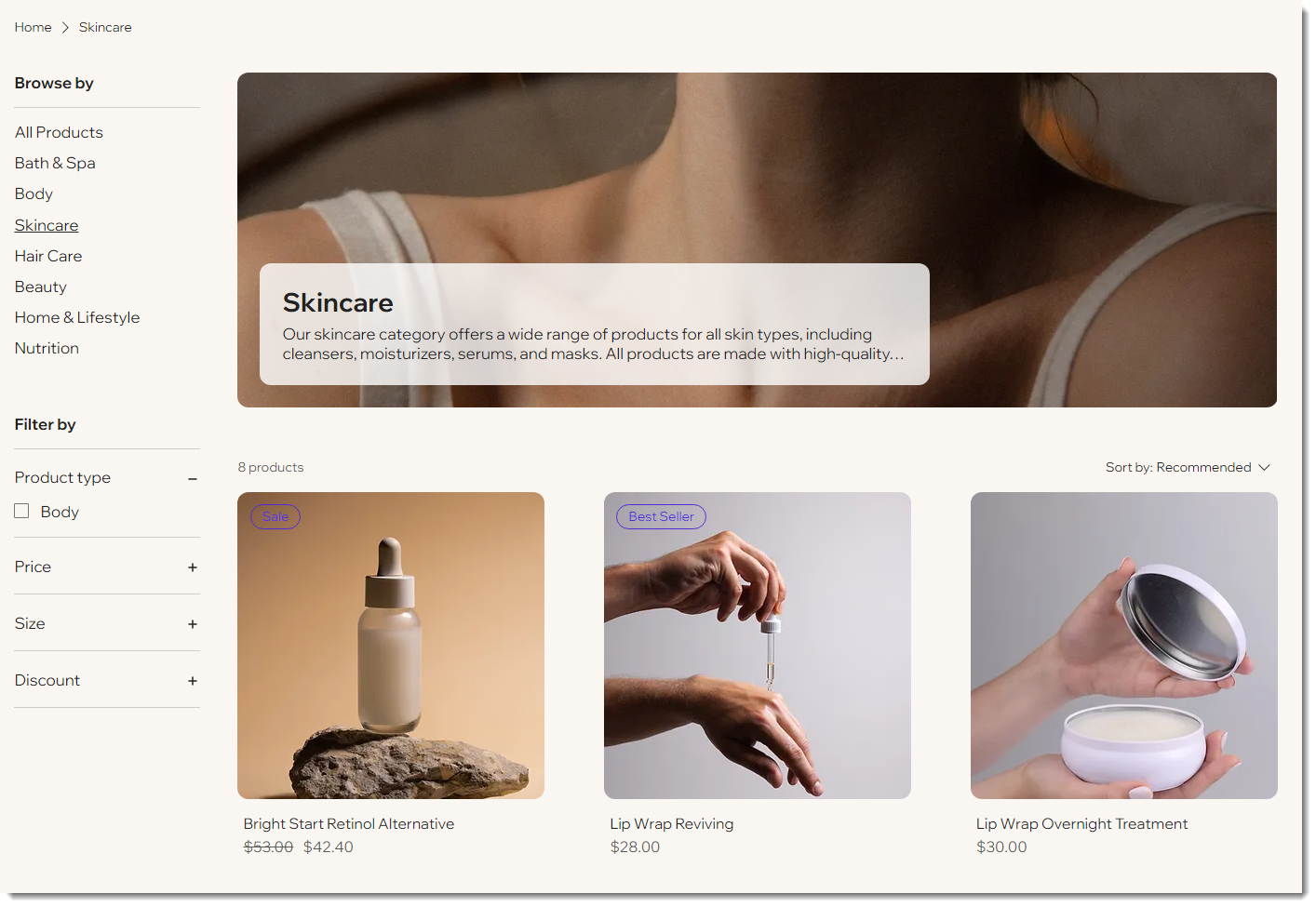
You can display all your products in a grid gallery, or select a category to display. After deciding how many rows and columns your gallery has, you can customize the look.
Slider gallery
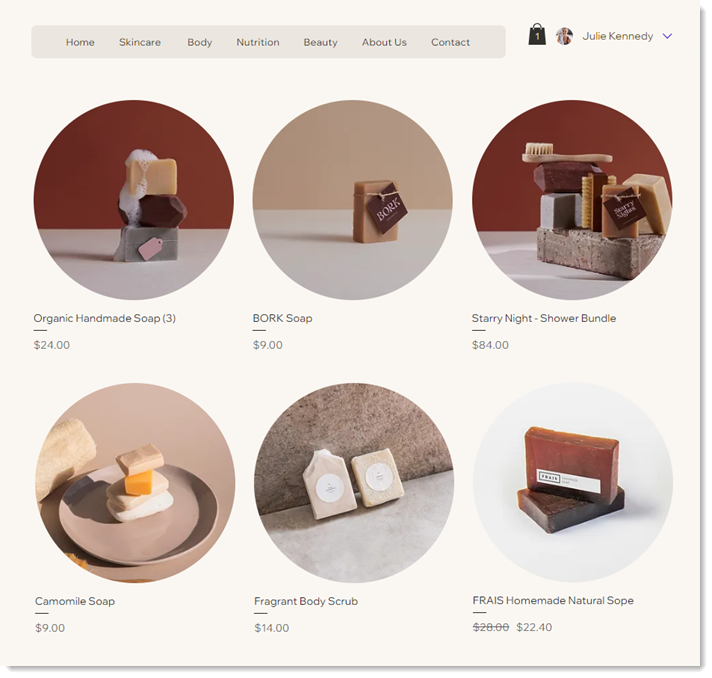
Add a slider gallery to let customers navigate through your products. As with a grid gallery, you can display all your products or a specific category. In addition, slider galleries can be set up to show best-selling items or related products.
Product widget
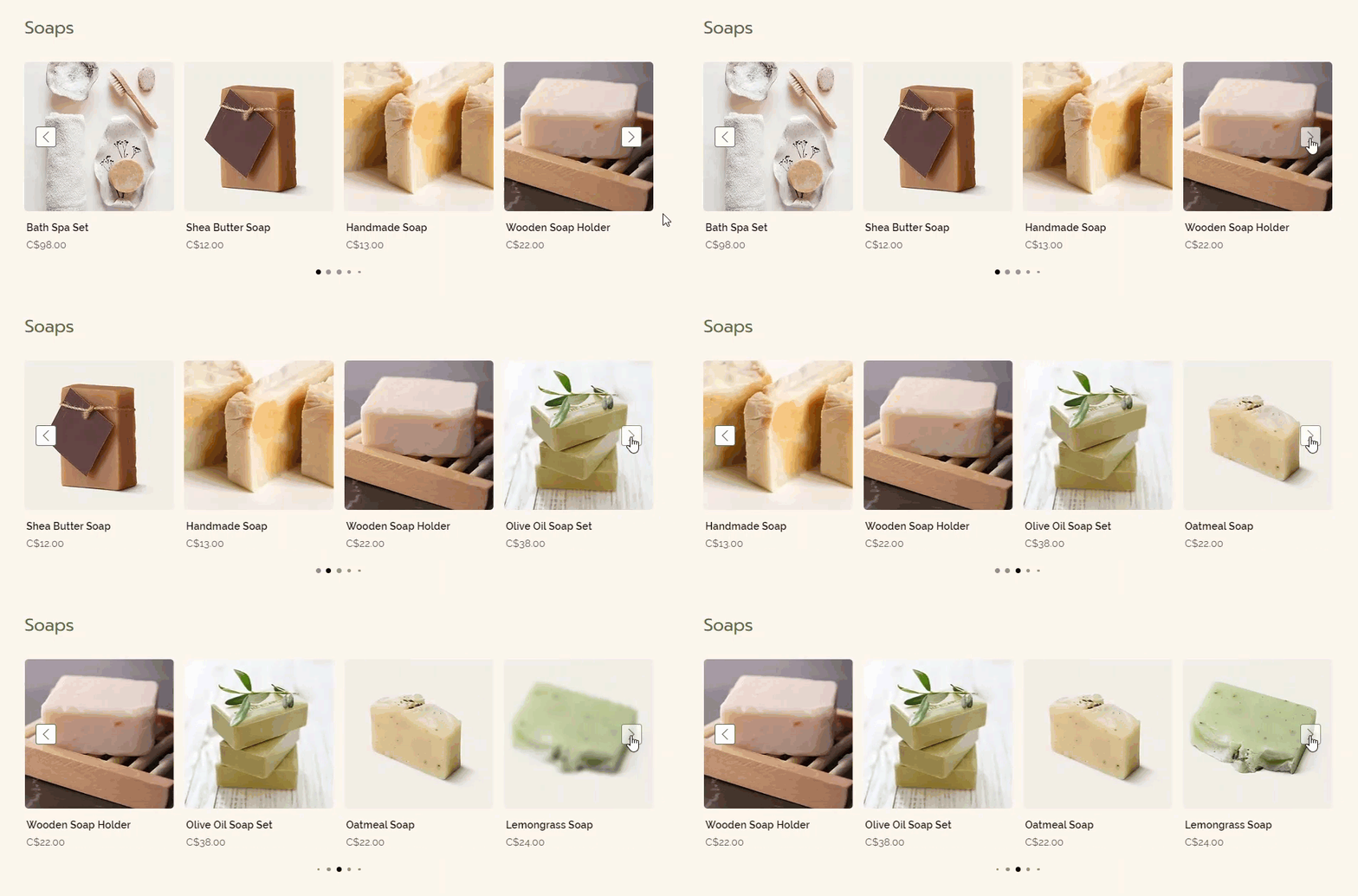
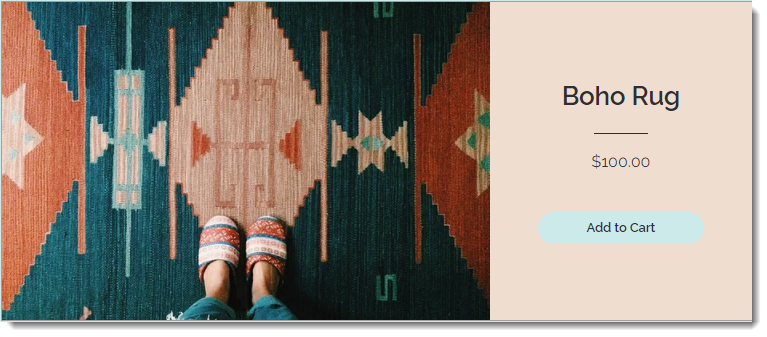
A product widget is an element you add to your store to display one specific product. They're great for highlighting a sale item or showcasing a new arrival on any site page.
Enhance the shopping experience
Optimizing key parts of your store ensures a smooth shopping journey for your customers. Below are the essential components that contribute to an enjoyable and seamless experience.
Product page
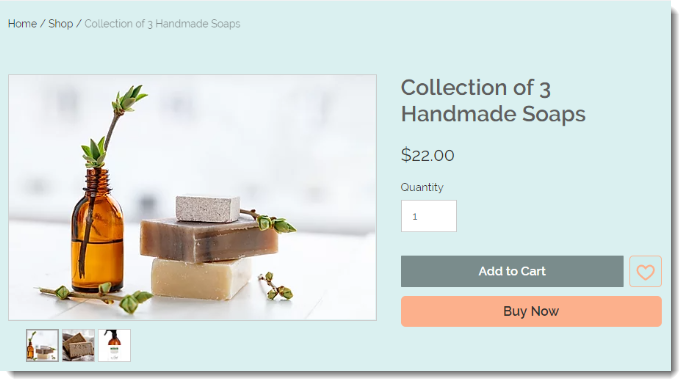
The Product page is where site visitors can view complete information about a product. From here, customers can add a product to the cart.
The Product page is a dynamic page, which means you only have to customize it once. The design stays the same but it displays whatever product the shopper selects.
Cart elements
There are several parts to the cart in your store. Learn more about them below.
Side cart
The side cart lets customers see what’s in their cart while they’re still shopping. When a customer adds an item to the cart, depending on your settings, the Side Cart can appear at the side of the page, displaying information about products that were added to the cart. Learn how to customize the side cart

Cart icon
The cart icon appears in your header so customers can see it no matter where they are in your site. Clicking the cart icon takes shoppers to the side cart or to the Cart page.

Cart page
In the Cart page, customers can review their order, see a preview of shipping and tax costs (if enabled), add a note or coupon code, and proceed to checkout.
To preview this page, go to your live site, add a product to your cart, and then go to your cart.

Checkout page
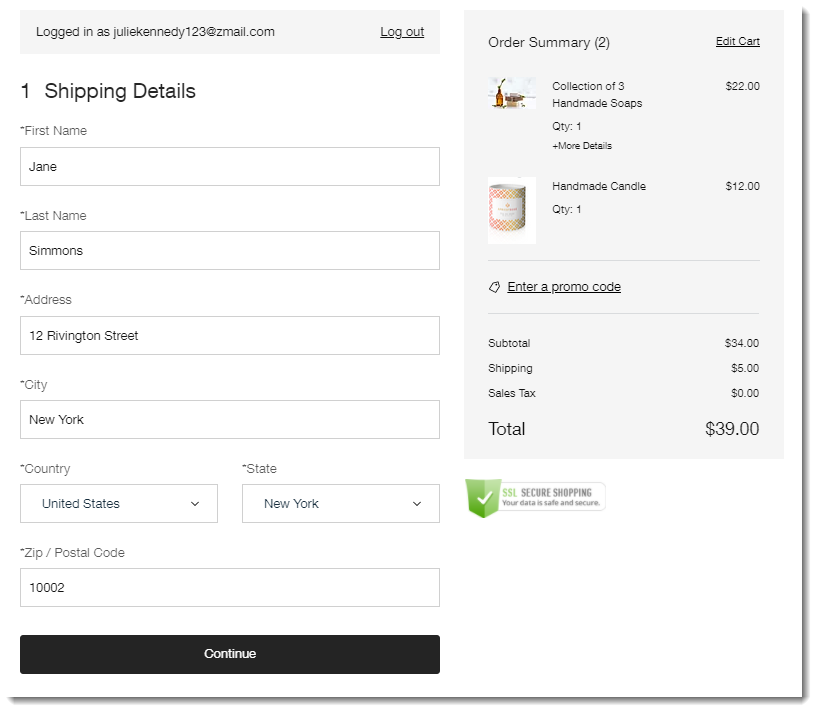
The Checkout page is where customers complete their purchase. They are asked to provide information such as shipping details, billing info, and more.
Thank You page
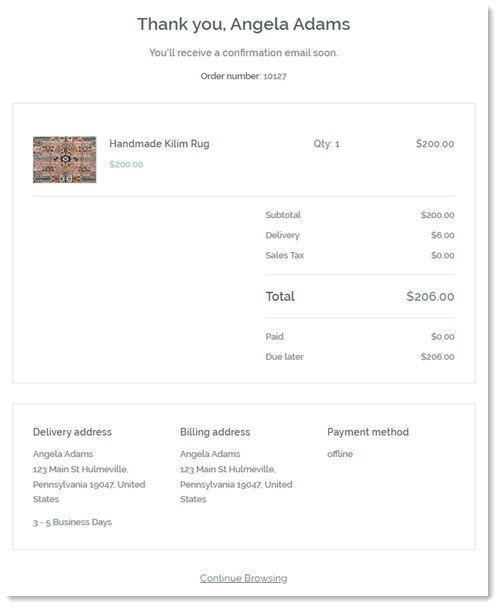
As soon as a customer checks out, they are taken to the Thank You page. There, they can view their order details.