


Setting up Retail POS hardware
Wix Retail POS: Using the BBPOS Chipper 2X Card Reader
Important:
The BBPOS Chipper 2X card reader is no longer available for purchase.
This card reader allows you to accept credit and debit cards as well as phone app payments.
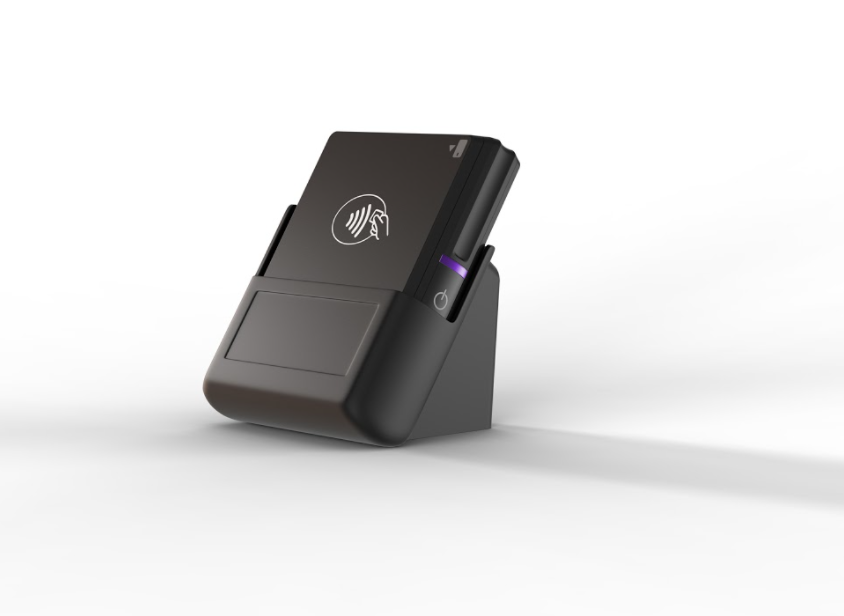
The reader supports magstripe and EMV payment functions and you can use it to accept new forms of payment, such as Apple Pay, Android Pay, Samsung Pay, VISA Paywave, MasterCard PayPass, AMEX ExpressPay and Discover D-PAS.
Turning the card reader on and off
You can turn on the device by tapping and releasing the power button. When you do, the card reader’s Bluetooth turns on automatically.
Notes:
When charging, always plug the reader into a wall outlet, not directly into the tablet.
To function correctly, make sure the card reader is no more than 15 meters (49 feet) away from the tablet.
The reader turns off automatically after 10 hours of inactivity.
The card reader automatically disconnects if the battery goes below a 25% charge.
Connecting or disconnecting the card reader and tablet
Before you can start accepting payment, you need to connect the card reader to your tablet. You may also need to disconnect your card reader from your tablet, for example, if you replace your reader with a new one.
To connect or disconnect the reader:
Open the POS tablet.
Tap the Connect Reader icon
 at the bottom right.

Select what you want to do:
Connect your card reader:Tap Set up Card Reader.
Tap Connect next to the relevant reader.
Tap Done.
Disconnect your card reader:Tap Unpair at the top right.
Tap Unpair to confirm. .
Understanding the card reader lights
The BBPOS Chipper 2X reader has lights to indicates it's status. You can review the table below to help you understand them.
Light
Status
No light
The reader is off.
Flashing blue every second
The reader is on and ready to connect to a device.
Note: It turns off automatically after 5 minutes if not connected.
Multicolored flashing
The reader has been discovered using Bluetooth Proximity and is ready to connect.
Steady blue
The reader is connected to a device.
Flashing blue every 5 seconds
The reader is in standby mode.
Note: It can remain in standby indefinitely.
Alternating red and magenta
The reader is charging.
Flashing red
The reader’s battery is low.
Rapidly flashing blue and orange
The reader has finished installing a software update. After the update is finished, you can restart the reader by turning it off and on If the reader is unresponsive.
Updating the card reader software
Check for updates to the card reader software from time to time and update the software when available.
To update the card reader software:
Open the POS tablet.
Tap the Connect Reader icon
at the bottom right.
Tap Check for Update.
If an update is available, tap Update Now and follow the instructions.
Note: After the update has been completed, it will flash blue and orange. If the reader is unresponsive, restart it.