top of page

Table reservations

Wix Restaurants: Setting Up Prepayment for Table Reservations

Set up prepayment rules for reservations for larger groups or individual guests. Accept credit card payments when guests book online. With automatic approval, customers are charged immediately.

With manual approval, customers aren’t charged right away. After approval, charge them by sharing a payment link, sending an invoice, or handling the payment directly. Plus, you can access detailed analytics for all your table reservation payments.
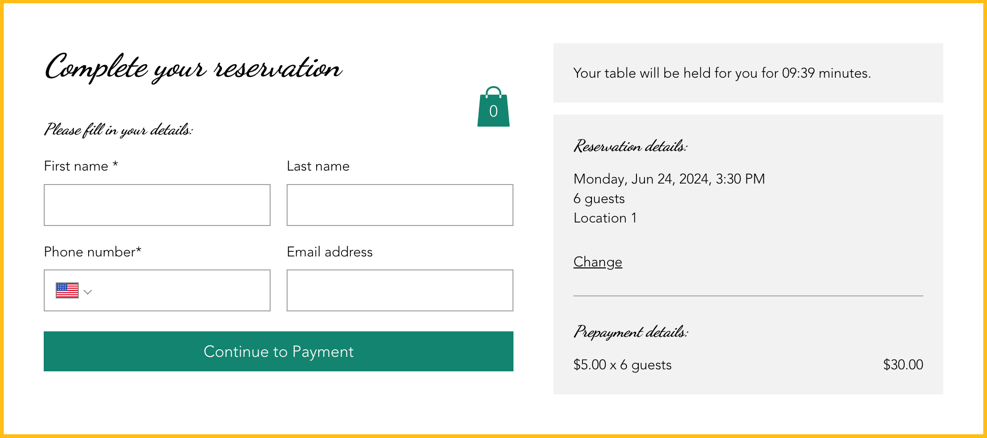
A screenshot of how prepayment appears when a customer reserves a table.

Adding a payment rule

Reduce last minute cancellations by collecting payment upfront. This helps reduce no shows and minimize last minute cancellations.

You can do this from your site's dashboard or straight from the Wix app on your mobile device.

To add a payment rule:

Dashboard

Wix app

  1. Go to Table Reservations in your site's dashboard.

  2. Click Settings at the top right.

  3. Click Prepayment.

  4. Click + Add Prepayment and define your prepayment rules:Party Size: Enter the minimum number of guests the fee applies to.
    Charge Fee: Enter the fee to charge each guest for this reservation.

  5. Click Save.

A screenshot of defining your prepayment rules for table reservations.

FAQs

Click a question below to learn more.

Can I customize the table reservation form?

Customize your table reservation form to include information about your table reservation fees for your guests.

How do I change the currency on my site?

To change the currency on your site, go to language & region in your site's dashboard.

How do I set up tax?

To set up tax for your site, go to tax in your site's dashboard.

Need A Professional Website?
Contact Us 
Today!

Google Workspace: Purchasing and Setting up a Business Email

Resolving Email Issues

Changing the Priority of Your MX Records

Connecting Email Purchased Outside of Wix

Google Workspace: Adding a DKIM Record to your Business Email

Google Workspace: Adding an SPF Record to your Business Email

Adding a DKIM (TXT) Record

Adding or Updating SPF Records in Your Wix Account

Business Email: General Troubleshooting

Connecting Email Accounts from Different Email Providers for the Same Domain

Increasing Email Deliverability of Emails Sent from Your Business Email

Top Reasons for Using a Personalized Business Email

Business Email: An Overview

Wix Pay Links: Creating and Managing Pay Links in the Wix App

Wix Pay Links: Creating and Managing Pay Links

Wix Proposals: Managing Your Proposals on the Wix App

Wix Proposals by Prospero: Saving and Managing Proposal Templates

Wix Proposals by Prospero: Adding and Setting up Proposals

Wix Price Quotes: Managing Your Price Quotes in the Wix App

Wix Invoices & Price Quotes: Adding Default Notes

Wix Invoices & Price Quotes: Managing Your Settings

Wix Invoices & Price Quotes: Searching, Filtering, and Sorting

Wix Invoices & Price Quotes: Changing Your Initial Document Number

Wix Invoices & Price Quotes: Adding Tax Types

Wix Invoices & Price Quotes: Adding Your Items and Services

Wix Invoices & Price Quotes: Changing Your Currency and Payment Terms

Wix Invoices & Price Quotes: Adding Your Business Info

Wix Invoices: Managing Your Invoices

Wix Invoices: Creating and Managing Recurring Invoices

Wix Invoices: Creating and Managing Recurring Invoices

wix experts
Graphic2Traffic web design
©
bottom of page