


Taking online orders
Wix Restaurants: Setting Up Additional Restaurant Locations
Important:
This article is about the original Restaurants Orders app.
We've released a new online ordering app. Learn how to add and set up the new Wix Restaurants Orders (New) app.
Manage your restaurant services at multiple locations with a single Wix Restaurants site. You can copy your menus to different locations or create separate menus for each branch. You can also set your online ordering, reservations, and phone ordering options for each location.
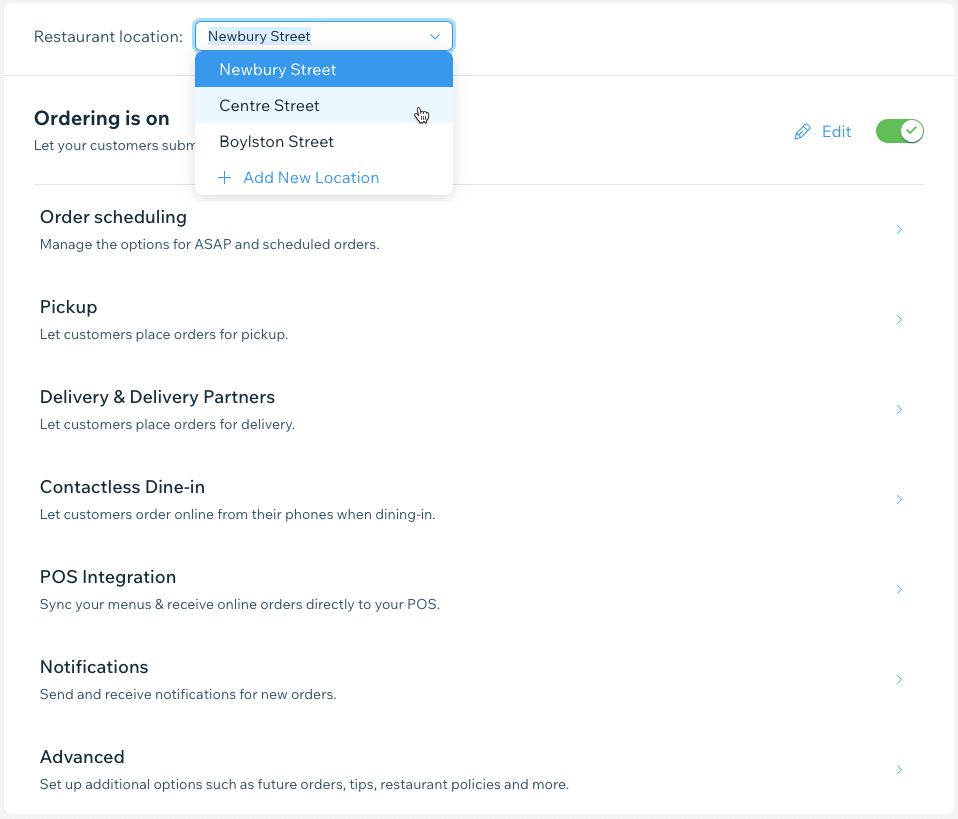
Step 1 | Add a new restaurant location
Start by adding new restaurant location(s) to the Location & Contact Info section of your site.
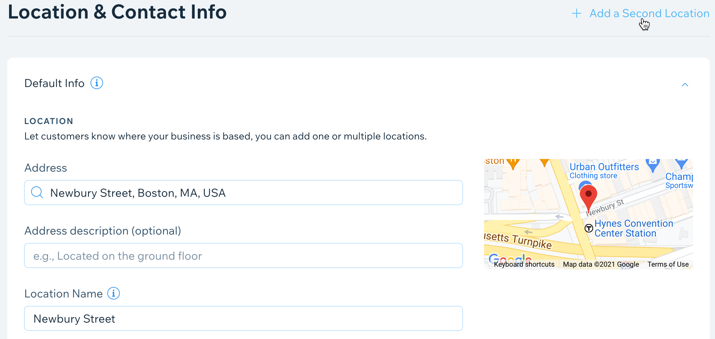
To add a restaurant location:
Go to Business Info in your site's dashboard.
Click + Add a Second Location next to Location & Contact Info.
Enter your restaurant's address:Address: Start typing your restaurant's street address and select it from the drop-down list.
Address description (optional): Enter an address description to help customers find you (e.g. rear entrance).
Location Name: Enter a name for this restaurant location.
Enter your restaurant's contact details:Email: Enter your restaurant's email address.
Phone: Enter your phone number.
Fax: Add your fax number.
(Optional) Click Edit by Business Hours to edit the opening hours for this location.
Click Save.
Important:
Once you've entered your restaurant's address, make sure that the red pin is displayed on the map.
If you delete a location later on, any menus and orders associated with it will also be deleted.
Want to add additional locations?
Click + Add New Location to add additional restaurant locations and repeat steps 3-6.
Step 2 | Add menus to your new restaurant location
From Menus, you can create a new menu for your new location or copy an existing menu.
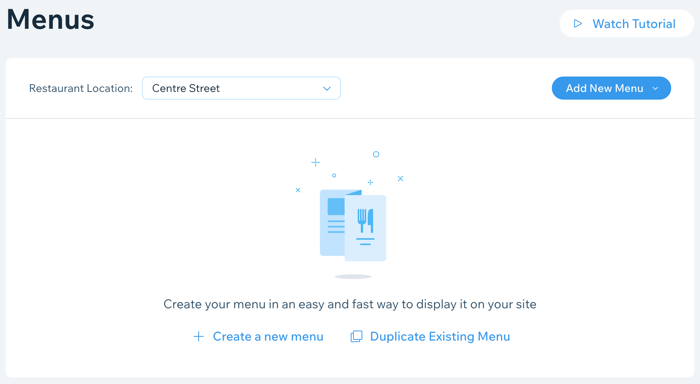
To add menus to a restaurant location:
Go to Menus in your site's dashboard.
Click the Restaurant Location drop-down and select the relevant location.
Click + Create a new menu to create a new menu for this location, or Duplicate Existing Menu to copy existing menus.
Create a new menu for this location
Each menu is made up of sections and dishes. Before adding all your dishes, it's a good idea to decide which sections you need. For example, most restaurants have a Starters, Main Course and Dessert section. The default menu comes with 2 default sections.
To create a new menu for this location:
Click + Create a new menu.
Add general info for this menu:Name: Enter a name for this location's menu.
Description: Enter a description for this location's menu.
Visibility: Check the Show to customers checkbox to show this menu.
Create your menu sections.
Note: To create a menu without sections, create a menu without entering a description, create only one section and give it a name that can serve as a description, and add all your dishes to the one section.Add dishes to the menu section(s).
Tip: Learn all about creating and setting up your menu in this overview video.
Duplicate existing menus to this location
To copy existing menus from other branches to this location:
Click Duplicate Existing Menu.
Select the checkboxes beside the menus you'd like to copy.
Click Duplicate.

What's next?
Customize the design of your menu and decide what info you want to show. Learn more
Step 3 | Enable online ordering
From Order Settings, you can enable your restaurant's online ordering system to receive online orders from customers at this location. You can customize pickup, delivery, future orders and more for each location.
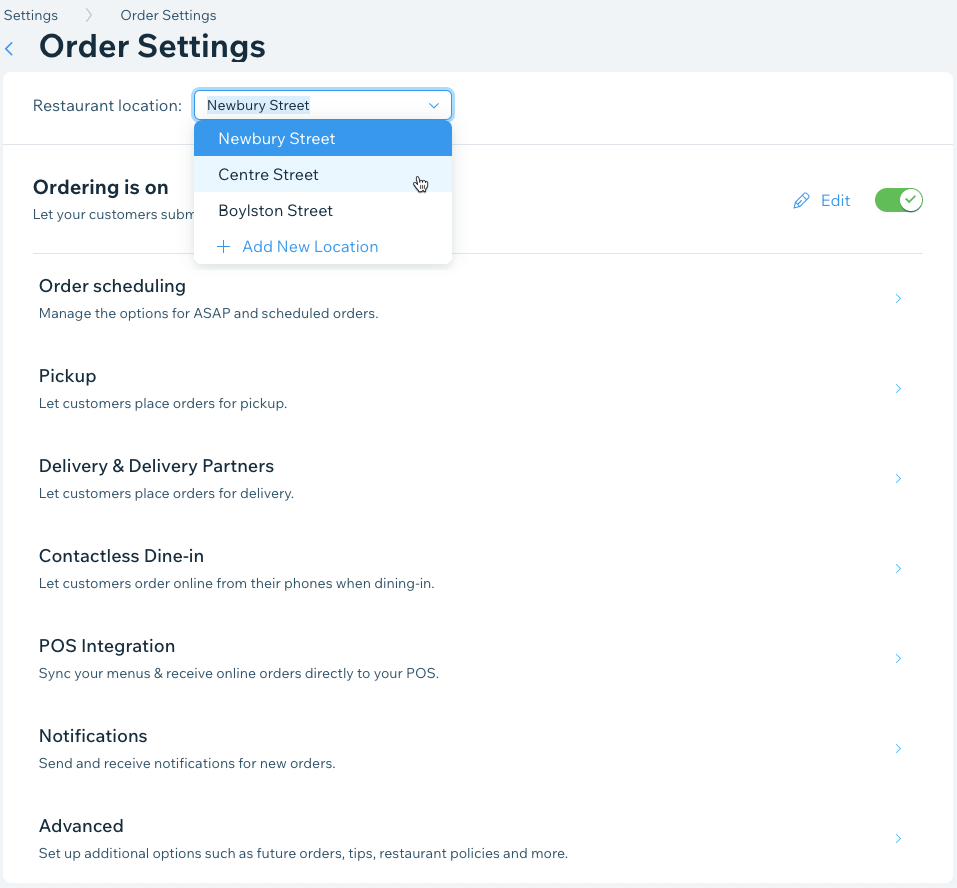
To enable online ordering:
Go to Order Settings in your site's dashboard.
Click the Restaurant location drop-down and select the relevant location.
Click the Ordering is on/off toggle to enable online ordering.
What's next?
Set up additional options for this branch, including pickup, delivery, contactless dine-in and more. You can also create different discounts for different locations.
Step 4 | Enable and manage all your reservations
To accept table reservations at a new restaurant location, you have to enable it first and then customize the reservation options for each location. Set a minimum and maximum party size, availability hours, and choose from more advanced options like instantly printing incoming reservations and sending an SMS verification to customers.
Note:
As of October 2022, we have a new app for table reservations.
To enable reservations:
Go to Table Reservations in your site's dashboard.
Click the Restaurant Location drop-down and select the relevant location.
Click Settings at the top right.
Click the Online reservations are toggle to enable or disable online reservations for this location:Online reservations are on: Customers can book a table on your site.
Online reservations are off: The reservations app appears on your site but customers won't be able to book a table.
What's next?
Customize additional reservation options for this branch, including party sizes, availability, and more.
FAQs
Click a question below to learn more about setting up multiple restaurant locations.
I already have multiple restaurant sites. Can I still set up a single Wix Restaurant site with multiple locations?
Yes, you can. First, choose the site that you'd like to keep. When deciding, take into consideration your sites' performances, design, traffic and sales, etc.
Once you've decided on the site you'd like to keep, follow the steps in this article to set up additional restaurant locations in a single site.
Next, we recommend telling your customers to visit you on your new site. You can also add a note with a link on your different homepages directing customers to your new site.
Important: Your payments will be based on the payment settings you define in your single site.
Will everything work the same way on my new single site?
Yes, everything will work the same way on your single site. Your analytics will display data for all locations together and you can add a breakdown or filter per location.
How can I add my contacts from my other Wix sites?
You'll first need to export your contacts from your Wix sites, and then import your contacts to your single Wix Restaurant site.
What happens if I delete a location?
If you delete a restaurant location, it will not longer be available to you or your customers. Any menus and order info associated with this location will be deleted as well. This action cannot be undone.