


Taking online orders
Wix Restaurants: Offering Pickup for Orders
Important:
This article is about the original Restaurants Orders app.
We've released a new online ordering app. Learn how to add and set up the new Wix Restaurants Orders (New) app.
Offer your customers the choice of picking up their orders from your restaurant, or having their order brought to them right outside your restaurant (e.g. to your restaurant's parking lot).
To offer pickup for restaurant orders:
Go to Order Settings in your site's dashboard.
Click the Pickup tab.
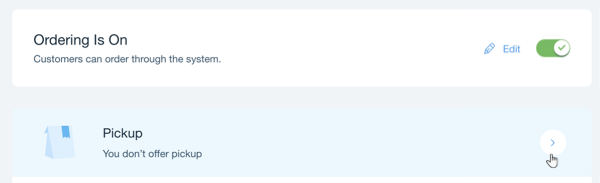
Click the Pickup toggle to enable it.
Set the pickup details:Time until orders are ready: Enter the time it takes for orders to be ready for pickup after customers have placed their orders. This is shown to customers at checkout.
Minimum Order Price: Enter a minimum amount for pickup orders. Your customers are alerted if they don't reach the minimum amount.
Note: If you don't want to set a minimum amount, just set it to $0.
(Optional) Click Edit to change your opening hours.Opening Hours: Pickup is available during your restaurant's opening hours.
Custom Hours: Set specific days and hours where pickup is available.
Note: Click the box with the + icon to set multiple custom hour settings (i.e. you could set one for Mon - Thurs from 9AM-5PM and another for Fri - Sat from 9AM-11PM).
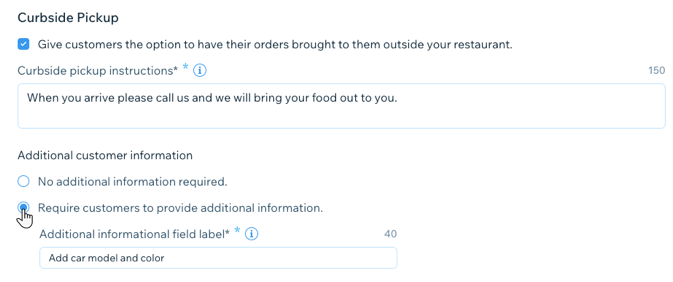
Select the checkbox under Curbside Pickup to give customers the option of having their food brought to them outside your restaurant (e.g. your restaurant's parking lot).Curbside pickup instructions: Enter the curbside pickup instructions that are displayed for your customers when placing their order.
Additional customer information: Choose if you want to require additional information from the customer.Enter the field label for the additional information.
Click Save.