


Table reservations
Wix Restaurants: Managing Your Notifications for Table Reservations
With Wix Table Reservations, managing notifications helps maintain seamless communication with your staff about guest activities, like new reservations, requests, or cancellations. Stay updated via email, dashboard alerts, or push notifications in the Wix app.
Use pre-set notifications to keep your team informed about reservation details, and customize them by editing or duplicating notifications to suit your restaurant’s unique needs.
In this article, learn more about:
Notification preferences
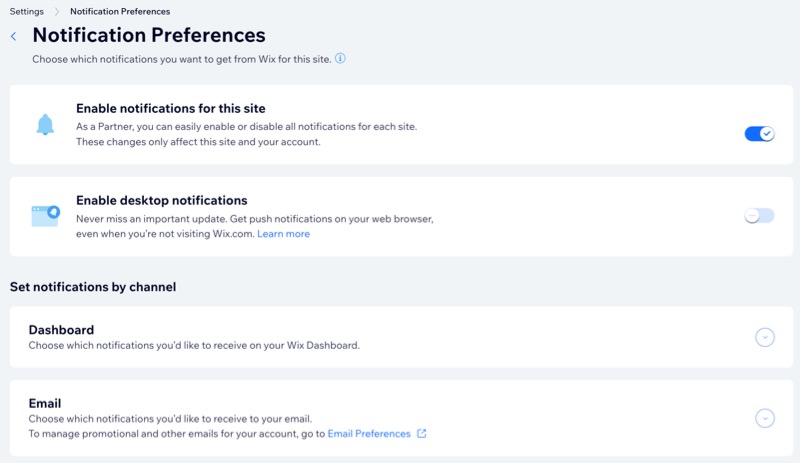
Manage all your site notifications in one place, customizing which updates you receive and how. Get updates on key actions, such as table reservations being created, requested, or canceled, by setting your preferred notification channels (desktop, dashboard, or email).
Notes:
All notifications are turned on automatically, but you can toggle off the ones you don't need.
Notification preferences affect only your site and account, not site collaborators.
To set up your notification preferences:
Dashboard
Wix app
Go to Table Reservations in your site's dashboard.
Click Settings at the top right.
Click Notifications.
Click Manage Notifications next to Email & Dashboard.
(If disabled) Click the Enable notifications for this site toggle to receive notifications for your site.
Set your notifications by channel:Desktop: Click the Enable desktop notifications toggle to enable or disable push notifications on your browser.
Dashboard: Click Dashboard and enable the notifications you want to receive in your Wix dashboard.
Email: Click Email and enable the notifications you want to receive to your email.
Managing outgoing notifications
Stay on top of reservation details with Wix Table Reservations' ready-made notifications. Customize them by editing, duplicating, or managing to match your preferences.
Get notified with pre-installed notifications for you and your site collaborators
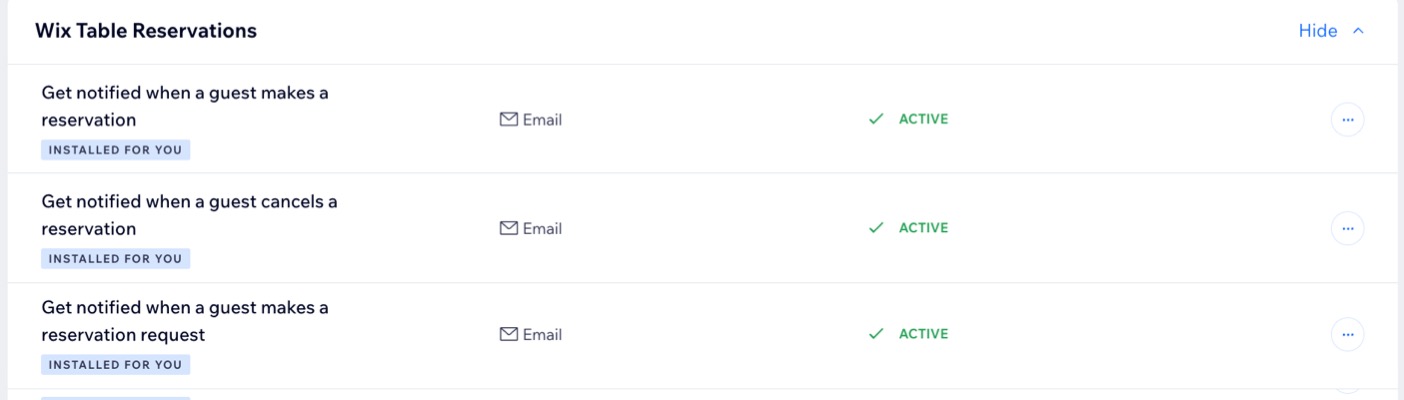
When a guest makes a reservation: Receive an email notification whenever a new reservation is created.
When a guest cancels a reservation: Get an email alert when a guest cancels their reservation.
When a guest makes a reservation request: Stay updated with an email notification when a guest submits a reservation request
Important: To notify a staff member, first assign them a site collaborator role in your dashboard. Then, include their role when adding recipients in the relevant automation email.
Tip:
The notifications you receive are managed using Wix Automations.
To manage outgoing notifications:
Go to Table Reservations in your site's dashboard.
Click Settings at the top right.
Click Notifications.
Click Manage Notifications next to Email & SMS.
Choose how to manage your notifications under Wix Table Reservations:
Edit
Click the More Actions icon
 next to the relevant notification.
Click Edit.
Update the necessary details.
Click Apply Changes.
Duplicate
Click the More Actions icon
next to the relevant notification.Click Duplicate.
Edit the relevant details and update your duplicated automation's name, or it will remain 'Copy of...'.
Click Activate.
FAQs
Click a question below to learn more about managing notifications for Wix Table Reservations.
Where are email notifications for table reservations sent?
Email notifications for table reservations are sent to the email address associated with your Wix account, not the business email set in your business information.
Can others receive email notifications for table reservations?
Yes. You can invite others to manage your restaurant so they also receive notifications. Additionally, you can set up an automation to send table reservation notifications to specific email addresses.
What do I need to do before adding recipients to an automation email?
Make sure to assign your site collaborators a role (e.g., kitchen staff) in your site's dashboard. Once assigned, you can include their role as recipients when setting up the relevant automation email.
Can I customize the email notifications I send out?
Yes. You can customize the email notifications sent from your site.