Table reservations
Wix Restaurants: Managing Table Reservations and Walk-ins
The Wix Table Reservations app allows guests to book tables online based on your restaurant's availability. You can manually add and update reservations for walk-in guests or phone-in requests using your site’s dashboard or the Wix app to keep your availability up to date.
In this article, learn more about:
Manually adding a table reservation or walk-in
You can manually add table reservations for guests who don’t book online, such as those who call your restaurant to book a table. Enter their details directly from your site’s dashboard or the Wix app on your mobile device.
You can also accommodate walk-in guests without prior reservations. There's no need to specify the date and time; simply enter the guest's details or skip that section if you prefer.
Have prepayment rules set up?
When creating a reservation that meets your prepayment rules, you'll be prompted to collect payment immediately or delay it.
To add a new reservation / walk-in:
Dashboard
Wix app
Go to Table Reservations in your site's dashboard.
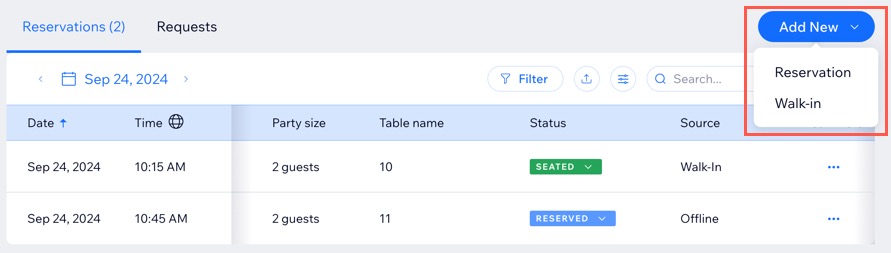
Click the Add New drop-down at the top right.
Choose the type of reservation you'd like to add:
Reservation

Walk-in

Tip:
You can also use your floor plan to add a reservation / walk-in to a table from your site's dashboard or the Wix app.
Managing your table reservations or walk-in
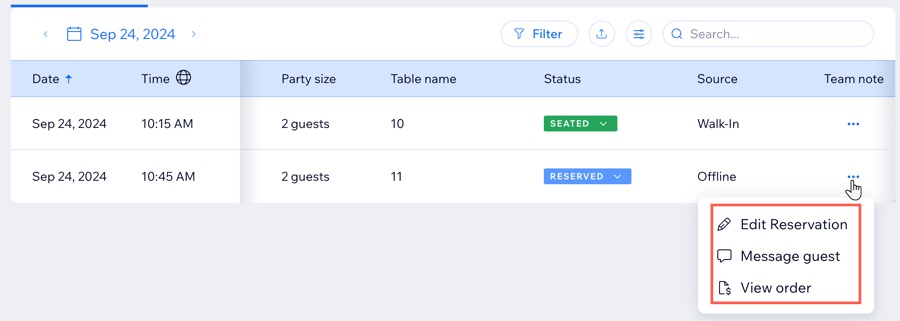
Managing a reservation from your site's dashboard includes editing an existing booking, viewing an order to check details, or messaging the guest to communicate any updates or requests.
From the Wix app, you can contact the customer, edit or cancel the reservation if needed.
To manage your reservation / walk-in:
Dashboard
Wix app
Go to Table Reservations in your site's dashboard.
Click the More Actions icon
 next to the relevant reservation.
Choose what you want to do:Edit reservation: Modify or update an existing reservation.
Message guest: Send a message directly to the guest for reservation-related communication.
View order: Review the details of a placed order.
Make the necessary changes then click Save Changes.