Taking online orders
Wix Restaurants: Designing Your Orders App
Important:
This article is about the original Restaurants Orders app.
We've released a new online ordering app. Learn how to add and set up the new Wix Restaurants Orders (New) app.
Personalize the online ordering experience to match your restaurant's brand by choosing the font and colors. You can also customize the design of your dish labels and special dishes.
In this article, learn how to:
Changing the fonts of your Orders app
Choose a font that best represents your restaurant. You can choose different fonts for the titles and the main text on the online ordering app.
To change the fonts:
Go to the page that includes the Order Online app in your Editor.
Click the Order Online app in the Editor.
Click Settings.
Click the Design tab.
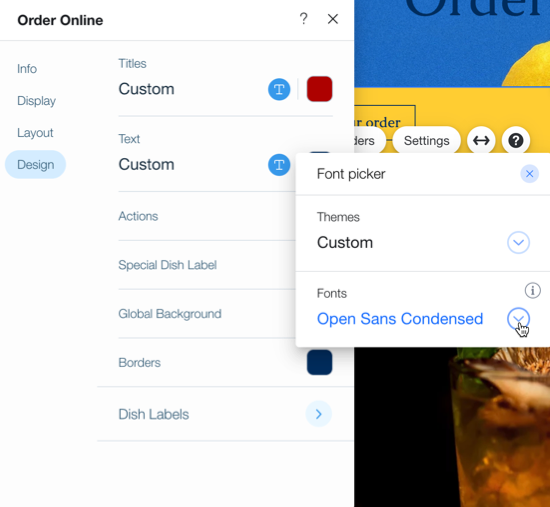
Click the dropdown icon
 under Titles or Text to open the font picker.
Select the desired font.
Tip:
Keep your site to 2 or 3 fonts to make it look clean and professional. Having less fonts also improves your site loading time.
Changing the colors of your Orders app
Change the colors of your Wix Restaurant Orders app to match your business.
Note:
Some aspects of the online ordering checkout flow, such as collecting payment information, pull colors from your site colors rather than the online ordering settings. To update your site colors, click here.
To change the online ordering colors:
Go to the page that includes the Order Online app.
Click the Order Online app in the Editor.
Click Settings.
Click the Design tab.
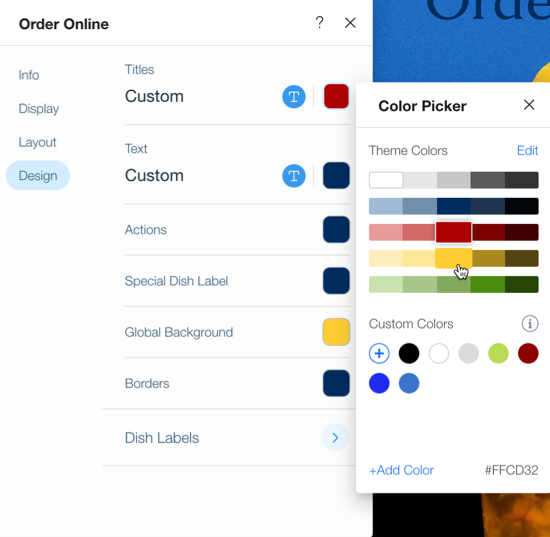
Select the color you want to change:Titles: Edit the color of your menu's titles.
Text: Edit the color of your menu's text.
Actions: Edit the color of the prices, order button and accent colors and selected menu tab.
Special Dish Label: Edit the color of your Special Dish label.
Global Background: Edit the color of your menu background.
Borders: Edit the color of the borders of your online menu.
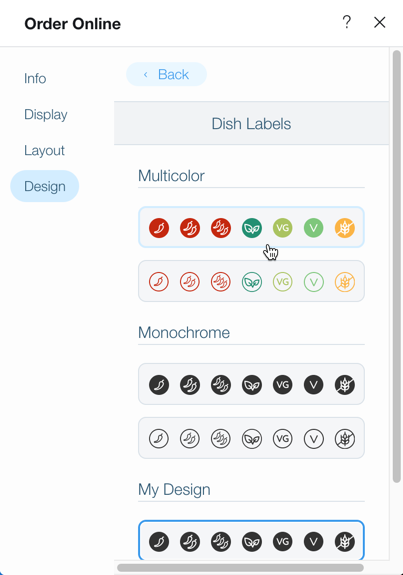
Click Dish Labels to select a theme for your menu's labels. Choose from a preset color scheme, or click Customize Design at the bottom to pick your own colors.