top of page

Table reservations

Wix Restaurants: Customizing Your Table Reservations Form

Customize your table reservations form to gather the exact information you need from your guests. Add custom fields to collect details like dining preferences and allergens.

You can also include restaurant policies and request an email or last name to finalize the booking. For keeping guests informed, add an opt-in checkbox for email marketing.
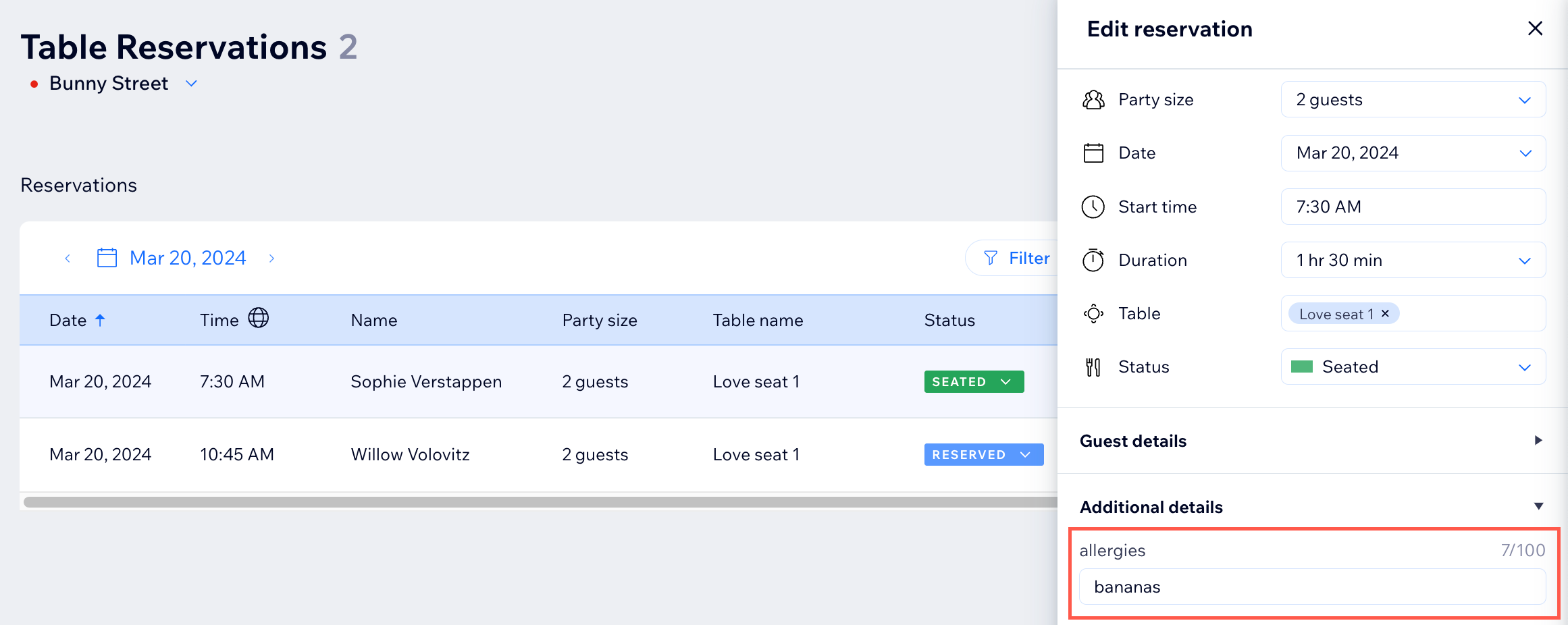
A. screenshot of the wix dashboard table reservations tab

To customize your reservation form:

Dashboard

Wix app

  1. Go to Table Reservations in your site's dashboard.

  2. Click Settings at the top right.

  3. Click Reservation form.

  4. Enable the toggle next to each option you'd like to add to your reservation form:Require email address: Require guests to enter their email to complete their table reservations.
    Require last name: Require guests to enter their last name to complete their table reservations.

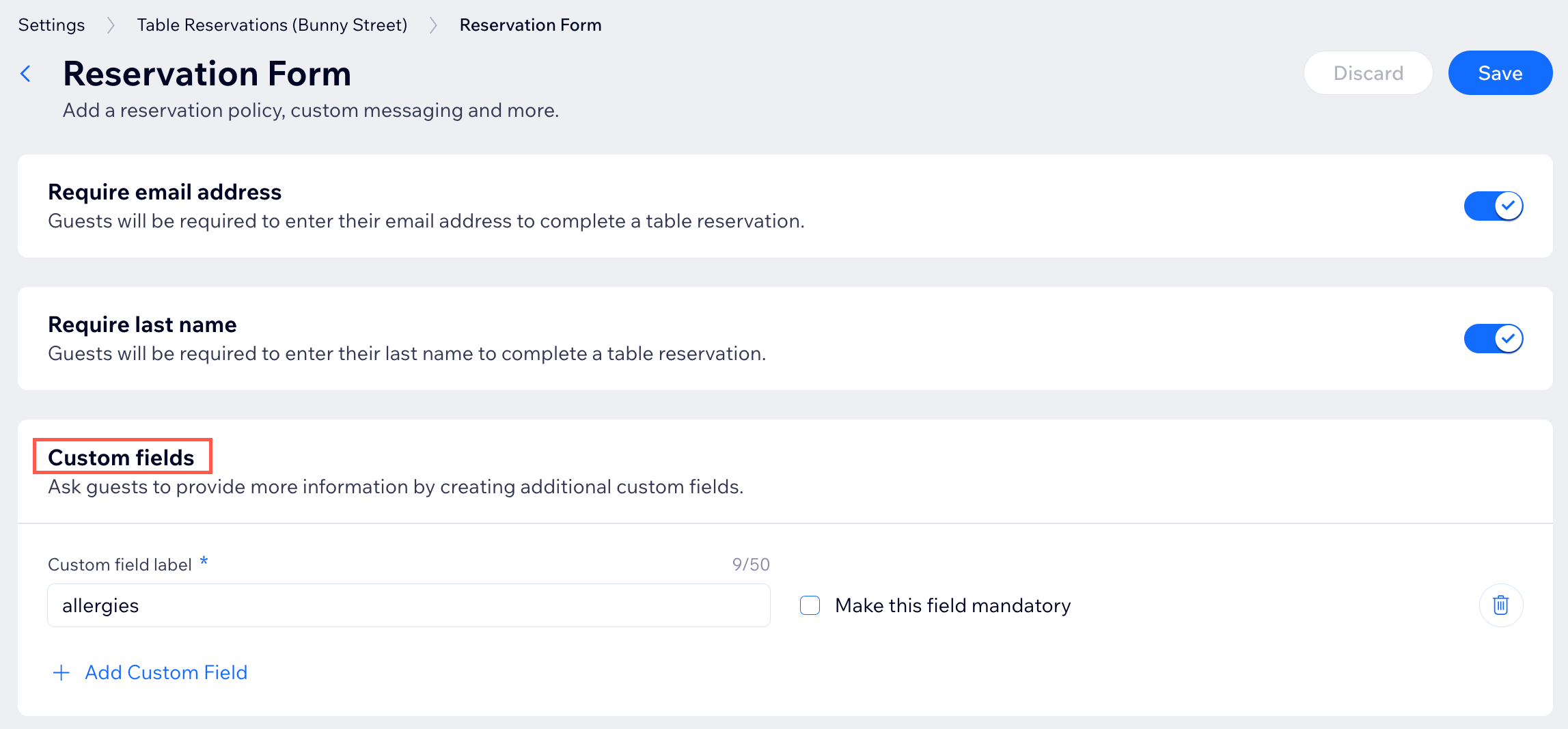
    Custom fields: Have guests provide more information to their reservations. For example, if you need to know of any allergies or seat preferences.Enter a label for the field in the reservation form under Custom field label.
    Select the Make this field mandatory checkbox to require guests to provide this information to complete their reservations.
    (Optional) Click Add Custom Field to add another field to the reservation form.
    Custom message: Add a message and include additional information for guests reserving a table.
    Email marketing checkbox: Add this checkbox to your site so guests can sign up to get updates on your restaurant. Select the Checked by default checkbox if you want the checkbox to be selected by default for guests.

    Policies: Select the checkboxes by the policies you want to add to your form: Terms & Conditions and Privacy Policy.Link to URL: Add a hyperlink that leads to the relevant policy page.
    Paste as text: The policies are displayed in a pop-up while the guests is ordering or making a reservation.

  5. Click Save.

A screenshot of the custom fields tab in the wix dashboard

Need A Professional Website?
Contact Us 
Today!

Google Workspace: Purchasing and Setting up a Business Email

Resolving Email Issues

Changing the Priority of Your MX Records

Connecting Email Purchased Outside of Wix

Google Workspace: Adding a DKIM Record to your Business Email

Google Workspace: Adding an SPF Record to your Business Email

Adding a DKIM (TXT) Record

Adding or Updating SPF Records in Your Wix Account

Business Email: General Troubleshooting

Connecting Email Accounts from Different Email Providers for the Same Domain

Increasing Email Deliverability of Emails Sent from Your Business Email

Top Reasons for Using a Personalized Business Email

Business Email: An Overview

Wix Pay Links: Creating and Managing Pay Links in the Wix App

Wix Pay Links: Creating and Managing Pay Links

Wix Proposals: Managing Your Proposals on the Wix App

Wix Proposals by Prospero: Saving and Managing Proposal Templates

Wix Proposals by Prospero: Adding and Setting up Proposals

Wix Price Quotes: Managing Your Price Quotes in the Wix App

Wix Invoices & Price Quotes: Adding Default Notes

Wix Invoices & Price Quotes: Managing Your Settings

Wix Invoices & Price Quotes: Searching, Filtering, and Sorting

Wix Invoices & Price Quotes: Changing Your Initial Document Number

Wix Invoices & Price Quotes: Adding Tax Types

Wix Invoices & Price Quotes: Adding Your Items and Services

Wix Invoices & Price Quotes: Changing Your Currency and Payment Terms

Wix Invoices & Price Quotes: Adding Your Business Info

Wix Invoices: Managing Your Invoices

Wix Invoices: Creating and Managing Recurring Invoices

Wix Invoices: Creating and Managing Recurring Invoices

wix experts
Graphic2Traffic web design
©
bottom of page