


Taking online orders
Wix Restaurants: Changing the Pickup Hours for Orders
Important:
This article is about the original Restaurants Orders app.
We've released a new online ordering app. Learn how to add and set up the new Wix Restaurants Orders (New) app.
Set what times are convenient for customers to pick up their orders. You can set pickup during open hours or set specific hours that work with your schedule. For example, setting a pickup time starting at 12pm ensures customers arrive for their lunch orders at lunchtime.
To change restaurant pickup hours:
Go to Order Settings in your site's dashboard.
Click the Pickup tab.
Hover over the Hours field and click Edit to change your pickup hours.
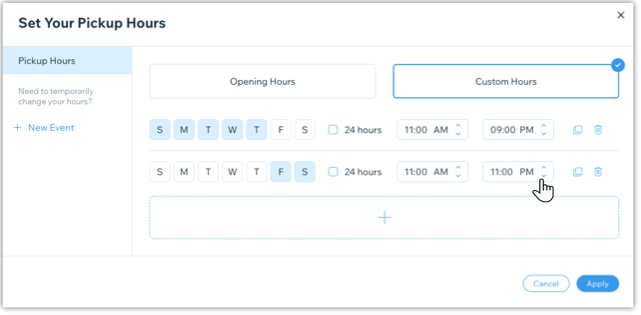
Choose how you want to set your pickup hours:Opening Hours: Pickup is available during your restaurant's opening hours.
Custom Hours: Set specific days and hours where pickup is available:Select the days.
Select or deselect the 24 hours checkbox:Selected: Customers can pick up their orders at any time.
Deselected: You set specific hours when customers pickup their orders.
(Optional) Click the Add + icon to add another day and/or time range. For example you could set one pickup window for Monday - Thursday from 9AM-5PM and another for Friday - Saturday from 9AM-11PM.
Click Apply.
Click Save at the top right.
Note:
You can also enable or disable the toggle  in the Pickup tab to temporarily disable the pickup option for your restaurant. If disabled, customers cannot go to your restaurant to pick up orders.