Taking online orders
Wix Restaurants: Changing the Availability of a Dish in the Wix App
Important:
This article is about the original Restaurants Orders app.
We've released a new online ordering app. Learn how to add and set up the new Wix Restaurants Orders (New) app.
Quickly update a dish's availability with the Wix app. Mark a highly in-demand item as sold out by adding a "Sold Out" label on the menu. You can also hide a dish if it's out of season or a limited time special.
To change the availability of a dish in the Wix app:
Go to your site in the Wix App.
Tap Manage at the bottom right.
Tap Menus in the Business apps.
Select the relevant menu.
Select the section that contains the dish you want to update.
Tap the relevant dish.
Manage the dish availability under Dish Settings:
Tap the In Stock toggle:Enabled: The dish appears normally on your live site and customers can order it.
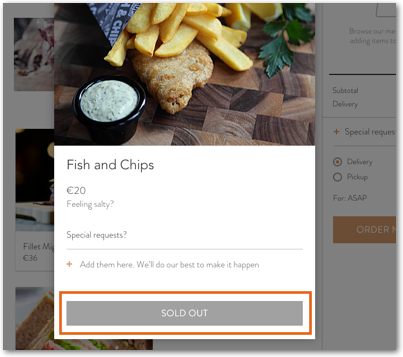
Disabled: The dish is out of stock. A Sold Out label appears next to the dish when customers attempt to order it.
 Tap the Visible to customers toggle:Enabled: The dish is visible in the menu on your live site and customers can view the dish and order it (as long as it's marked 'In Stock').
Disabled: The dish does not appear on your site's menu and customers cannot see it.
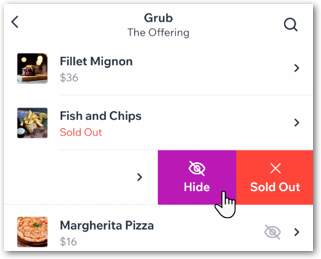
Note: A Hidden icon appears next to any dish you have hidden from the menu. Only you can see this icon.
Tip:
You can also quickly change a dish's availability by swiping left on a dish in its relevant section and tapping either Hide or Sold Out.