top of page

Setting up Photo Albums

Wix Photo Albums: Publishing Your Album

Once you're finished creating and editing your photo album, go ahead and publish it to make it live. Make sure to review your album name before publishing. The name is used in your album's URL which is a subdomain of your site's domain.

In this article, learn more about:

Publishing your photo album

Ready to go live with your latest photo album? You can publish the album directly from your album editor.

To publish your photo album:

  1. Go to Photo Albums in your site's dashboard.

  2. Click Edit next to the relevant album.

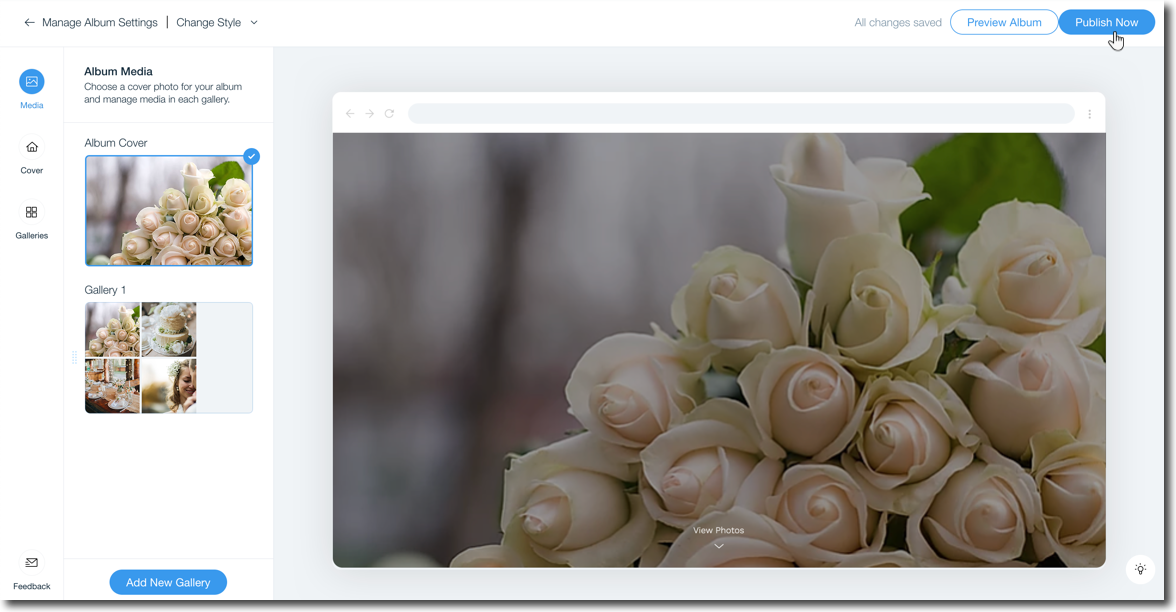
  3. Click Publish Now at the top right.

A screenshot showing the option to publish your album in the album editor.

FAQs

Click a question below to learn more about publishing your photo album.

What blockers might I face when trying to publish my album?

You cannot publish your album if:

  • You have not made any changes since the last time you published.

  • You did not upload any of your own photos.

  • You are not the owner of the site (if you are a site collaborator).

Can I unpublish an album I no longer need?

No, it is not possible to unpublish a photo album. You can only hide or delete the album.

I made changes to my URL, does it take long to update?

It can take up to 24 hours for the live URL to update to include your domain.

My domain is connected to Wix via Pointing, can I connect a subdomain?

Subdomains cannot be connected to a domain that is connected to Wix via Pointing. Learn how to switch your domain connection method.

Why do I have a Wix Promo banner on my album?

Photo Albums published to free sites without a custom domain or premium plan will display a Wix promo banner at the top similar to other site pages

Need A Professional Website?
Contact Us 
Today!

Wix Bookings: Blocking Off Time in Your Calendar

Wix Bookings: Managing Clients with Appointments Through your Booking Calendar

Wix Bookings: Manually Scheduling an Appointment

Wix Bookings: Rescheduling a Session

Wix Bookings: Canceling and Refunding Sessions

Wix Bookings: Refunding Clients

Wix Bookings: Adding and Setting up Waitlists

Wix Bookings: Marking Attendance for Classes

Wix Bookings: Managing the Participant List for a Course

Wix Bookings: Managing the Participant List for Your Classes

Wix Bookings: Changing the Assigned Staff Member of Scheduled Sessions

Wix Bookings: Scheduling Your Classes

Wix Bookings: About the Wix Booking Calendar

Wix Bookings: Adding and Setting up the Connecteam Integration

Wix Bookings: Adding and Setting Up the Payroll Calculator

Wix Bookings: Deleting a Staff Member

Wix Bookings: Syncing Staff Members' Personal Calendars with the Bookings Calendar

Wix Bookings: Assigning a Staff Member to an Appointment

Wix Bookings: Adding Staff Permissions

Wix Bookings: Editing Your Staff Members' Working Hours

Wix Bookings: Adding Staff Members

Wix Bookings: About Bookings Staff Members

Wix Bookings: Scheduling Recurring Appointments

Wix Bookings: Deleting a Service

Wix Bookings: Managing Services and Categories

Wix Bookings: Managing Services and Categories

Wix Bookings: Guidelines for Uploading Service Images

Wix Bookings: Allowing Clients to Book Multiple Participants for a Service

Wix Bookings: Creating View-Only Services

Wix Bookings: Making Services Unbookable

wix experts
Graphic2Traffic web design
©
bottom of page