top of page

Setting up Photo Albums

Wix Photo Albums: Enabling Downloading of an Entire Photo Album

Allow visitors to easily download your entire album in just one click. By enabling downloading of album galleries, visitors can download all the galleries in your album at once. The album downloads as a .zip file to your site visitor's computer.

In this article, learn more about:

Enabling downloading of an entire album

Allow site visitors to download your entire album directly from your dashboard.

To enable downloading of an album:

  1. Go to Photo Albums in your site's dashboard.

  2. Click Manage Album next to the relevant album.

  3. Click Edit next to Privacy and Permissions.

  4. Enable the Let visitors download album galleries toggle in the Download settings section.
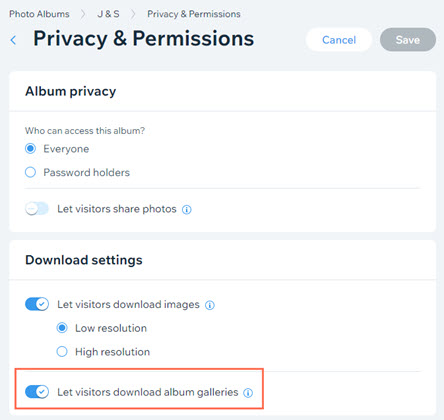
  1. Click Save.

Downloading an entire album

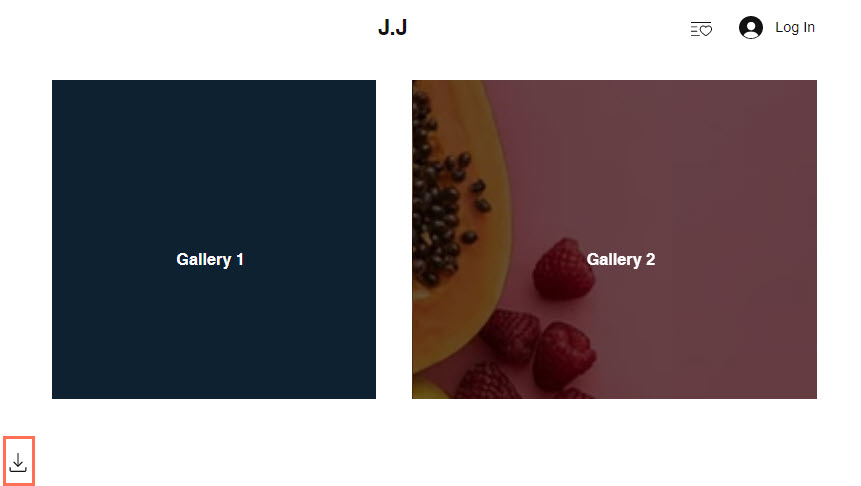
Site visitors can download all your album's galleries at once in just one click. All album images are downloaded together into one .zip folder.

To download an entire album:

  1. Open the album page on your live site.

  2. Click the Download icon  at the bottom left of the page.
    Note: For albums with many galleries, you may need to scroll to the bottom of the page to see the Download icon.

  3. Save the .zip folder to the relevant location on your computer.
Notes:

  • Do not include special characters in your folder file name (such as . ~ ! @ # $ % ^ & * ( ) ` ; < > ? , [ ] { } ' ”). This can cause image titles to be cut off. On Mac, special characters in the folder file name can cause issues with downloading the entire album.

  • Currently, it is not possible to set download permissions individually per image in Wix Photo Albums. If this is a feature you would like to see in the future, please click Vote for this feature in this article and we'll make sure to keep you updated.

Need A Professional Website?
Contact Us 
Today!

Wix Automations: Adding and Sending a Coupon

Wix Automations: Sending Automated Emails to Contacts After Form Submissions

Wix Automations: Customizing Automated Emails

Wix Automations: Creating a New Automation

Wix Automations: An Overview

The New Automation Builder: Understanding Email Types

The New Automation Builder: Creating a Multi-Action Automation

The New Automation Builder: Sending Data via Webhook

The New Automation Builder: Adding and Sending a Coupon

The New Automation Builder: Troubleshooting Wix Automations

The New Automation Builder: Understanding Conditions Operators

The New Automation Builder: Setting Up a 'Scheduled Time' Trigger

The New Automation Builder: Sending Data to Google Sheets

The New Automation Builder: Using the Property Picker

The New Automation Builder: Viewing and Managing Automations Installed for You

The New Automation Builder: Customizing Automated Emails

The New Automation Builder: Managing Your Automations

The New Automation Builder: Creating an Automation

The New Automation Builder: Overview

Microsoft Office 365 Mailbox Limits

Resetting the Password for Additional Office 365 Mailboxes

Resetting Your Admin Password for Your Office 365 Mailbox

Accessing Your Microsoft Office 365 Mailbox Through Your Wix Account

Accessing Your Microsoft Office 365 Mailbox Through Your Wix Account

Accessing the Microsoft Office 365 Admin Center

Activating Your Microsoft Office 365 Mailbox Purchased from Wix

Google Workspace: Troubleshooting Login Issues

Google Workspace: FAQs

Google Workspace: Contacting Google Support

Google Workspace Error Message: "You do not have access to Email"

wix experts
Graphic2Traffic web design
©
bottom of page