top of page

Setting up Photo Albums

Wix Photo Albums: Displaying Specific Albums on Different Pages

With Wix Photo Albums, you can choose which of your albums to display and on what pages of your site. This also allows you to apply a custom design to each individual album gallery.

Installing Wix Photo Albums automatically generates a dedicated gallery page with a new photo album. This article shows you how to use Wix Photo Albums to add any gallery to any page you want.

To display an album on another page:

  1. Open your site in the editor.

  2. Click Pages  on the left side of the editor.

  3. Click the page that includes Wix Photo Albums.
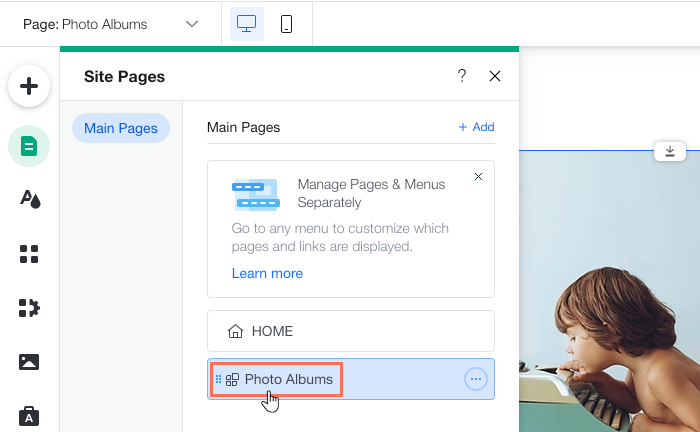
  1. Click the photo album in your editor and select Settings.

  2. Click Add Ons.

  3. Click the Select page drop-down.

  4. Select the page where you want to add Wix Photo Albums to.

  5. Click the photo album in your editor and select Settings.

  6. Click Albums.

  7. Click Show or Hide Albums.

  8. Enable the Show on page toggle next to each album you want to display.

Tip:

In addition to adding Wix Photo Albums to different pages, you can add it multiple times to the same page, with each displaying a different album. This allows you to organize and display your albums any way you choose. Repeat the above steps to add another album on the same page.

Need A Professional Website?
Contact Us 
Today!

Wix Retail POS: Allowing Customers to Leave Tips

Wix Retail POS: Setting Up Text Receipts

Wix Retail POS: Allowing Customers to Redeem Loyalty Points

Wix Retail POS: Enabling Automatic Discounts

Wix Retail POS: Receiving Notifications

Wix Retail POS: Selling Physical Gift Cards

Wix Retail POS: Selling Virtual Gift Cards

Wix Retail POS: Managing Discounts

Wix Retail POS: Organizing Your Favorites Screen

Wix Retail POS: Disabling Payment Methods

Wix Retail POS: Managing Tax Collection

Wix Retail POS: About the Retail POS Plan

Wix Retail POS: Using Wix Payments as Your Payment Provider

Wix Retail POS: Troubleshooting Your Wix POS

Wix Retail POS: Using the Moneris Go Terminal Card Reader

Wix Retail POS: Connecting a Network Card Reader

Wix Retail POS: Contacting Wix Customer Care for POS Support

Wix POS Terms of Service

Wix Retail POS: Device Security Guidelines

Wix Retail POS: Troubleshooting Your Barcode Scanner

Wix Retail POS: Troubleshooting Your HP Terminal Receipt Printer

Wix Retail POS: Troubleshooting Your Cash Drawer

Wix Retail POS: Updating and Troubleshooting Your Card Reader

Wix Retail POS: Troubleshooting Your Tablet

Wix Retail POS: Updating the Tablet

Wix Retail POS: Checking the Status of Your Hardware

Wix Retail POS: Setting Up the Receipt Printer

Wix Retail POS: About Your HP Barcode Scanner

Wix Retail POS: Using the BBPOS Chipper 2X Card Reader

Wix Retail POS: Managing Your Cash Drawer

wix experts
Graphic2Traffic web design
©
bottom of page