top of page

Working with Wix Payments

Wix Payments: Changing Your Payout Schedule

Wix Payments gives you control over when payouts are sent to your bank account. Select a payout schedule that meets your needs and change it at any time.

There are three payout schedules to choose from:

  • Daily: Payouts are sent every day, including transactions that were processed before the daily cut-off time*. Any transactions received after that time will be included in the next day's payout.

  • Weekly: Payouts are sent every Monday. You can change this to any other day of the week through your account settings.

  • Monthly: Payouts are sent on the 1st of every month. You can change this to any other day of the month through your account settings.

Changing your payout schedule

  1. Go to Accept Payments in your site's dashboard.

  2. Click Manage next to Wix Payments.

  3. Scroll down to Payout Schedule.

  4. Select the checkbox next to the relevant option:Daily

    Weekly
    Use the drop-down menu to select a day.
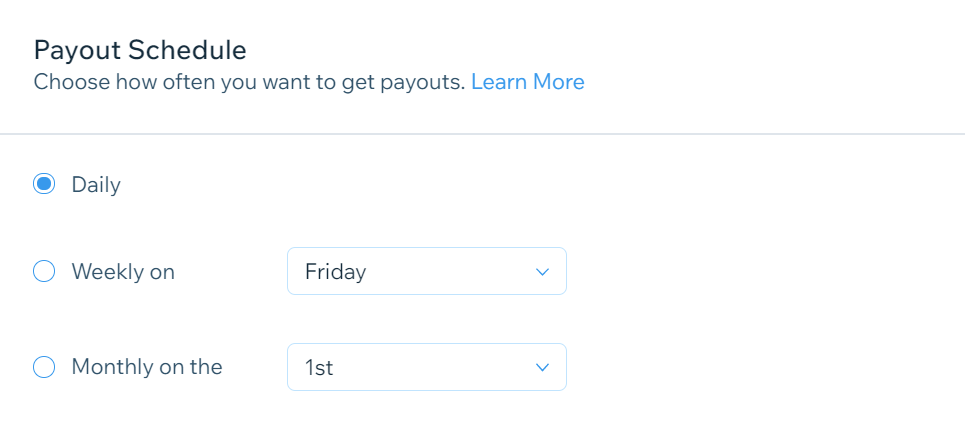
    MonthlyUse the drop-down menu to select a day.

setting a weekly payout schedule,

  1. Click Save.

FAQs

Click a question below to learn more about payouts from Wix Payments.

Is there a minimum balance required for payouts?

Yes, payouts are only made if there's an available balance of at least $1 in your Wix Payments account.

What time are daily payouts processed?

Daily payouts are processed at 6AM EST for the United States and Canada and 6AM GMT for Europe. Transactions processed before the cut-off time are included in that day's payout, while transactions after the cut-off time are included in the next day's payout.

What happens to my monthly payout if the month has fewer than 29 days?

If the month has fewer than 29 days, payouts are sent on the last day of the month.

Need A Professional Website?
Contact Us 
Today!

Wix Automations: Adding and Sending a Coupon

Wix Automations: Sending Automated Emails to Contacts After Form Submissions

Wix Automations: Customizing Automated Emails

Wix Automations: Creating a New Automation

Wix Automations: An Overview

The New Automation Builder: Understanding Email Types

The New Automation Builder: Creating a Multi-Action Automation

The New Automation Builder: Sending Data via Webhook

The New Automation Builder: Adding and Sending a Coupon

The New Automation Builder: Troubleshooting Wix Automations

The New Automation Builder: Understanding Conditions Operators

The New Automation Builder: Setting Up a 'Scheduled Time' Trigger

The New Automation Builder: Sending Data to Google Sheets

The New Automation Builder: Using the Property Picker

The New Automation Builder: Viewing and Managing Automations Installed for You

The New Automation Builder: Customizing Automated Emails

The New Automation Builder: Managing Your Automations

The New Automation Builder: Creating an Automation

The New Automation Builder: Overview

Microsoft Office 365 Mailbox Limits

Resetting the Password for Additional Office 365 Mailboxes

Resetting Your Admin Password for Your Office 365 Mailbox

Accessing Your Microsoft Office 365 Mailbox Through Your Wix Account

Accessing Your Microsoft Office 365 Mailbox Through Your Wix Account

Accessing the Microsoft Office 365 Admin Center

Activating Your Microsoft Office 365 Mailbox Purchased from Wix

Google Workspace: Troubleshooting Login Issues

Google Workspace: FAQs

Google Workspace: Contacting Google Support

Google Workspace Error Message: "You do not have access to Email"

wix experts
Graphic2Traffic web design
©
bottom of page