


Getting Started with Wix Payments
Wix Payments: Adding Apple Pay as a Payment Method
Add Apple Pay as a payment method to help your customers pay quickly and securely using their Apple device.
Before you begin:
You must set up Wix Payments to accept payments via Apple Pay on your site.
Apple Pay is currently available for Wix Stores, Wix Events and Wix Bookings only.
General Info
Supported countries
Austria, Belgium, Canada, Finland, Germany, Ireland, Italy, Lithuania, Netherlands, Portugal, Spain, Switzerland, United Kingdom and the United States.
Supported currencies
EUR, USD, GBP, CAD, CHF
Processing fees
EU Countries: 1.9% of the transaction amount + 0.30 EUR
Switzerland: 2.3% of the transaction amount + 0.30 CHF
United Kingdom: 2.1% of the transaction amount + 0.20 GBP
USA: 2.9% of the transaction amount + 0.30 USD
Canada: 2.9% of the transaction amount + 0.30 CAD
Notes
The currency used in your Wix account must match the currency in your Wix Payments account. If the currencies do not match, the transactions may be declined. Learn how to change your currency
In this article, learn about:
Adding Apple Pay
On checkout, customers using Safari (on IOS and macOS devices) will see Apple Pay as an express checkout option. Because their accounts are linked to their Apple device, Apple Pay customers simply click and purchase, without having to enter card or shipping details. All this allows you to be paid swiftly, easily and safely.
Apple Pay can be added to your site whether or not you are an Apple user. You can use any desktop device to add Apple Pay to your Wix site.
To add Apple Pay:
Go to Accept Payments in your site's dashboard.
Click Manage next to Wix Payments.
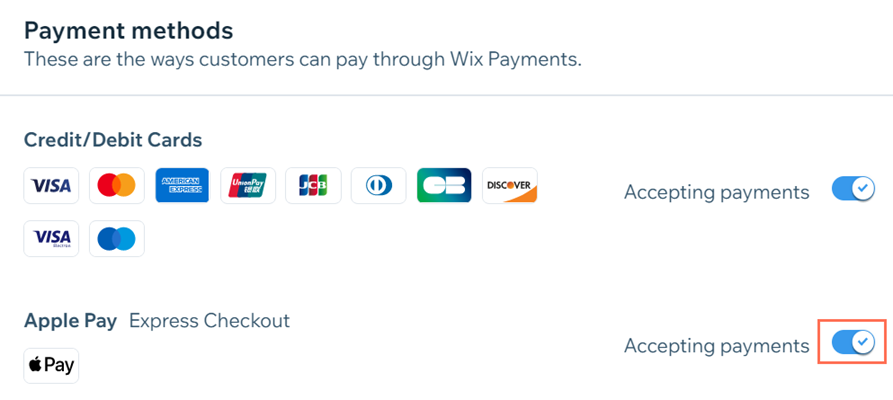
Enable the toggle next to Apple Pay.
Note: You can disable the toggle at any time to remove Apple Pay from your payment options at checkout.
Important Information:
Products sold via Apple Pay are subject to our list of prohibited goods and services.
To use Apple Pay, your site must follow Apple’s Acceptable Use Guidelines
For Apple-using merchants, we recommend you familiarize yourself with Apple's Human Interface Guidelines.
FAQs
Click a question below to learn more about using Apple Pay with Wix Payments.
How much does it cost to use Apple Pay?
There is no additional fee for using Apple Pay. Regular Wix Payments fees apply.
Can I use Apple Pay with Wix mobile apps?
No. Apple Pay is not currently available in Wix mobile apps, such as Spaces by Wix, Fit by Wix, or Dine by Wix.
Can I disable card payments and just accept Apple Pay payments?
No. Disabling card payments in Wix Payments will also disable Apple Pay.
You can, however, disable Apple Pay payments without disabling card payments. Go to Manage Wix Payments in your site's dashboard to enable or disable your payment methods.
I have a site with Wix Bookings. Can customers use Apple Pay to pay for a deposit on their booking?
No. Currently, the express checkout with Apple Pay option won’t appear for bookings services requiring a deposit.