


Getting started with Wix Music
Wix Music: Working with the Wix Music Media Manager
With Wix, you have a dedicated Music Media Manager. This media manager is completely separate to your site's main Media Manager. The Music Media Manager stores all your audio files, while the main Media Manager stores your general files, such as images, videos and documents.
You can access the Music Media Manager from your Music Library. The Music Media Manager lets you add, edit and delete audio files.
In this article, learn more about:
Accessing the Wix Music Media Manager
You can access the Music Media Manager directly from your Music Library.
To access the Wix Music Media Manager:
Go to Music Library in your site's dashboard.
Click the relevant album, single or playlist.
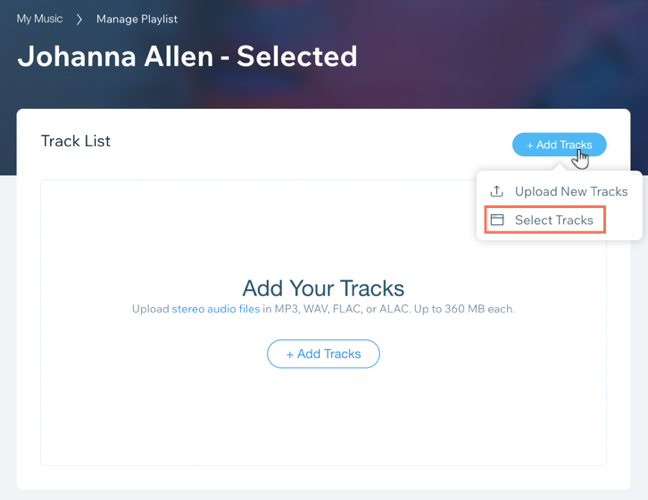
Hover over Add Tracks.
Click Select Tracks to open the Music Media Manager.
Freeing up storage space
The files in your Music Media Manager, count towards your total site storage. If you wish to free up space by deleting your music files, you need to permanently delete the files from your Music Media Manager. It's not enough to delete the file from your singles / albums, as this won't affect your storage.
To permanently delete files:
Go to Music Library in your site's dashboard.
Click the relevant album, single or playlist.
Hover over Add Tracks.
Click Select Tracks to open the Music Media Manager.
Click the More Options
 icon next to the relevant file.
Click Move to Trash.
Click Trash on the left-hand side.
Click the More Options
icon next to the relevant file.Click Permanently Delete.
FAQs
Click a question below to learn more about working with the Wix Music Media Manager:
What happens when I delete a file?
If you permanently delete a file from your Music Media Manager, the file is automatically removed from your live site and storage.
How can I restore a file in my trash?
If you have added a music file to the trash by mistake, don't worry, you can restore it in your Media Manager.
Go to Music Library in your site's dashboard.
Click the relevant album, single or playlist.
Hover over the Add Tracks button.
Click Select Tracks to open the Music Media Manager.
Click Trash on the left-hand side.
Click the More Actions
icon next to the file you want to restore.Click Restore.

Can I organize my audio files into folders?
Yes, you can create folders for your files. This is a great way to add some structure to your Music Media Manager.
Go to Music Library in your site's dashboard.
Click the relevant album, single or playlist.
Hover over Add Tracks.
Click Select Tracks to open the Music Media Manager.
Click Create New Folder.
Give your folder a name.
Drag and drop the relevant files to your folder.