top of page

Selling and promoting your music

Wix Music: Setting Up Your Payment Methods

Your fans can buy your music in Wix Music and Wix does not charge a cent.

Important:

  • Set up your payment methods by following the steps below before selling your music.

  • The album should not be edited after a purchase is made as this can cause an error with the download link.

To set up your payments:

  1. Go to Accept Payments in your site's dashboard.

  2. Set up the payment methods you want to use.

To change your currency:

  1. Go to Music Library in your site's dashboard.

  2. Hover over the relevant single/album/playlist and click the More Actions icon.

  3. Click Edit.

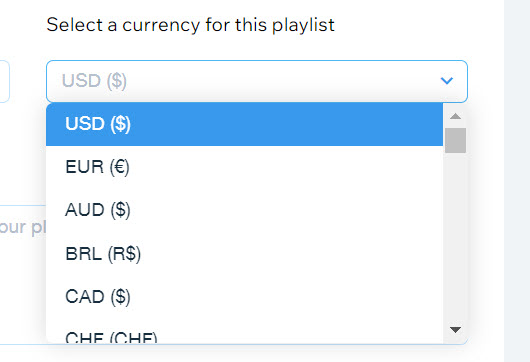
  4. Click the drop-down under Select a currency for this playlist.

  5. Select a currency.

  6. Click Save.

A screenshot of the currency selection drop-down menu.

Notes:

  • Currently, the following payment processors are not supported with Wix Music:pagueloFacil
    Isracard
    Offline.

  • For Wix Payments, there is a minimum amount of $1 per transaction. Make sure your release/track/album's price is over $1 if you're using this payment processor.

Need A Professional Website?
Contact Us 
Today!

Wix Retail POS: Allowing Customers to Leave Tips

Wix Retail POS: Setting Up Text Receipts

Wix Retail POS: Allowing Customers to Redeem Loyalty Points

Wix Retail POS: Enabling Automatic Discounts

Wix Retail POS: Receiving Notifications

Wix Retail POS: Selling Physical Gift Cards

Wix Retail POS: Selling Virtual Gift Cards

Wix Retail POS: Managing Discounts

Wix Retail POS: Organizing Your Favorites Screen

Wix Retail POS: Disabling Payment Methods

Wix Retail POS: Managing Tax Collection

Wix Retail POS: About the Retail POS Plan

Wix Retail POS: Using Wix Payments as Your Payment Provider

Wix Retail POS: Troubleshooting Your Wix POS

Wix Retail POS: Using the Moneris Go Terminal Card Reader

Wix Retail POS: Connecting a Network Card Reader

Wix Retail POS: Contacting Wix Customer Care for POS Support

Wix POS Terms of Service

Wix Retail POS: Device Security Guidelines

Wix Retail POS: Troubleshooting Your Barcode Scanner

Wix Retail POS: Troubleshooting Your HP Terminal Receipt Printer

Wix Retail POS: Troubleshooting Your Cash Drawer

Wix Retail POS: Updating and Troubleshooting Your Card Reader

Wix Retail POS: Troubleshooting Your Tablet

Wix Retail POS: Updating the Tablet

Wix Retail POS: Checking the Status of Your Hardware

Wix Retail POS: Setting Up the Receipt Printer

Wix Retail POS: About Your HP Barcode Scanner

Wix Retail POS: Using the BBPOS Chipper 2X Card Reader

Wix Retail POS: Managing Your Cash Drawer

wix experts
Graphic2Traffic web design
©
bottom of page