


3rd-Party POS Solutions
Wix Mobile POS: Setting Up a Point of Sale with Square
Important:
This article is about mobile POS with Square as your payment provider.
For information on Wix's own Wix Mobile POS, click here.
For info on the Wix Retail POS tablet solution for brick & mortar stores, click here.
Connect to the Square payment provider to turn your phone into a point of sale (POS). After setup, you can collect cash or credit card payments wherever you go.
POS with Square is available in US, Canada, Japan, Australia, UK, Ireland, and Falkland Islands.
Other POS solutions are available.
How can I accept payments?
Wix Mobile POS: Wix offers an integrated POS solution. Learn more
SumUp: Sell at a point of sale using SumUp as your payment provider. SumUp is available in Belgium, Bulgaria, Cyprus, France, Germany, Ireland, Italy, Latvia, Luxembourg, Malta, Netherlands, Norway, Poland, Slovakia, Slovenia, Spain, Switzerland, and the UK. Learn more
Cash: You can accept cash payment at a POS after downloading the Wix mobile app. No further setup is required.
Step 1 | Download the Wix app
Go to the Apple App Store (on an iOS device) or Google Play (on Android).
Type 'Wix' in the Search field.
Click Get or Install to download the app.
Tip:
If you are accessing this article on your phone, you can click to download:
You are now ready to accept cash payments on your mobile device. Learn how
Step 2 | Download the Square app
To use Square for POS sales, you need to download the Square app to your mobile device.
To download to an iOS device:
Open the App Store on your iOS device.
Search for Square Point of Sale (POS).
Tap Get next to Square Point of Sale (POS).
Tap Install.
To download to an Android device:
Open the Play Store on your Android device.
Search for Square Point of Sale (POS).
Tap Square Point of Sale (POS).
Tap Install.
Step 3 | Set up Square as your payment provider
Go to Accept Payments in your site's dashboard and set up Square as your payment provider.
Note:
You can set up Square without an upgrade, but to start collecting payments, you'll need a Premium plan or Studio plan that supports payments.
Step 4 | Order a magstripe card reader
To swipe credit cards, you need a magstripe card reader which plugs into your smartphone or tablet's headphone jack.
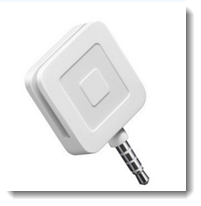
Contact Square to order your free magstripe reader. Learn how
Notes:
You can also manually enter your customer's credit card number. When you do so, Square charges a higher processing fee.
Inventory is not automatically updated in the Square app. You can, however, set up real-time inventory updates in Square using the skuIQ inventory app.
Next steps: