


Wix Mobile POS
Wix Mobile POS: An Overview
Important:
You can use the Wix POS solution for mobile phones to accept card payments only in the US and Canada. If you are located elsewhere, check out third-party integrations to collect card payments.
Use your phone to accept payments from customers or clients. You can accept payment by cash, card, and more.
A mobile POS can help you accept cash payments on the go. For example, if you have an online store but also sell at fairs and exhibitions. Alternatively, you can use it to accept in-person payments at your salon, gym, or event venue.
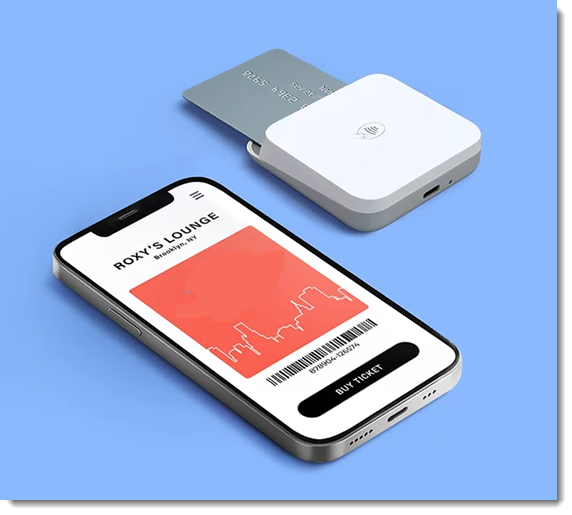
Charge for products and services offered on your site
If you use any of the following, you can use a mobile POS to accept payment for your products and services:
Wix Stores: Let customers purchase store products in person. Your inventory adjusts after every sale.
Wix Bookings: Accept payment for your services. Clients can book through your site and pay at the point of sale. Alternatively, you can book for them and accept payment all at once.
Wix Restaurants: Accept restaurant orders and automatically send the order to the dashboard.
Gift Cards: Sell physical gift cards at your point of sale. Customers can later use them to purchase store products or Wix Bookings services.
Wix Events: Sell event tickets at your event, or collect payment in person from guests who booked tickets online.
Pricing Plans: Sell clients your membership plans and packages in person.
Invoices: Accept payments for invoices.
Notes:
You can sell store or restaurant items, bookings services, or gift cards in the same order.
Some options mentioned below are not yet available with Wix Events and Pricing Plans.
Charge custom amounts
You can also use a mobile POS to accept any sort of payment. For example, if you offer counseling services that aren't booked through your site, you can simply enter the amount the client has to pay and then accept payment from your client.
Alternatively, you can add a custom charge to an order along with store or restaurant items or bookings services.
Accepting payments
There are 4 ways you can accept payment at a POS.
Accepting cash payment only:
If you intend to only accept cash payments, you can do so without purchasing any additional equipment. Just download the Wix app and start accepting cash payment.Accepting payment using a card reader:
Order a card reader to accept credit or debit card payment. Customers can tap, swipe, or insert their card to pay.
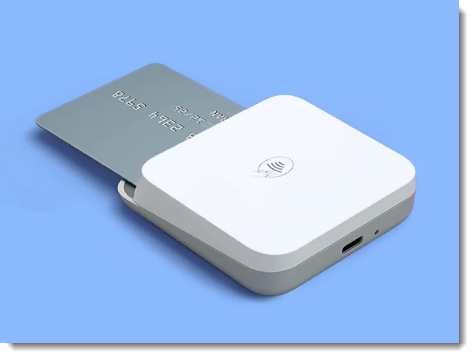
Accepting Tap to Pay:
You can enable Tap to Pay - right on your phone. In other words, your phone becomes a card reader. You can then accept payment by credit or debit card, or directly through your client's phone. Learn more about setting up tap to pay.
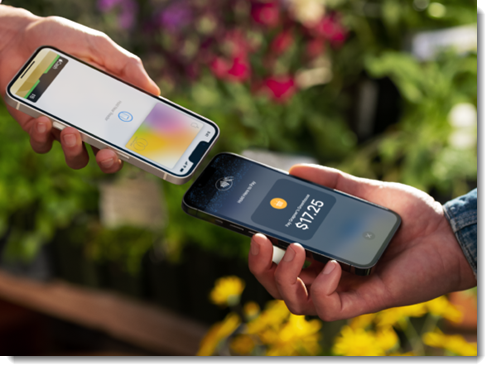
Manually enter credit card details:
If you are connected to a payment provider that allows manual card entry payments, you can manually enter a customer's card details.
Getting Started
To get started with Wix Mobile POS, download the Wix app. Then, if you plan to accept card payments or tap to pay, you'll need to connect to a relevant payment method.
Get detailed instructions on how to set up a mobile point of sale.
FAQs
Click a question below to learn more about Mobile POS.
I'm not located in the US or Canada. How can I use my phone as a POS?
You can accept payment through the following 3rd-party integrations:
Square: Available in the US, Canada, UK, Australia, Ireland, and Japan.
SumUp: Available in Belgium, Bulgaria, Cyprus, France, Germany, Ireland, Italy, Latvia, Luxembourg, Malta, Netherlands, Norway, Poland, Slovakia, Slovenia, Spain, Switzerland, and the UK.
Can I collect tax at a POS?
If your POS is connected to Wix Stores, Wix Bookings, or Wix Restaurant Orders (New) app, you can collect tax. Note that the customer's location is determined by the business location you entered in the Business Info page in your site's dashboard.
Learn more about collecting tax at a mobile POS.
Can I offer a refund for a payment made at a point of sale?
It's not currently possible to offer refunds for payments collected at a POS.