top of page

Wix Forms FAQ

Wix Forms: Translating Your Forms with Wix Multilingual

Add a form to your site in multiple languages so your site visitors can fill out and submit the form in their chosen language. You can edit your form's translation either from your editor, or if your site is built on Wix Studio, via the Translation Manager in your site's dashboard.

Note:

Make sure you have Wix Multilingual installed on your site.
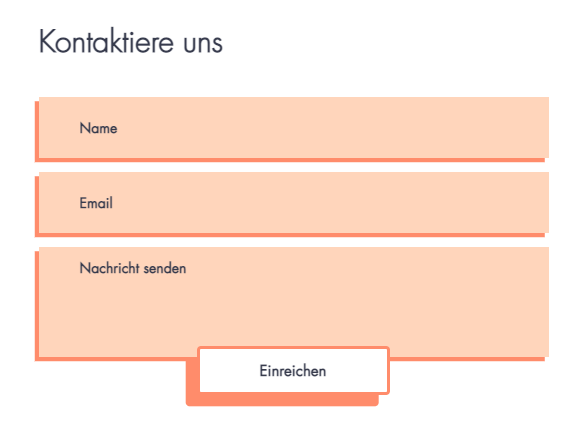
A screenshot of a translated form.

Translating your Wix Forms:

Translate your form to create a powerful impact and connect with site visitors across diverse languages and countries.

To translate your forms:

New Forms

Old Forms

  1. Go to Translation Manager in your site's dashboard.

  2. Click Forms on the left to see the forms available for translation.

  3. Choose the relevant option:If you auto-translated your site: Review the automated translations and edit if necessary. Learn more about auto-translating your site.
    If you didn't use auto-translation: Translate the fields manually. You can also click Auto-translate below a field to auto-translate that specific field.

  4. Click Save and Publish.

Important note for order forms:

Order forms are currently not available to translate in the Translation Manager. To translate an order form, go to your editor.

Translating your Order Forms

Translate your Wix order form to unlock its full potential and order opportunities from customers worldwide.

To translate your Order Forms:

  1. Go to the main language version in your editor:Click the Switch Language drop-down menu at the top of the editor.
    Select the language you want to manage.

  2. Click the order form on the page.

  3. Select a field or any text box on your form and click Edit Translation to translate it.
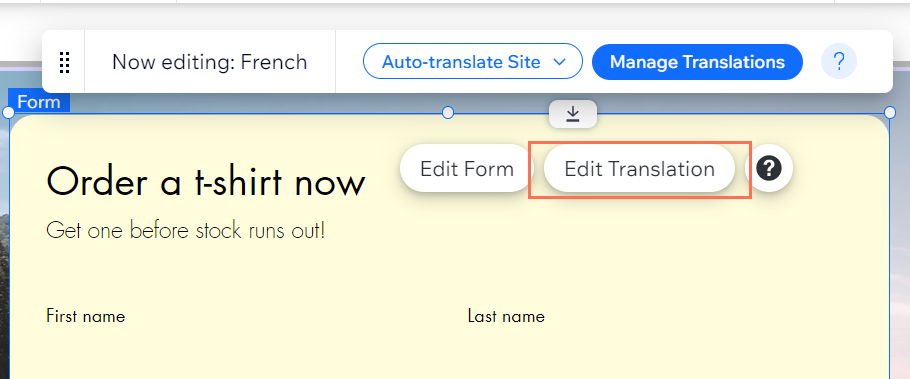
Screenshot of Wix Editor with Order Form selected after changing languages using Multilingual, edit translation highlighted.

Need A Professional Website?
Contact Us 
Today!

Wix Automations: Adding and Sending a Coupon

Wix Automations: Sending Automated Emails to Contacts After Form Submissions

Wix Automations: Customizing Automated Emails

Wix Automations: Creating a New Automation

Wix Automations: An Overview

The New Automation Builder: Understanding Email Types

The New Automation Builder: Creating a Multi-Action Automation

The New Automation Builder: Sending Data via Webhook

The New Automation Builder: Adding and Sending a Coupon

The New Automation Builder: Troubleshooting Wix Automations

The New Automation Builder: Understanding Conditions Operators

The New Automation Builder: Setting Up a 'Scheduled Time' Trigger

The New Automation Builder: Sending Data to Google Sheets

The New Automation Builder: Using the Property Picker

The New Automation Builder: Viewing and Managing Automations Installed for You

The New Automation Builder: Customizing Automated Emails

The New Automation Builder: Managing Your Automations

The New Automation Builder: Creating an Automation

The New Automation Builder: Overview

Microsoft Office 365 Mailbox Limits

Resetting the Password for Additional Office 365 Mailboxes

Resetting Your Admin Password for Your Office 365 Mailbox

Accessing Your Microsoft Office 365 Mailbox Through Your Wix Account

Accessing Your Microsoft Office 365 Mailbox Through Your Wix Account

Accessing the Microsoft Office 365 Admin Center

Activating Your Microsoft Office 365 Mailbox Purchased from Wix

Google Workspace: Troubleshooting Login Issues

Google Workspace: FAQs

Google Workspace: Contacting Google Support

Google Workspace Error Message: "You do not have access to Email"

wix experts
Graphic2Traffic web design
©
bottom of page