


Wix Forms FAQ
Wix Forms: Removing a Form from Your Site
Remove a form from your site when you no longer need it from your editor. After you've removed a form, you can still view the submissions data from Forms & Submissions in your dashboard.
How do I know if I'm using old Wix Forms or new Wix Forms?
This article will help you understand the differences between old and new Wix Forms.
Removing a form from your site
You can always remove forms that you no longer want visitors to submit, keeping your site up to date.
New Forms
Old Forms
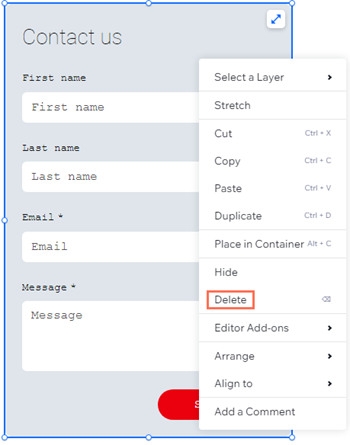
Go to the editor and select the form you want to delete.
Right-click on the form.
Click Delete.
(Optional) Remove the form from your Forms & Submissions page:Go to Forms & Submissions in your site's dashboard.
Click the More Actions icon next to the relevant form and click Delete.
Tip: This moves your form to the Deleted forms folder. After 180 days, the form will be permanently deleted with no option to restore it.
Viewing data from a deleted form
View the form submission data for a form, even after it has been deleted from your site.
New Forms
Old Forms
Go to Forms & Submissions in your site's dashboard.
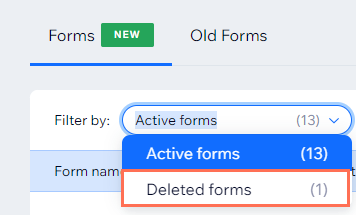
Click the Filter by: drop down and select Deleted forms.
Select the relevant form.
Click Restore next to the relevant form.
Click the Filter by: drop down and select Active forms to view the restored form.
Click the More Actions icon
 next to the relevant form.
Select View submissions.
(New Forms only) Restoring a form
If you accidentally delete a form or need to bring back a form that you previously removed, you can restore it from the Deleted forms folder. Then, you can take further actions such as viewing form submissions and adding the form back to your site.
Note:
Forms can be restored within up to 180 days, after which they will be permanently deleted with all its submissions.
To restore a form:
Go to Forms & Submissions in your site's dashboard.
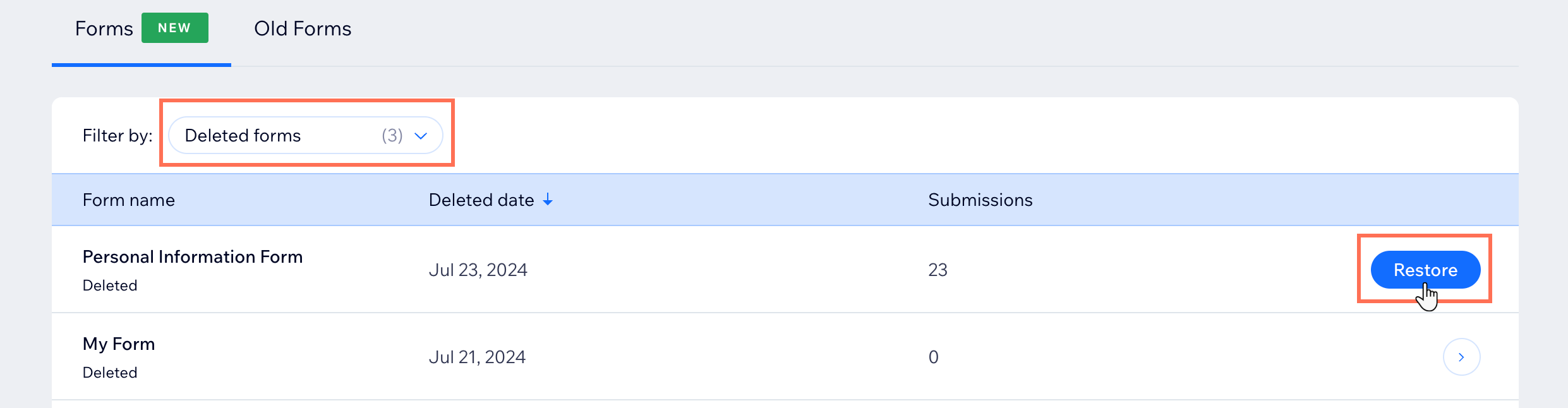
Click the Filter by: drop down and select Deleted forms.
Select the relevant form.
Click Restore next to the relevant form.
Click the Filter by: drop down and select Active forms to view the restored form.
(Optional) Add the restored form back to your site.Click the More Actions icon
next to the relevant form.
Select Add to site.