


Wix Forms FAQ
Wix Forms: Protecting Your Site Forms from Spam
Add spam protection to your forms in order to protect your site from spam and other types of automated abuse.
Setting up spam protection on your site form
Add spam protection to enhance security and preventing automated bots from submitting spam or malicious content.
New Forms
Old Forms
The New Wix Forms come with built-in spam filters to help keep unwanted messages out. To customize your level of protection, follow the steps below.
Click Edit Form to open the form builder.
Click Settings.
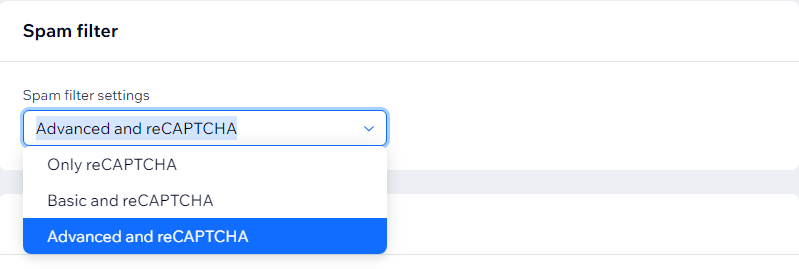
Select Spam filter settings.
Choose from the following options:Only reCAPTCHA: This is the lowest level of spam protection. It uses invisible reCAPTCHA to analyze site visitor behavior and determine if they are human or a bot. If suspected to be a bot, a challenge is shown.
Basic and reCAPTCHA: This is the mid-level spam protection. After passing invisible reCAPTCHA, submissions go through a basic spam filter that labels spam based on criteria like network identifiers and contact information.
Advanced and reCAPTCHA: Includes reCAPTCHA and the basic filter, plus an advanced filter using additional technologies to mark spam. This highest level of spam protection is only applied if the other two filters do not mark the submission as spam.
FAQs
Click a question below to learn more.
What happens when the AI filter detects a spam form submission?
The spam submission will stay in Spam tab for 30 days, then be permanently deleted. You can unmark submissions marked as spam at any time.
Can I change the language of the Captcha field?
The language of the Captcha field is based on your site's regional settings. You can change these settings to change the field's language. Please note that the changes appear on your live site only.
If I don’t add a Captcha field to my old form, will my site still be protected from spam?
Wix has built-in protections in place to ensure your forms and submissions are not accessible to spammers. If we detect unusual activity on your site, a reCAPTCHA field may still appear on a form, even if you haven't enabled the feature.
How can I switch from old forms to new forms?
It is not currently possible to switch an existing form built with old Wix Forms to new Wix Forms. Delete the form built using old forms and revamp while you recreate the form with new forms features.
Why can't I add a CAPTCHA in the new Wix Forms?
The new Wix Forms do not have a CAPTCHA field as all forms are already integrated with spam filters. These filters automatically filter out submissions from blacklisted IPs and email addresses.
New Wix Forms also integrate with a site viewer CAPTCHA (or invisible CAPTCHA). These CAPTCHAs are not visible in the form, but analyze a site visitor's behavior. If activity is considered suspicious (e.g. potential bot activity) a CAPTCHA challenge appears in the form submission.