top of page

Managing your events

Wix Events: Rescheduling Events

Reschedule your event when unexpected circumstances occur. You have the flexibility to select a new date and time. Alternatively, update your guests that the event date is pending until you have more information to share. This ensures transparency as you work to finalize the details.

You can do this easily using your site's dashboard, the Wix app, or Wix Studio app.

Important:

  • Learn how to refund guests for their tickets when necessary.

  • It is not possible to make changes to the date or time of an event which has already started.

Dashboard

Wix app

Wix Studio app

  1. Go to Events in your site's dashboard.

  2. Click Manage next to the relevant event.

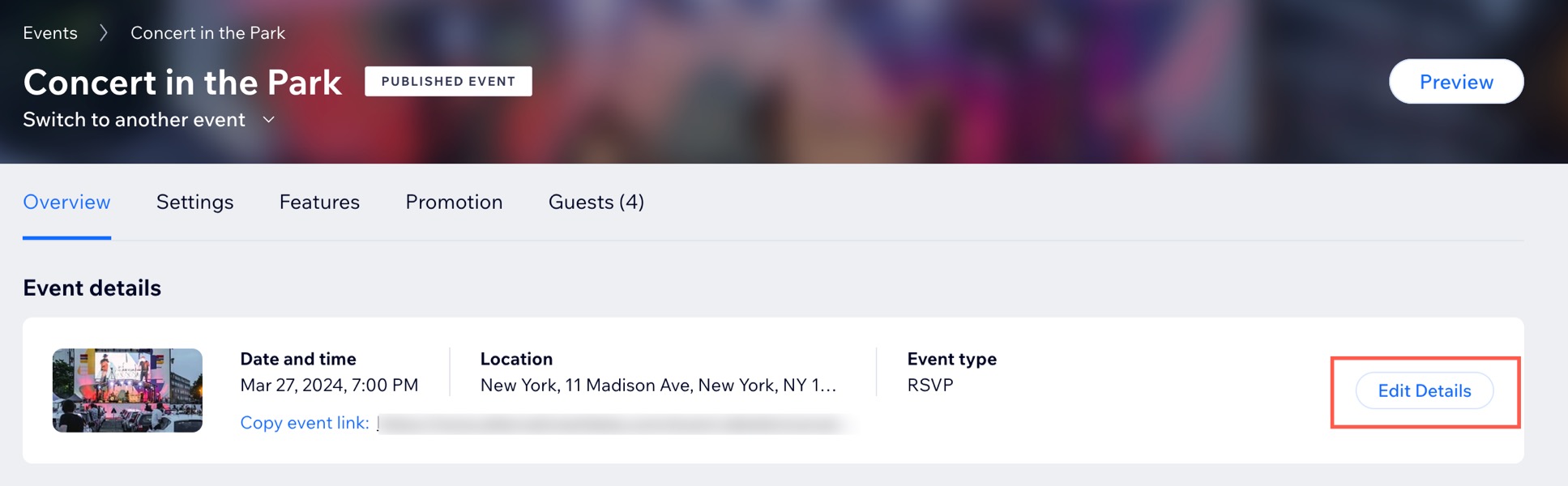
  3. Click Edit Details.

A screenshot of clicking to edit an event's details in a site's dashboard..

  1. Select an option:
    Change to a specific date or time:Click the Start date / End date field and select the relevant dates from the calendar.
    Click the Start time / End time drop-down and select the relevant times.
    (Optional) Click Add End Time and select the end time.

    Set event date as to be determined:Select the To Be Decided (TBD) checkbox.
    (Optional) Edit the default note in the Display a message field.

  2. Click Save.
    Note: After saving, a pop-up appears at the bottom of the Overview tab, confirming your changes and prompting you to notify guests.

  3. (Recommended) Notify your guests about the change:Click Notify Guests in the pop-up.
    Click Continue to customize a template with the relevant information to send to your guests.
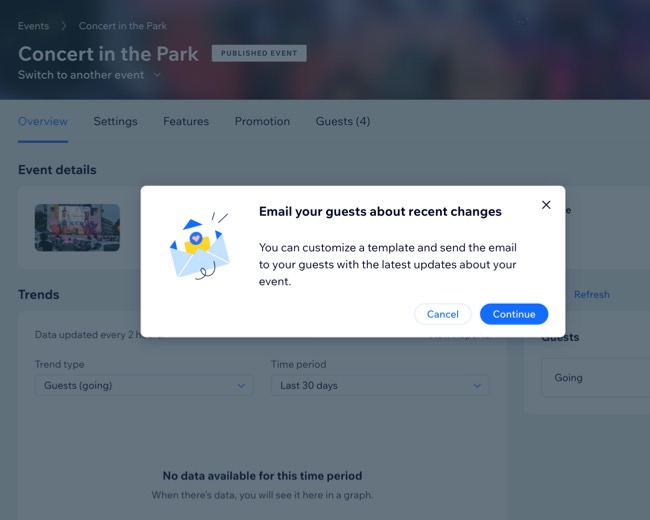
A screenshot of the Email your guests about recent changes pop-up after you click Notify in a site's dashboard.

Need A Professional Website?
Contact Us 
Today!

Wix Automations: Adding and Sending a Coupon

Wix Automations: Sending Automated Emails to Contacts After Form Submissions

Wix Automations: Customizing Automated Emails

Wix Automations: Creating a New Automation

Wix Automations: An Overview

The New Automation Builder: Understanding Email Types

The New Automation Builder: Creating a Multi-Action Automation

The New Automation Builder: Sending Data via Webhook

The New Automation Builder: Adding and Sending a Coupon

The New Automation Builder: Troubleshooting Wix Automations

The New Automation Builder: Understanding Conditions Operators

The New Automation Builder: Setting Up a 'Scheduled Time' Trigger

The New Automation Builder: Sending Data to Google Sheets

The New Automation Builder: Using the Property Picker

The New Automation Builder: Viewing and Managing Automations Installed for You

The New Automation Builder: Customizing Automated Emails

The New Automation Builder: Managing Your Automations

The New Automation Builder: Creating an Automation

The New Automation Builder: Overview

Microsoft Office 365 Mailbox Limits

Resetting the Password for Additional Office 365 Mailboxes

Resetting Your Admin Password for Your Office 365 Mailbox

Accessing Your Microsoft Office 365 Mailbox Through Your Wix Account

Accessing Your Microsoft Office 365 Mailbox Through Your Wix Account

Accessing the Microsoft Office 365 Admin Center

Activating Your Microsoft Office 365 Mailbox Purchased from Wix

Google Workspace: Troubleshooting Login Issues

Google Workspace: FAQs

Google Workspace: Contacting Google Support

Google Workspace Error Message: "You do not have access to Email"

wix experts
Graphic2Traffic web design
©
bottom of page