top of page

Designing Wix Events

Wix Events: Displaying a Standalone Wix Events Button

If you write about an event somewhere on your site other than the Wix Events page, you can add a standalone event button. This makes it easy for interested site visitors to book.

Note:

The standalone event button is currently not available in Editor X.

To add an event button:

  1. Click Addon the left side of the Editor.

  2. Select Events.

  3. Drag the single event display to the page.
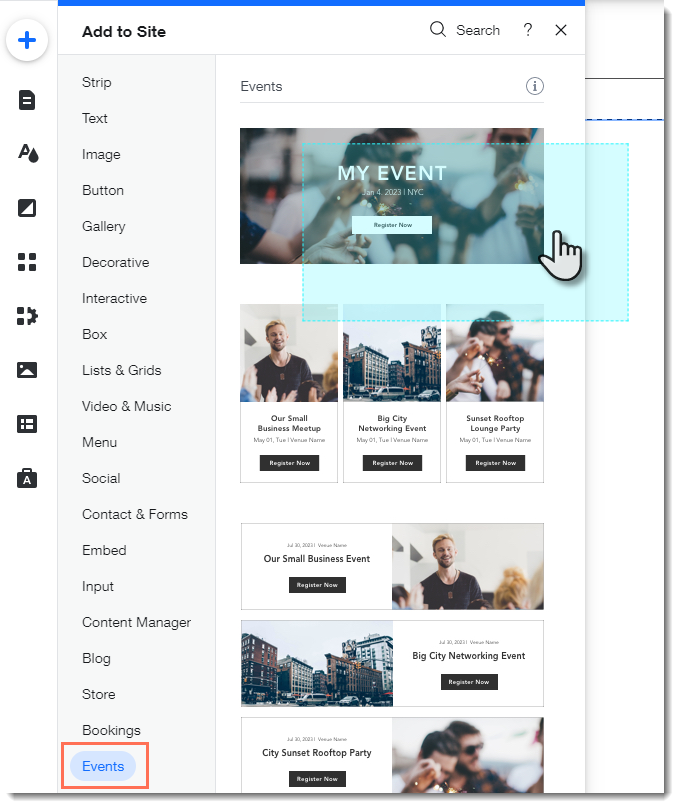
  1. Click the Wix Events app in the Editor.

  2. Click Display Events.

  3. Under What do you want to show?, select A Single Event.

  4. Select the relevant event.

  5. Click the Layout tab.

  6. Select Button.

  7. (Optional) Edit the button:Click the Text tab to edit the button text or add a label.
    Click the Design tab to edit the look of the button.

Need A Professional Website?
Contact Us 
Today!

Recommended Apps for Restaurant Owners

Recommended Apps for Photographers

Recommended Apps for Fitness Studio Owners

Recommended Scheduling Apps

Recommended eCommerce Apps

Recommended Apps to Help You Interact with Site Visitors

Deleting Apps

Updating an App from the Wix App Market

Third-Party Apps: Accessing Your Apps

Adding an App to Your Site

About the Wix App Market

Adding and Setting Up the Yelp App

Wix Apps: Adding and Setting Up the New Wix Tips

Download My App is No Longer Available

Wix Apps: Focus Timer

Wix Apps: Task List

Wix Apps: Colorblind Simulator

Wix Apps: Contrast Checker

Wix Apps: Get Image Colors

Wix Apps: Design Guides

Wix Apps: Adding and Setting Up the Wix Tips App

Displaying Your DeviantArt Content on Your Wix Site

Embedding Your Issuu Publication Code

Embedding Songkick Tour Dates on Your Wix Site

Changing the Display Options of the PDF Viewer App

Using the HubSpot App

Adding and Setting Up the HubSpot by Syncsmart.io App

Wix Apps: Adding the Download The Mobile App App to Your Site

Adding and Setting Up the Bulk Coupon Creator App

Wix Apps: Uploading 360 Images

wix experts
Graphic2Traffic web design
©
bottom of page