


Using the Wix app for Wix Events
Wix Events: Creating Event Coupons Using the Wix App
Boost ticket sales for your event by offering discount coupons. You can create coupons for the following:
$ Discount: Offer a price discount (e.g. $5 off).
% Discount: Offer a percentage discount (e.g. 20% off).
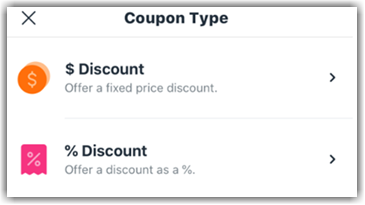
You can also decide which event tickets the coupon applies to:
All tickets: Clients can use the coupon when buying any event tickets.
One specific event: Clients can use the coupon when buying any tickets for a selected event.
One specific ticket type: Clients can use the coupon when buying a ticket type for a specific event (e.g. Offer a discount on the "Student Ticket" for a specific concert).
To create a coupon from the Wix app:
Go to your site in the Wix app.
Tap Manage
 at the bottom.
Scroll down to Marketing and tap Coupons.
Tap Add a Coupon.
Select an option:Tap $ Discount, enter the amount (e.g. $10 off), then tap Next.
Tap % Discount, enter the percentage (e.g. 10% off), then tap Next.
Enter the coupon code.
Note: This is the code customers enter.Enter the name of the coupon.
Note: Appears in the cart page and dashboard.Tap Next.
Choose which tickets the coupon applies to:All tickets: Clients can use the coupon when buying any event tickets.
Specific event: Clients can use the coupon when buying any tickets for a selected event. Select the event and tap Next.
Specific ticket: Clients can use the coupon when buying a ticket type for a specific event (e.g. student tickets). Select the relevant event and ticket type, then tap Next.
Choose how many times a customer can apply the coupon to an order:Apply to the lowest priced item: If customer buys more than one relevant ticket, the discount applies only once.
Apply to every item in the order: All relevant tickets in the same order receive the discount.
Set the coupon's start and end date:Tap the date.
Select the start date from the calendar.
Enter the end date or tap No end date.
Tap Save.
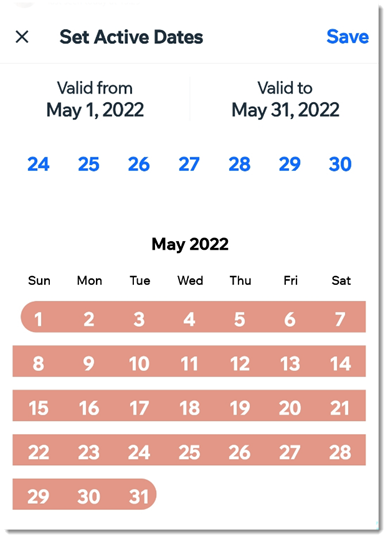
(Optional) Apply limits to the number of times the coupon can be used:
Limit number of total uses:Tap the Limit number of total uses toggle to enable it.
Enter the number of times the coupon can be used.
Tap Done.
Tip:
Tap Share to share your new coupon on social media, through email, and more.