top of page

Creating your event

Wix Events: Creating an Event Schedule

Let participants know what's happening at your event by creating an event schedule. Schedules are ideal for conferences, festivals, and more.

Guests can view the first 2 schedule items on the events details page and click to see the whole schedule. You can also choose to display the schedule on a separate site page.
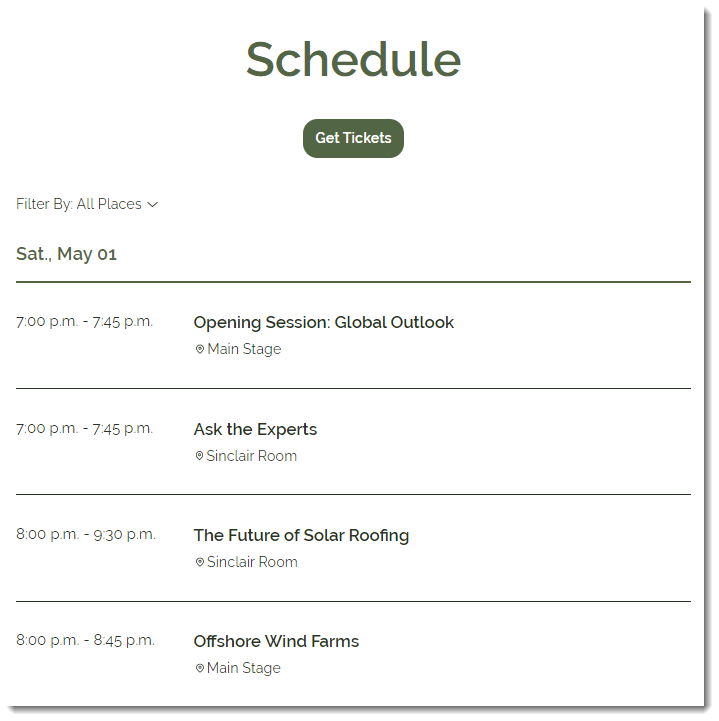
A screenshot of an event schedule.

Before you begin:

Create and save your event as a draft or published event.

To create an event schedule:

  1. Go to Events in your site's dashboard.

  2. Select the relevant draft or published event.
    Note: For recurring events, you can add a schedule to an individual occurrence of an event.

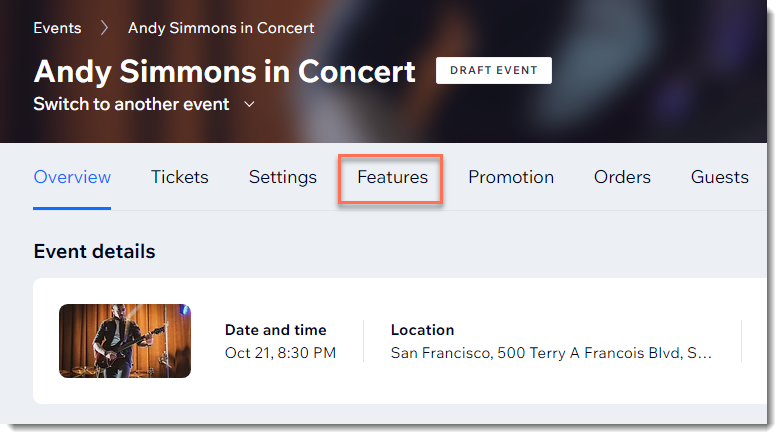
  3. Click the Features tab.

A screenshot of the features tab to add a schedule to the event.

  1. Click Schedule.

  2. Click Add Schedule Item.

  3. Add the details for the first schedule item:Enter the item name (e.g. Opening Session)
    Set the start and end dates and times.
    Note: The minimum time limit for a scheduled item is 10 minutes.
    Enter the location (e.g. Main Stage).
    (Optional) Enter a tag and press Enter on your keyboard.
    Note: Tags can be used to classify event sessions. For example, a renewable energy conference might create tags for  "Solar Energy", "Wind Energy", and "Electric Vehicles". Guests can filter the schedule to locate the content they're interested in. After you create a tag, apply it to other items of the same type.
    (Optional) Enter a description of the schedule item.
    Click Add.
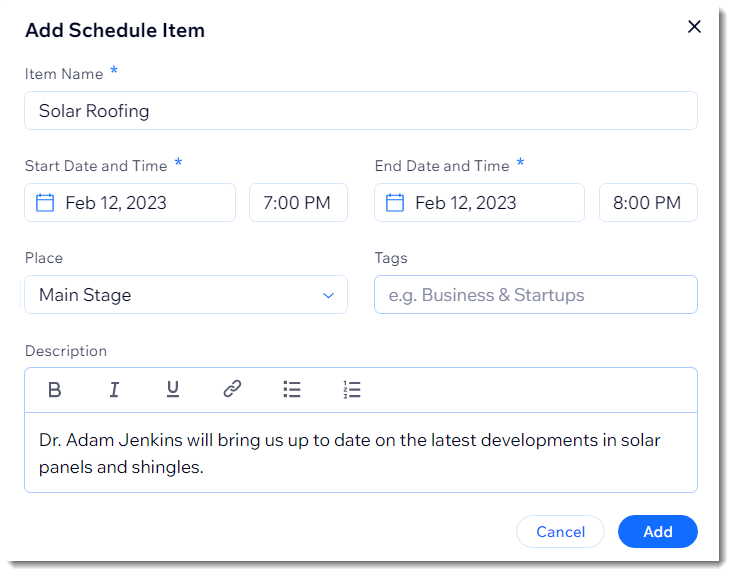
A screenshot of adding the schedule item details to the event.

  1. Repeat steps 5 and 6 to add additional items to the schedule.

  2. (Optional) Click the Enable Personal Agenda toggle enable it.  
    Note: When enabled, guests can mark the events they're interested in and then click View My Agenda to see their selections.
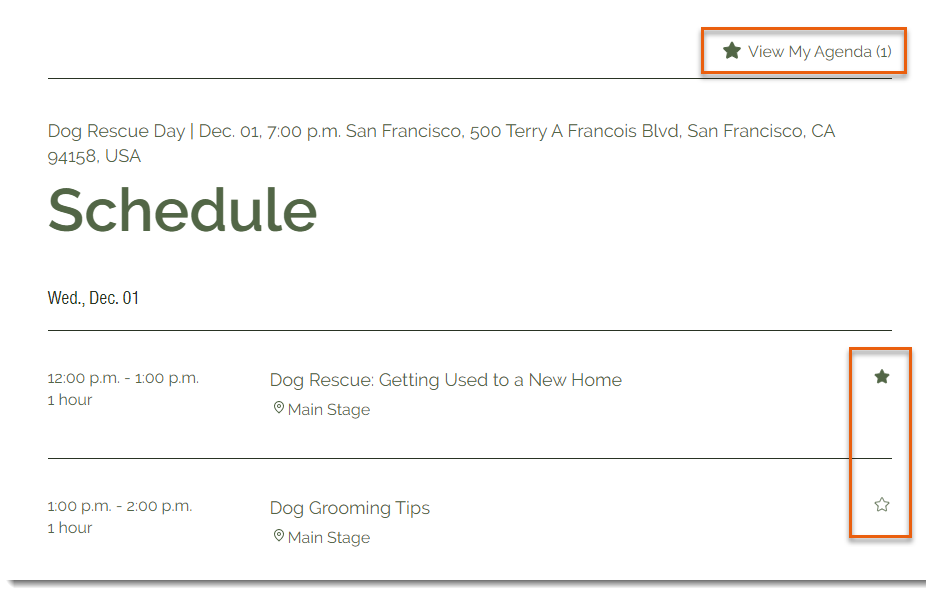
A screenshot of guests being able to mark their favorites items in the event schedule.

Need A Professional Website?
Contact Us 
Today!

Wix Chat: Automatically Sending Chat Messages or Responding to Chat Messages

Wix Chat: About Notifications

Wix Chat: Deleting Wix Chat

Wix Chat: Adding the WhatsApp Channel to Your Chatbox

Wix Chat: Viewing and Chatting with Live Site Visitors

Wix Chat: Customizing the Chat Icon on Your Mobile Site

Wix Chat: Translating Wix Chat

Wix Chat: Allowing Members to Chat with Each Other Using Members Chat

Wix Chat: Customizing Your Chat Settings

Wix Chat: Designing Your Chatbox

Wix Chat: Adding Wix Chat to Your Site

Wix Chat: An Overview

Your AI Site-Chat Conversations Quota

Designing and Customizing Wix AI Site-Chat

Training Your AI Site-Chat

Testing Your Wix AI Site-Chat

Adding and Setting Up Wix AI Site-Chat

About Wix AI Site-Chat

Wix Inbox: Sending a Broadcast Message to Your Contacts in the Wix App

Wix Inbox: Working with Site Collaborators

Wix Inbox: Connecting WhatsApp Business to Inbox

Wix Inbox: Connecting Your Facebook Page

Wix Inbox: Connecting Instagram to Inbox

Wix Inbox: About Wix Inbox Channels

Wix Inbox: Connecting Your Gmail Account

Wix Inbox: Managing Your Notification Settings

Wix Inbox: Managing Your Inbox

Wix Inbox: Setting Up Your Inbox Profile and Outgoing Emails

Wix Inbox: Sending Messages and Attaching Items

Wix Inbox: An Overview

wix experts
Graphic2Traffic web design
©
bottom of page