top of page

Creating your event

Wix Events: Creating a Hybrid Event

Important:

As of March 2024, the option to connect to Wix Live is no longer available. If you’ve already created events with Wix Live, you can continue using it in the meantime.

Hybrid events are events in which some guests attend in person while others join online.

Any event you create in Wix Events can become a hybrid event. While creating the event, simply create a regular in-person event and add video conferencing.
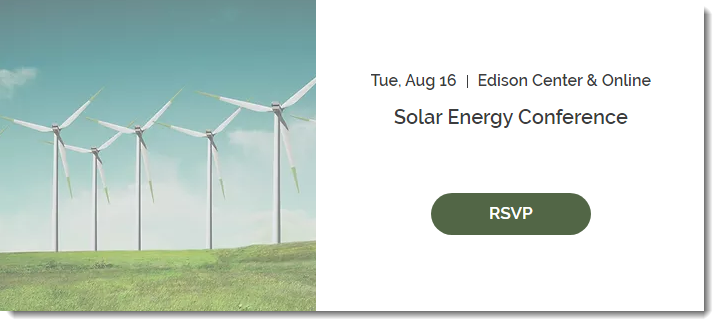
A screenshot of a hybrid event promotion.

Step 1 | Create an event with your physical location

Creating an event draft (or edit an existing draft) and make sure to add the physical location where the event will take place.

To create an event draft with your physical location:

  1. Create an event and save it as a draft or published event. Learn how to create an event.

  2. Under Location, select Physical location.

  3. Enter the physical address where the event takes place.

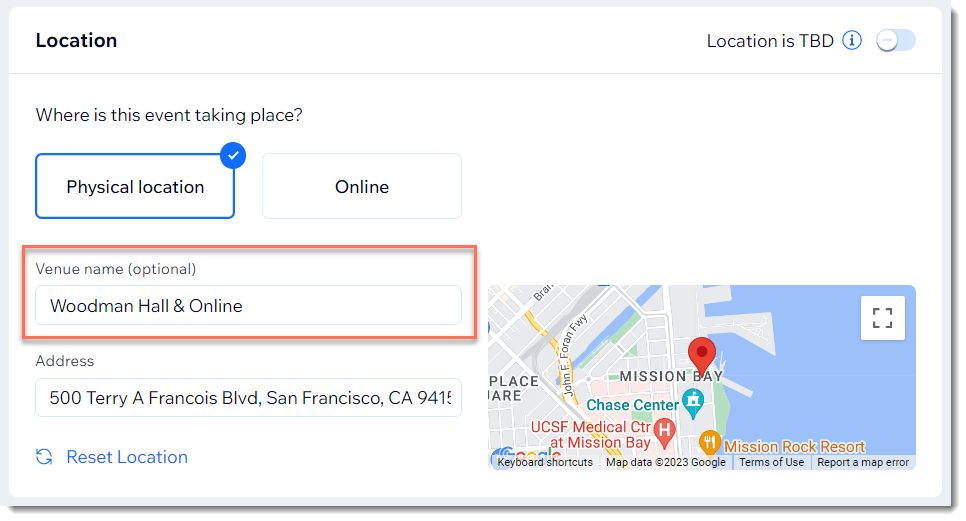
  4. In the Venue name field, enter a message that lets guests know they can join online.

  5. Click Create Event.

A screenshot of the Location panel when setting up an event.

Step 2 | Add video conferencing

After creating your event, you can add and set up video conferencing in addition to the physical location.

To add video conferencing:

  1. Go to the Events in your site's dashboard.

  2. Select the relevant event.

  3. Click Features.

  4. Click Video Conferencing.

  5. Click Setup video Conferencing.

  6. Select and set up a video conferencing option:Add video conferencing with Wix Live Video
    Add video conferencing with Zoom.
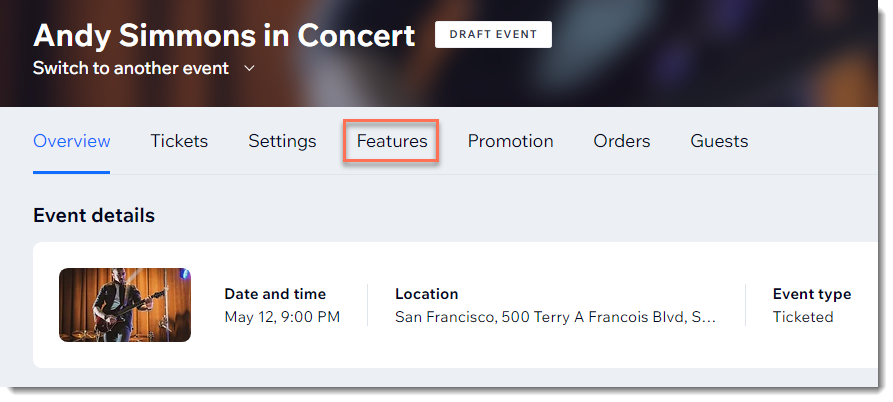
A screenshot of the Features tab for an event in a site's dashboard.

Need A Professional Website?
Contact Us 
Today!

Wix Automations: Adding and Sending a Coupon

Wix Automations: Sending Automated Emails to Contacts After Form Submissions

Wix Automations: Customizing Automated Emails

Wix Automations: Creating a New Automation

Wix Automations: An Overview

The New Automation Builder: Understanding Email Types

The New Automation Builder: Creating a Multi-Action Automation

The New Automation Builder: Sending Data via Webhook

The New Automation Builder: Adding and Sending a Coupon

The New Automation Builder: Troubleshooting Wix Automations

The New Automation Builder: Understanding Conditions Operators

The New Automation Builder: Setting Up a 'Scheduled Time' Trigger

The New Automation Builder: Sending Data to Google Sheets

The New Automation Builder: Using the Property Picker

The New Automation Builder: Viewing and Managing Automations Installed for You

The New Automation Builder: Customizing Automated Emails

The New Automation Builder: Managing Your Automations

The New Automation Builder: Creating an Automation

The New Automation Builder: Overview

Microsoft Office 365 Mailbox Limits

Resetting the Password for Additional Office 365 Mailboxes

Resetting Your Admin Password for Your Office 365 Mailbox

Accessing Your Microsoft Office 365 Mailbox Through Your Wix Account

Accessing Your Microsoft Office 365 Mailbox Through Your Wix Account

Accessing the Microsoft Office 365 Admin Center

Activating Your Microsoft Office 365 Mailbox Purchased from Wix

Google Workspace: Troubleshooting Login Issues

Google Workspace: FAQs

Google Workspace: Contacting Google Support

Google Workspace Error Message: "You do not have access to Email"

wix experts
Graphic2Traffic web design
©
bottom of page