top of page

Using the Wix app for Wix Events

Wix Events: Checking-In Guests Using the Wix App

Use the Wix app to check guests in as they arrive at your event. For ticketed events, you can use the app to scan the QR code found on event tickets.
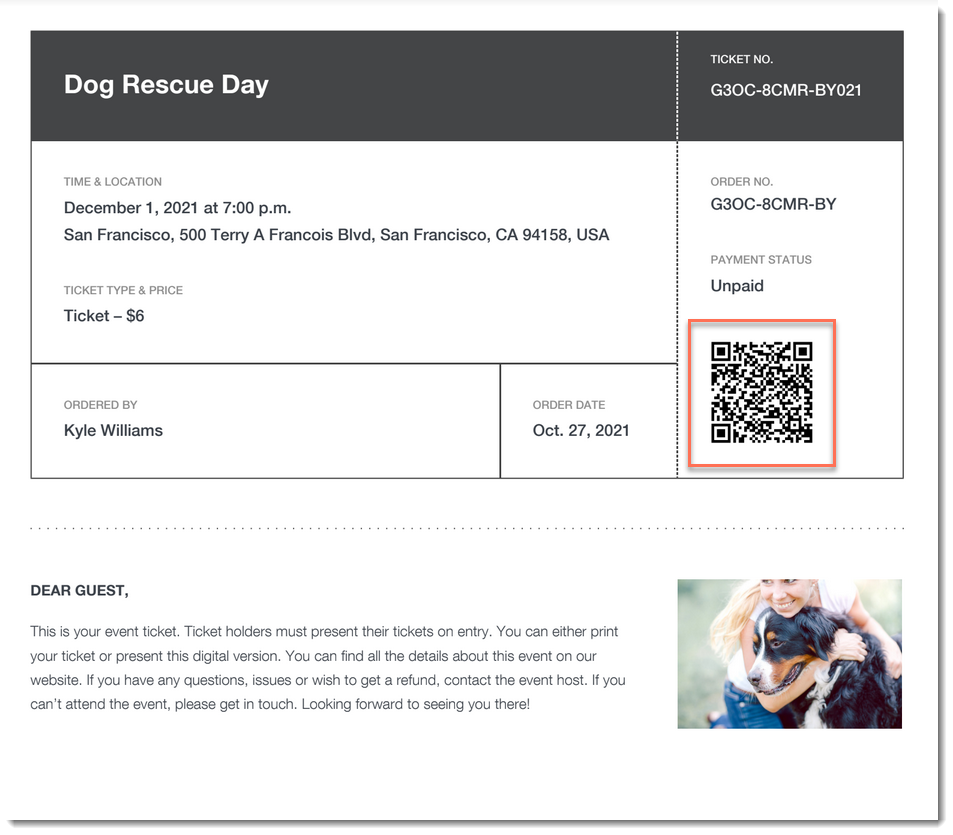
A screenshot of an event ticket PDF highlighting a QR code.

Important:

Go to your guest list in the Wix app shortly before you leave for the event, while you’re connected to the Internet. This ensures that you’ll be able to access the list and check guests in - even if you're offline during the event itself.

To check a guest in to an event:

  1. Go to your site in the Wix app.

  2. Tap Manage  at the bottom.

  3. Tap Events.

  4. Tap Published Events.

  5. Tap the event you want to view.

  6. Choose what you want to do:

Change a guest's status to "Checked In"

  1. Tap Guest List.

  2. (Optional) Filter your guest list:Tap the Filter  icon.

    Do any of the following:Select a status (e.g. Not checked in)
    Select one a payment status (ticketed events only).
    Select one or more a ticket types (ticketed events only).
    Select a sort option.
    Tap Save.

  3. Tap the checkmark next to a guest's name.
    A screenshot of a tapping a checkmark icon next to a guest's name in the Wix Owner app.

Scan a guest's ticket

  1. Tap Guest List.

  2. (Optional) Filter your guest list:Tap the Filter icon.

    Do any of the following:Select a status (e.g. Not checked in)
    Select one a payment status (ticketed events only).
    Select one or more a ticket types (ticketed events only).
    Select a sort option.
    Tap Save.

  3. Tap the QR icon at the top right.
    A screenshot of the QR icon in the Wix Owner app.

  4. Use your mobile device to scan the QR code that appears on the guest's ticket.
    A screenshot of an event ticket highlighting a QR code.

Tip:

You can also check in guests on desktop and on the Check-in by Wix app.

Need A Professional Website?
Contact Us 
Today!

Google Workspace: Purchasing and Setting up a Business Email

Resolving Email Issues

Changing the Priority of Your MX Records

Connecting Email Purchased Outside of Wix

Google Workspace: Adding a DKIM Record to your Business Email

Google Workspace: Adding an SPF Record to your Business Email

Adding a DKIM (TXT) Record

Adding or Updating SPF Records in Your Wix Account

Business Email: General Troubleshooting

Connecting Email Accounts from Different Email Providers for the Same Domain

Increasing Email Deliverability of Emails Sent from Your Business Email

Top Reasons for Using a Personalized Business Email

Business Email: An Overview

Wix Pay Links: Creating and Managing Pay Links in the Wix App

Wix Pay Links: Creating and Managing Pay Links

Wix Proposals: Managing Your Proposals on the Wix App

Wix Proposals by Prospero: Saving and Managing Proposal Templates

Wix Proposals by Prospero: Adding and Setting up Proposals

Wix Price Quotes: Managing Your Price Quotes in the Wix App

Wix Invoices & Price Quotes: Adding Default Notes

Wix Invoices & Price Quotes: Managing Your Settings

Wix Invoices & Price Quotes: Searching, Filtering, and Sorting

Wix Invoices & Price Quotes: Changing Your Initial Document Number

Wix Invoices & Price Quotes: Adding Tax Types

Wix Invoices & Price Quotes: Adding Your Items and Services

Wix Invoices & Price Quotes: Changing Your Currency and Payment Terms

Wix Invoices & Price Quotes: Adding Your Business Info

Wix Invoices: Managing Your Invoices

Wix Invoices: Creating and Managing Recurring Invoices

Wix Invoices: Creating and Managing Recurring Invoices

wix experts
Graphic2Traffic web design
©
bottom of page