


Designing Wix Events
Wix Events: Adding and Optimizing a Search Box for Events
Boost event attendance by helping your guests locate the events they're interested in.
Start by adding a general search box to your site and then customize it to work optimally with Wix Events.

Step 1 | Add a search box to your site
Start by adding a search box. By default, the search box is placed in your site's header and is visible on every page.
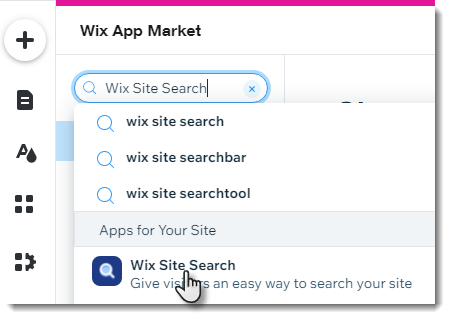
To add a search box to your site:
Go to the Wix App Market:Editor: Click the Add Apps icon
 on the left side of the Editor.
Editor X: Click the App Market icon on the top bar of Editor X.
Enter Wix Site Search in the search bar.
Select the Wix Site Search app.
Click Add to Site.
Step 2 | Customize the search box field
To help customers understand what they're searching for, edit the placeholder text. Note that in step 3, you can edit the search results page to display only events.

To customize the search box:
Click the search box in the Editor.
Click Settings.
Enter placeholder text suitable for event searches (e.g. Search for an event).
Click the Layout icon
 and Design icon
 and customize the look of the search box.
Step 3 | Customize the search results page
By default, the search results page shows results from all parts of your site. This can include store products, blog posts, regular pages, and more.

You can customize the results to display only events and make other changes.
To customize search results:
Click Pages
 on the left side of the Editor.
Select Site Menu.
Click the page named Search Results.
Click the Search Results page in the Editor.
Customize search results so it displays only events:Click Settings.
Click the Settings tab.
Click the toggle next to other types of search results to disable them.

(Optional) Edit the Events label that appears in the results menu:In the Settings tab, click the Edit icon
 next to Events.
Edit the Events tab label.
Increase the number of results per page (Recommended for sites with many events):Click the Layout tab.
Drag the Number of results per page slider to increase the number of events displayed in the first page of search results.
Use the rest of the customization options to further customize the behavior and look of the search results page.
Tips:
To see how your event search works, publish your changes and test it on your live site.
After your search runs for a while, you can use Wix Analytics to see what customers are looking for.