top of page

Wix Contacts FAQ

Wix Contacts: Importing Contacts from a Gmail Account

Create an instant mailing list by importing your Gmail account contacts. You can choose whether to import all your Gmail contacts or selected contacts. You can have up to 200,000 contacts per site.

Note:

In order to be imported, each contact must include at least one of the following fields:

  • Phone

  • Email

  • Address

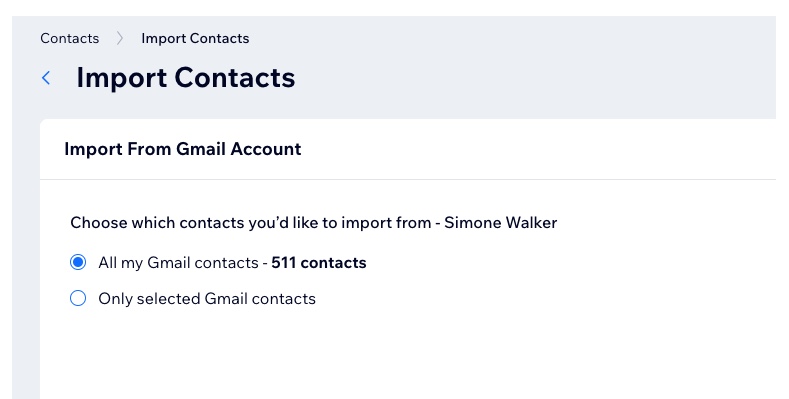
A screenshot of importing Gmail contacts

To import contacts from a Gmail account:

  1. Go to Contacts in your site's dashboard.

  2. Select Import contacts from the Import/Export drop-down at the top.

  3. Click Connect under Gmail account.

  4. Sign in to your Gmail account and click Continue.

  5. Select the checkbox to give Wix access to see and download your contacts. Then click Continue.

  6. Choose which contacts to import:All my Gmail contacts: All contacts are automatically imported.
    Only selected Gmail contacts: Use the drop-down to select the group of contacts (i.e. Gmail label) to import.
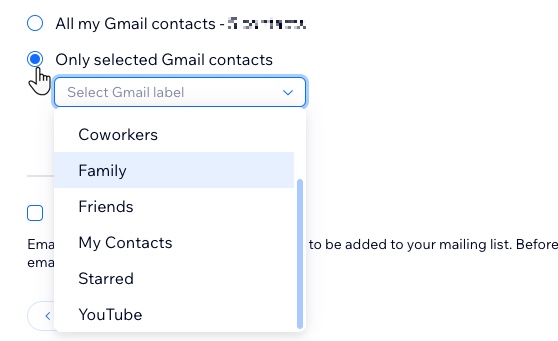
A screenshot of the selected gmail contacts dropdown

  1. (Optional) Select the Mark as email Subscribers checkbox.
    Note: If selected, all contacts uploaded in this batch will be marked as subscribers (people who have agreed to be added to your mailing list).

  2. Click Next.

  3. (Optional) Add a label by selecting an existing label or start typing to create a new label. Labeling helps keep your contact list organized.

  4. Click Import.

  5. Click Done.

Need A Professional Website?
Contact Us 
Today!

Wix Retail POS: Allowing Customers to Leave Tips

Wix Retail POS: Setting Up Text Receipts

Wix Retail POS: Allowing Customers to Redeem Loyalty Points

Wix Retail POS: Enabling Automatic Discounts

Wix Retail POS: Receiving Notifications

Wix Retail POS: Selling Physical Gift Cards

Wix Retail POS: Selling Virtual Gift Cards

Wix Retail POS: Managing Discounts

Wix Retail POS: Organizing Your Favorites Screen

Wix Retail POS: Disabling Payment Methods

Wix Retail POS: Managing Tax Collection

Wix Retail POS: About the Retail POS Plan

Wix Retail POS: Using Wix Payments as Your Payment Provider

Wix Retail POS: Troubleshooting Your Wix POS

Wix Retail POS: Using the Moneris Go Terminal Card Reader

Wix Retail POS: Connecting a Network Card Reader

Wix Retail POS: Contacting Wix Customer Care for POS Support

Wix POS Terms of Service

Wix Retail POS: Device Security Guidelines

Wix Retail POS: Troubleshooting Your Barcode Scanner

Wix Retail POS: Troubleshooting Your HP Terminal Receipt Printer

Wix Retail POS: Troubleshooting Your Cash Drawer

Wix Retail POS: Updating and Troubleshooting Your Card Reader

Wix Retail POS: Troubleshooting Your Tablet

Wix Retail POS: Updating the Tablet

Wix Retail POS: Checking the Status of Your Hardware

Wix Retail POS: Setting Up the Receipt Printer

Wix Retail POS: About Your HP Barcode Scanner

Wix Retail POS: Using the BBPOS Chipper 2X Card Reader

Wix Retail POS: Managing Your Cash Drawer

wix experts
Graphic2Traffic web design
©
bottom of page