


Wix Chat FAQ
Wix Chat: Viewing and Chatting with Live Site Visitors
See who's currently on your site and initiate chats directly from your site's dashboard. This is a great way to keep your visitors engaged and turn them into meaningful business leads. You can also view live site visitors' activity including where they're browsing from and what site page they're on.
Before you begin:
To view visitor activity and initiate chats, you must first install Wix Chat on your site.
Show me how
To view and chat with your live site visitors:
Go to your site's dashboard.
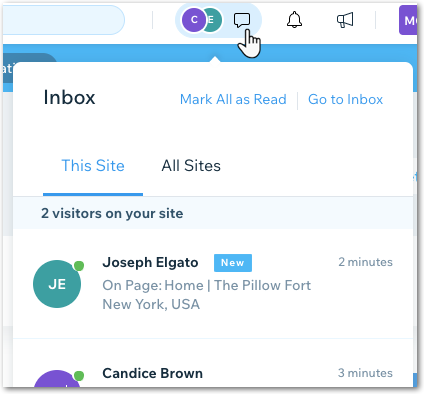
Note: This feature is available from any section of your dashboard.Click the Inbox icon
 at the top right corner. All current site visitors are displayed in the pop-up window.
Click a visitor to open a new inbox message.
Note:
If a live site visitor has provided info in the past (e.g. filled out a contact form) their name appears. If they haven't provided any information they appear as "Visitor #".
From Wix Inbox, choose what you want to do:
Chat with the visitor
Type your message in the text box.
Click Send at the bottom right.
Note: Make sure your chat status is set to 'online' so the visitor can see you're available to chat. To check your chat status:
Click the Settings drop-down at the top right of your inbox.
Enable the Chat Status toggle.

View the visitor's site activity
At the top of the inbox message you can see all available information about the site visitor including:
The site page they're viewing
The type of device they're using
Note: Hover over the site page to view the device typeHow long they've been on your site
The number of times they've visited your site
Note: Hover over the site time to see visit numberTheir location
