top of page

Wix Chat FAQ

Wix Chat: Customizing the Chat Icon on Your Mobile Site

When you install Wix Chat, it automatically adds a Quick Action Bar (QAB) to your mobile site. With a QAB, visitors can easily start chatting with you from their mobile phones as well as perform any other shortcuts you've added.
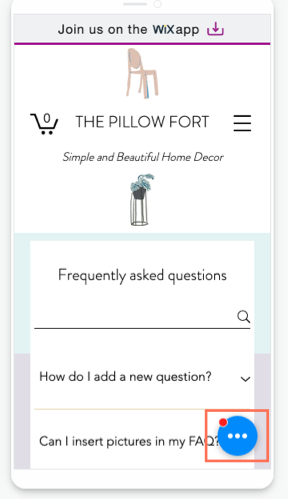
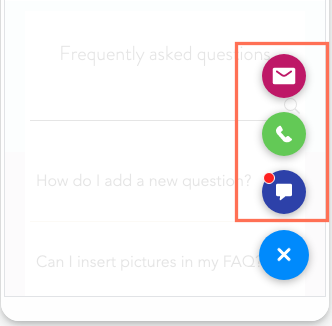
Depending on the number of actions in the QAB, the customization options differ. If chat is your only action, the design is pulled from your desktop site. If you have multiple actions, you can choose a design from the preset QAB themes.

Want to remove the chat icon completely?

You cannot remove Wix Chat from your mobile site without removing it from your desktop site. To remove the chat function entirely from both desktop and mobile, delete Wix Chat.

Vote for the ability to remove chat from mobile only in this feature request.

Customizing the chat icon when Wix Chat is the only action in the QAB

If Wix Chat is the only action in your QAB, the color of the mobile chat icon is pulled from the Design tab in your desktop chat settings. To change the color of the icon, go to your Editor from desktop and update the Minimized Chat settings. Learn more about customizing this and other aspects of your chatbox

Note:

The chat icon color is the same for desktop and mobile.

Customizing the chat icon when there are multiple actions in the QAB

If your QAB has multiple actions, your design options for the chat icon are limited to the QAB preset designs. By default, the chat icon is blue. You can change the color scheme of the icons and customize the border and shadow of the QAB from the mobile Editor. Learn more about designing your QAB
Need A Professional Website?
Contact Us 
Today!

Wix Automations: Adding and Sending a Coupon

Wix Automations: Sending Automated Emails to Contacts After Form Submissions

Wix Automations: Customizing Automated Emails

Wix Automations: Creating a New Automation

Wix Automations: An Overview

The New Automation Builder: Understanding Email Types

The New Automation Builder: Creating a Multi-Action Automation

The New Automation Builder: Sending Data via Webhook

The New Automation Builder: Adding and Sending a Coupon

The New Automation Builder: Troubleshooting Wix Automations

The New Automation Builder: Understanding Conditions Operators

The New Automation Builder: Setting Up a 'Scheduled Time' Trigger

The New Automation Builder: Sending Data to Google Sheets

The New Automation Builder: Using the Property Picker

The New Automation Builder: Viewing and Managing Automations Installed for You

The New Automation Builder: Customizing Automated Emails

The New Automation Builder: Managing Your Automations

The New Automation Builder: Creating an Automation

The New Automation Builder: Overview

Microsoft Office 365 Mailbox Limits

Resetting the Password for Additional Office 365 Mailboxes

Resetting Your Admin Password for Your Office 365 Mailbox

Accessing Your Microsoft Office 365 Mailbox Through Your Wix Account

Accessing Your Microsoft Office 365 Mailbox Through Your Wix Account

Accessing the Microsoft Office 365 Admin Center

Activating Your Microsoft Office 365 Mailbox Purchased from Wix

Google Workspace: Troubleshooting Login Issues

Google Workspace: FAQs

Google Workspace: Contacting Google Support

Google Workspace Error Message: "You do not have access to Email"

wix experts
Graphic2Traffic web design
©
bottom of page