top of page

Managing your calendar & bookings

Wix Bookings: Scheduling Your Courses

Schedule your sessions exactly when you want - whether the meetings take place at regular intervals (e.g. 1 hour per week every Monday at 8:00), or a more personalized schedule (e.g. a session of a different length once every three weeks with sessions taught by different instructors).

After creating a Course, you can schedule its sessions from your booking calendar. When clients book a course, they sign up for the entire course and all its sessions.
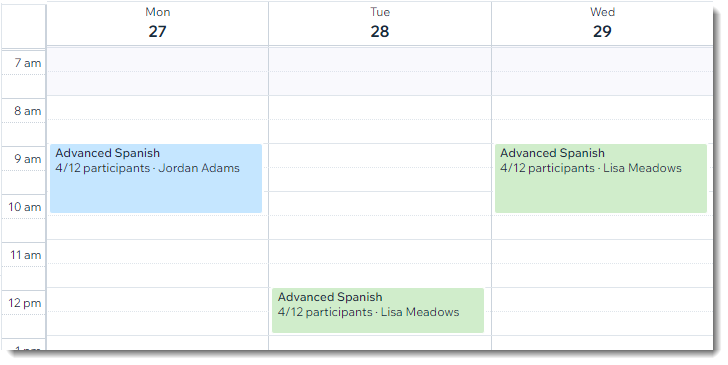
A screenshot of a calendar with courses scheduled.

Before you begin:

Create the Course service that you want to schedule (e.g. Advanced Spanish).

To schedule a course session:

  1. Go to Booking Calendar in your site's dashboard.

  2. Click the time slot in which the course takes place for the first time.

  3. Select Course session.

  4. Add the course session details:Course/Service: Select the course you want to schedule.
    Staff: Select the staff member who is leading the course.
    Start Time: Edit the date and start time of the session.
    Duration: Select the duration of the course.
    Note: Select Custom to enter a custom duration.

    Repeat: Choose how often the course session is offered:Select an option from the drop-down.
    Note: Select Doesn't Repeat to only offer the course once.
    Select the day(s) of the week the course takes places.
    (Optional) Click the field next to Until and choose the date of the last class.

  5. Choose a saving option:Save & Add New: Save the session and start scheduling another one.
    Save: Save the session and return to your calendar.
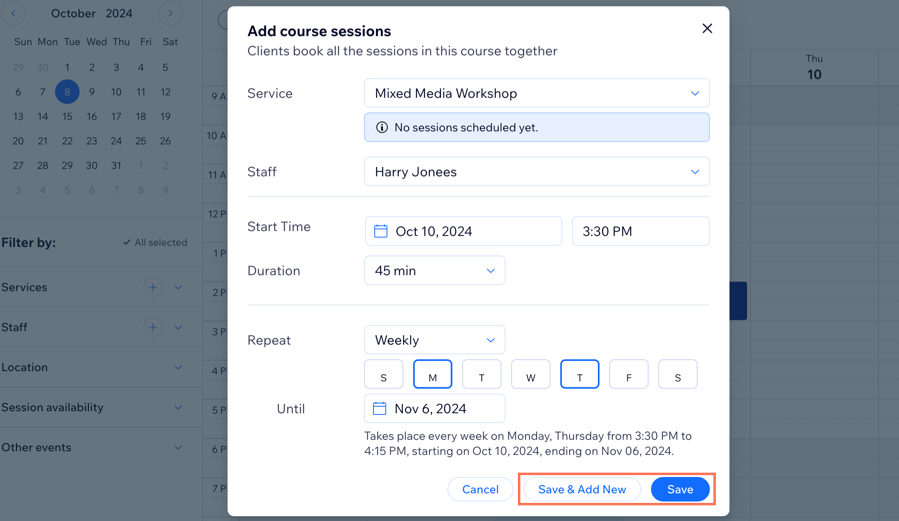
A screenshot of adding the course session details, and where to choose save & add new or just save the session..

Tip:

Go to the Bookings Services tab and click Show Schedule next to the relevant course to view a summary of its schedule.

You can also select the Schedule view in your calendar to check the list of upcoming sessions on the certain date. 

Need A Professional Website?
Contact Us 
Today!

Wix Retail POS: Allowing Customers to Leave Tips

Wix Retail POS: Setting Up Text Receipts

Wix Retail POS: Allowing Customers to Redeem Loyalty Points

Wix Retail POS: Enabling Automatic Discounts

Wix Retail POS: Receiving Notifications

Wix Retail POS: Selling Physical Gift Cards

Wix Retail POS: Selling Virtual Gift Cards

Wix Retail POS: Managing Discounts

Wix Retail POS: Organizing Your Favorites Screen

Wix Retail POS: Disabling Payment Methods

Wix Retail POS: Managing Tax Collection

Wix Retail POS: About the Retail POS Plan

Wix Retail POS: Using Wix Payments as Your Payment Provider

Wix Retail POS: Troubleshooting Your Wix POS

Wix Retail POS: Using the Moneris Go Terminal Card Reader

Wix Retail POS: Connecting a Network Card Reader

Wix Retail POS: Contacting Wix Customer Care for POS Support

Wix POS Terms of Service

Wix Retail POS: Device Security Guidelines

Wix Retail POS: Troubleshooting Your Barcode Scanner

Wix Retail POS: Troubleshooting Your HP Terminal Receipt Printer

Wix Retail POS: Troubleshooting Your Cash Drawer

Wix Retail POS: Updating and Troubleshooting Your Card Reader

Wix Retail POS: Troubleshooting Your Tablet

Wix Retail POS: Updating the Tablet

Wix Retail POS: Checking the Status of Your Hardware

Wix Retail POS: Setting Up the Receipt Printer

Wix Retail POS: About Your HP Barcode Scanner

Wix Retail POS: Using the BBPOS Chipper 2X Card Reader

Wix Retail POS: Managing Your Cash Drawer

wix experts
Graphic2Traffic web design
©
bottom of page