


Managing your calendar & bookings
Wix Bookings: Scheduling Your Courses
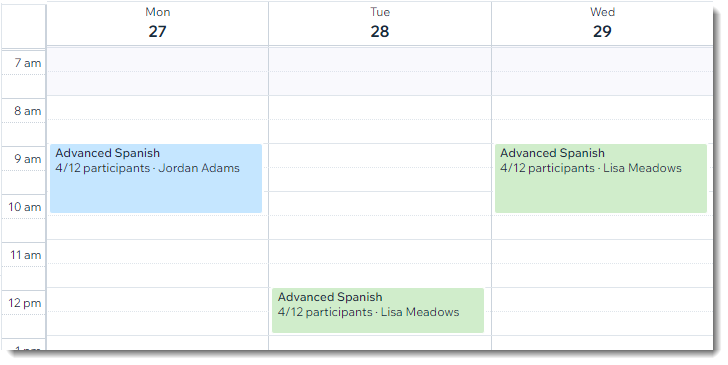
Schedule your sessions exactly when you want - whether the meetings take place at regular intervals (e.g. 1 hour per week every Monday at 8:00), or a more personalized schedule (e.g. a session of a different length once every three weeks with sessions taught by different instructors).
After creating a Course, you can schedule its sessions from your booking calendar. When clients book a course, they sign up for the entire course and all its sessions.
Before you begin:
Create the Course service that you want to schedule (e.g. Advanced Spanish).
To schedule a course session:
Go to Booking Calendar in your site's dashboard.
Click the time slot in which the course takes place for the first time.
Select Course session.
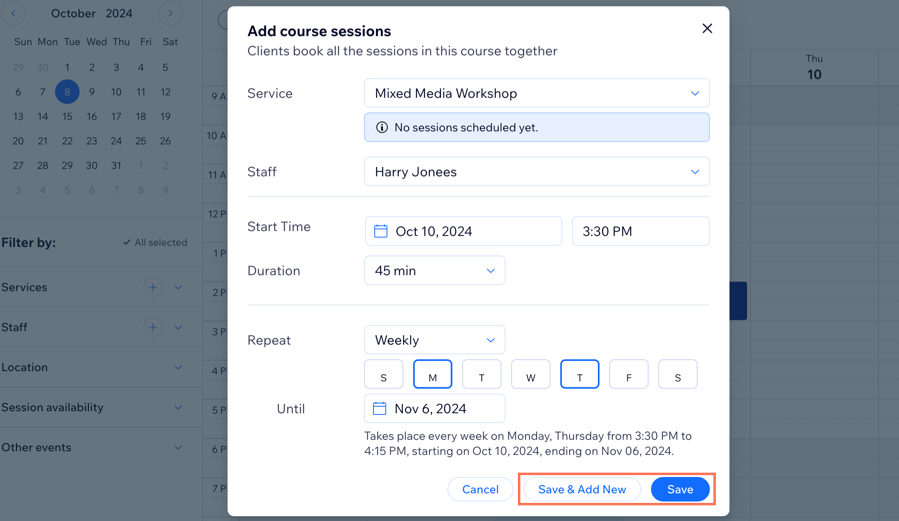
Add the course session details:Course/Service: Select the course you want to schedule.
Staff: Select the staff member who is leading the course.
Start Time: Edit the date and start time of the session.
Duration: Select the duration of the course.
Note: Select Custom to enter a custom duration.
Repeat: Choose how often the course session is offered:Select an option from the drop-down.
Note: Select Doesn't Repeat to only offer the course once.
Select the day(s) of the week the course takes places.
(Optional) Click the field next to Until and choose the date of the last class.
Choose a saving option:Save & Add New: Save the session and start scheduling another one.
Save: Save the session and return to your calendar.
Tip:
Go to the Bookings Services tab and click Show Schedule next to the relevant course to view a summary of its schedule.

You can also select the Schedule view in your calendar to check the list of upcoming sessions on the certain date.
