


Managing your calendar & bookings
Wix Bookings: Rescheduling a Session
With Wix Bookings, you can manage changes to your client sessions. If a service needs to be rescheduled, adjust it directly from your booking calendar. You can update session details as needed and choose whether to notify participants via email about the changes.
Rescheduling sessions helps you stay flexible and accommodate unexpected changes for both you and your clients. For instance, if a client has a last-minute conflict, you can modify their appointment time to keep your schedule organized.
In this article, learn more about:
Rescheduling an appointment
Reschedule appointments directly from your booking calendar. Change the date, time, and location to keep your schedule organized. You can also edit additional appointment details and notify clients about the changes.
Dashboard
Wix app
Wix Studio app
Go to Booking Calendar in your site's dashboard.
Click the appointment you want to reschedule.
Click the Edit icon
 at the top of the session.
Edit the appointment date, time or location.
(Optional) Click the Edit icon
next to the service name to edit additional session details. Then click Update.(Optional) Select the Notify client via email checkbox and add a message to update your customer.
Click Save & Collect Payment or Save.
Rescheduling class or course sessions
Reschedule a class or course session directly from your booking calendar. Adjust the timing or details of any upcoming sessions.
If you offer a class or course at different times, you can reschedule each of these sessions. For example, if you have a cooking class that meets every Monday and Wednesday at 7:00, you can change the Monday class so that it starts every week at 7:30.
Dashboard
Wix app
Wix Studio app
Go to Booking Calendar in your site's dashboard.
Click the relevant session.
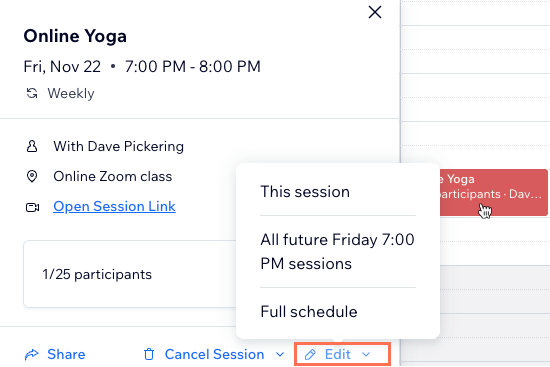
Click Edit.
(If necessary) Choose which sessions you want to edit: This session, All future sessions, or Full schedule.
Note: For All future sessions, sessions that take place on other days and times have to be edited separately.
Choose what you want to do:Edit the start date or time.
Edit any additional details.
Click + Add a note to yourself to add a personal note about the session.
Click the Notify clients via email checkbox to send your clients a notification via email.
Click Save.