


Using the Wix app to manage your bookings
Wix Bookings: Promoting Your Services from the Wix App
With the Wix app, you can promote your services right from your mobile device in just a couple of minutes using social posts, email campaigns and promotional videos.
Promoting your services is key to growing your business, engaging new clients and making sure your classes are full, and your community is growing.

In this article, learn more about promoting your services:
Creating social posts to promote your services
Social posts are a great way of getting the word out about your latest services to a wider audience and growing your online presence.
To create a social post promoting your services:
Go to your site in the Wix app.
Tap Manage
 at the bottom.
Tap Booking Services, or tap Catalog and select Booking Services.
Tap the More Actions icon
 next to the relevant service.
Tap Promote service.
Tap Create a Post under Social Post.Choose an overlay.
Tap Text to add text and customize it.
Tap Sticker to add a sticker.
Tap Image to change or edit the image.
Tap the Share at the top.
Select the social media platform(s) where you want to share the post or tap Download to save the post for later use.
Tap Done.

Creating email campaigns to promote your services
Email campaigns are another highly effective way to promote your services to clients and make sure your business is growing. Email campaigns are also great for promoting your seasonal sales.
To create an email campaign to promote your services:
Go to your site in the Wix app.
Tap Manage
at the bottom.Tap Booking Services, or tap Catalog and select Booking Services.
Tap the More Actions icon
next to the relevant service.Tap Promote service.
Tap Create a Campaign under Email Campaign.
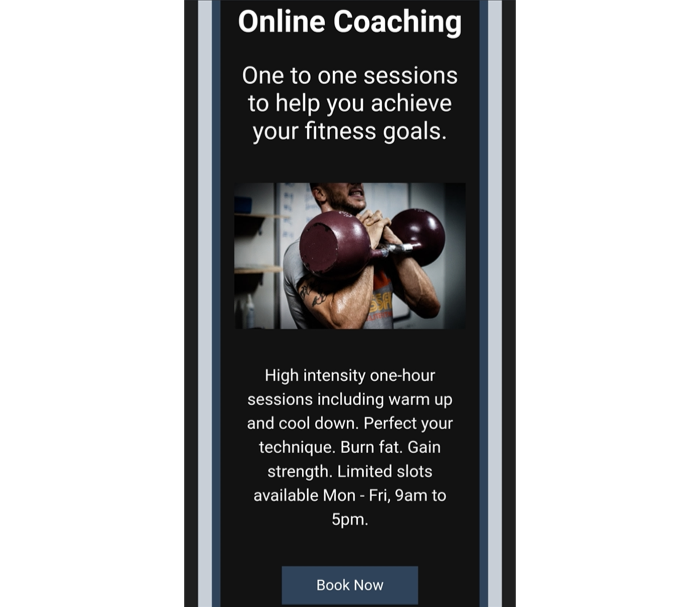
Tap an element within the email template to customize it.Tap the title to change text and style.
Tap the image to change it to a new one or to edit.
Tap the text to customize the format, font, size, color and alignment and explain more about your service.
Tap the button to change the style and text displayed.
Tap Background at the bottom to change the color scheme of the email.
Tap the Add icon at the bottom to add additional text, images, buttons, dividers, or logos to your email campaign.
(Optional) Tap Preview & Test to check the layout before tapping Send Test to send yourself a copy before launching your email campaign.
Tap Next.
Choose whether to:Send to contacts: Tap to select which contacts to send the email campaign to and finalize everything. Then tap Send Campaign when you're done.
Publish on Social: Tap Share Now to select the relevant social media platforms.
Go to dashboard: Tap if you want to save your campaign for later.
Tip:
To find your previous campaigns and drafts:
Go to your site in the Wix app.
Tap Manage
.Scroll down and tap Email Marketing.
Tap Drafts.
Creating a promo video to promote your service
Promo videos are an eye-catching way to showcase your services online and with the Wix app, you can create custom content in a matter of minutes.
To create a video to promote your service:
Go to your site in the Wix app.
Tap Manage
at the bottom.Tap Booking Services, or tap Catalog and select Booking Services.
Tap the More Actions icon
next to the relevant service.Tap Promote service.
Tap Create a Video under Promo Video.
Create your video:Select the photos and videos you wish to include in the promo video or tap Add Media to upload additional content from your device.
Drag and drop the photos and videos into the correct order.
Tap Next.
Add the text you'd like to appear in your video.
Tip: Make sure to include a call-to-action, e.g. Book now.
Tap Next.
Choose the Video Style, Layout and Colors and Font.
Tap Next.
Choose the music for your promo video.
Tip: Tap individual tracks to hear a preview.
Tap Next.
You can now preview your video and decide whether to save it or continue customizing it.
When your video is saved you can then:Tap Share and choose where to post your content right away.
Tap Download to save the promo video for later.
Tap Done.
