top of page

Using the Wix app to manage your bookings

Wix Bookings: Marking a Session as "Paid" in the Wix App

You can update your records as soon as you receive payment for a client using the Wix app. Just locate the appointment or class session and change the status to "Paid".

Tip:

If your client purchased one or more of your membership plans or packages, you can count the session as paid for by the relevant plan.

In this article, learn more about:

Marking an appointment as 'paid'

If your clients prefer to pay in cash after their sessions, you can mark the appointment as 'paid' right away, using the Booking Calendar on the Wix app.

To mark an appointment as 'paid':

  1. Go to your site in the Wix app.

  2. Tap Manage  at the bottom.

  3. Tap Booking Calendar.

  4. Tap the relevant appointment.

  5. Tap Collect Payment at the bottom of the screen.
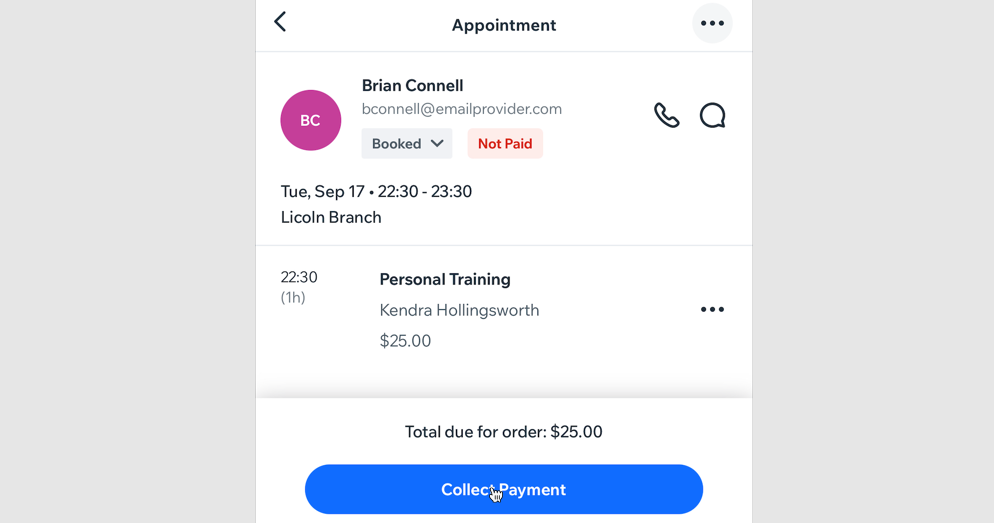
A screenshot showing where you tap collect payment for an appointment.

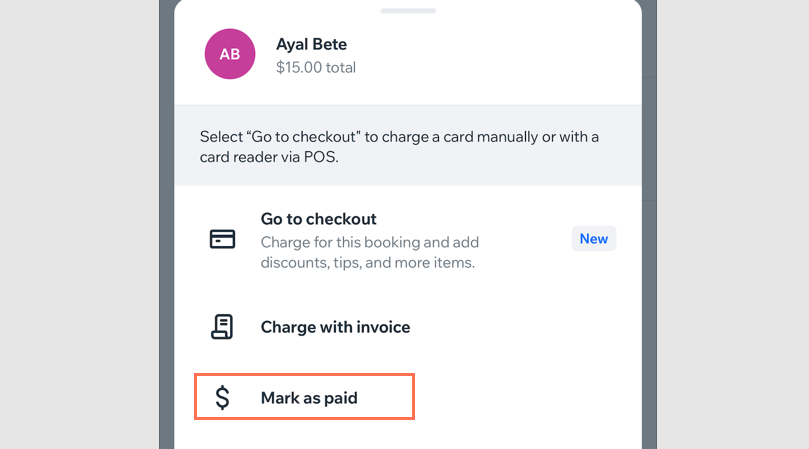
  1. Tap Mark as Paid.
    Note: You cannot undo this action.
Marking a participant's class or course session as 'paid'

If participants in your class or course sessions prefer to pay in cash at the end of session, you can mark their session as 'paid' manually, using the Booking Calendar on the Wix app.

To mark a participant's class session as 'paid':

  1. Go to your site in the Wix app.

  2. Tap Manage  at the bottom.

  3. Tap Booking Calendar.

  4. Tap the relevant class or course session.

  5. Tap Manage Participants.

  6. Tap the More Actions icon next to the relevant participant.

  7. Tap Mark as paid.
    Note: You cannot undo this action.

A screenshot showing how to mark a participant's class/course session as paid.

Need A Professional Website?
Contact Us 
Today!

Wix Chat: Automatically Sending Chat Messages or Responding to Chat Messages

Wix Chat: About Notifications

Wix Chat: Deleting Wix Chat

Wix Chat: Adding the WhatsApp Channel to Your Chatbox

Wix Chat: Viewing and Chatting with Live Site Visitors

Wix Chat: Customizing the Chat Icon on Your Mobile Site

Wix Chat: Translating Wix Chat

Wix Chat: Allowing Members to Chat with Each Other Using Members Chat

Wix Chat: Customizing Your Chat Settings

Wix Chat: Designing Your Chatbox

Wix Chat: Adding Wix Chat to Your Site

Wix Chat: An Overview

Your AI Site-Chat Conversations Quota

Designing and Customizing Wix AI Site-Chat

Training Your AI Site-Chat

Testing Your Wix AI Site-Chat

Adding and Setting Up Wix AI Site-Chat

About Wix AI Site-Chat

Wix Inbox: Sending a Broadcast Message to Your Contacts in the Wix App

Wix Inbox: Working with Site Collaborators

Wix Inbox: Connecting WhatsApp Business to Inbox

Wix Inbox: Connecting Your Facebook Page

Wix Inbox: Connecting Instagram to Inbox

Wix Inbox: About Wix Inbox Channels

Wix Inbox: Connecting Your Gmail Account

Wix Inbox: Managing Your Notification Settings

Wix Inbox: Managing Your Inbox

Wix Inbox: Setting Up Your Inbox Profile and Outgoing Emails

Wix Inbox: Sending Messages and Attaching Items

Wix Inbox: An Overview

wix experts
Graphic2Traffic web design
©
bottom of page