top of page

Using the Wix app to manage your bookings

Wix Bookings: Managing Your Business Hours Using the Wix App

Manage your business hours on the go using the Wix app, so both members and staff know when they can book sessions. After setting your default business hours, you can add specific hours for individual staff members.

In this article, learn more about:

Setting your default business hours

Let your clients know what your opening hours are by setting your default business hours.

Tip:

You can also create custom working hours for your staff members outside your regular hours of business.

To set your default business hours:

  1. Go to your site in the Wix app.

  2. Tap Manage  at the bottom.

  3. Scroll down and tap Settings.

  4. Tap Booking Settings.

  5. Tap Default Hours.

  6. Select the checkboxes next to each day your business is open.

  7. Enter a default start and end time for each day (e.g. 9:00 AM to 6:00 PM).
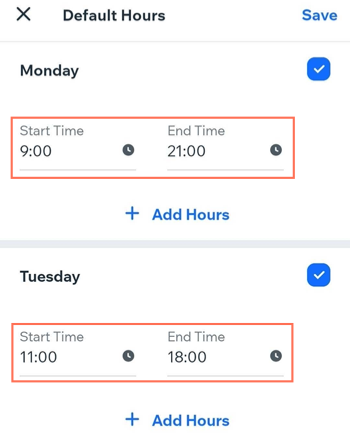
Screenshot showing how to set your default hours in the Wix Owner app.

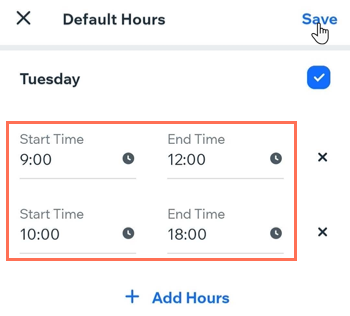
  1. (Optional) Add another time period if your business closes at any point during the day:Tap + Add Hours.
    Enter a start and end time. (e.g. 9:00 AM - 12:00 PM and 1:00 PM - 6:00 PM).

  2. Tap Save.

Screenshot showing how to add different periods of opening hours on the same day in the Wix Owner app.

Checking business hours on your site

After you set your staff and default business hours, your members can visit your site on a desktop or mobile device, select a service and a staff member, and see which spots are available.
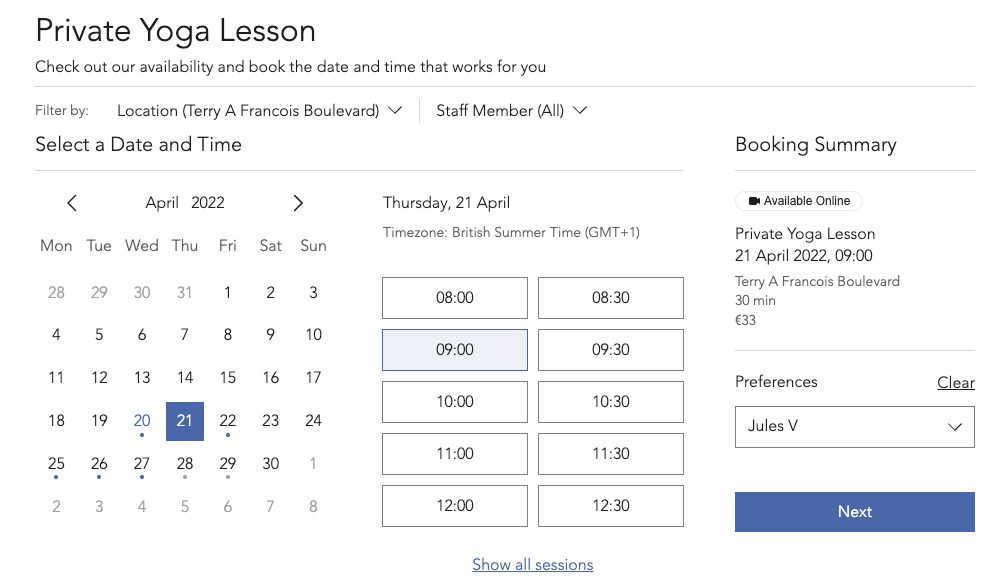
Screenshot of how default hours show up and look when trying to book available sites.

Need A Professional Website?
Contact Us 
Today!

Wix Retail POS: Allowing Customers to Leave Tips

Wix Retail POS: Setting Up Text Receipts

Wix Retail POS: Allowing Customers to Redeem Loyalty Points

Wix Retail POS: Enabling Automatic Discounts

Wix Retail POS: Receiving Notifications

Wix Retail POS: Selling Physical Gift Cards

Wix Retail POS: Selling Virtual Gift Cards

Wix Retail POS: Managing Discounts

Wix Retail POS: Organizing Your Favorites Screen

Wix Retail POS: Disabling Payment Methods

Wix Retail POS: Managing Tax Collection

Wix Retail POS: About the Retail POS Plan

Wix Retail POS: Using Wix Payments as Your Payment Provider

Wix Retail POS: Troubleshooting Your Wix POS

Wix Retail POS: Using the Moneris Go Terminal Card Reader

Wix Retail POS: Connecting a Network Card Reader

Wix Retail POS: Contacting Wix Customer Care for POS Support

Wix POS Terms of Service

Wix Retail POS: Device Security Guidelines

Wix Retail POS: Troubleshooting Your Barcode Scanner

Wix Retail POS: Troubleshooting Your HP Terminal Receipt Printer

Wix Retail POS: Troubleshooting Your Cash Drawer

Wix Retail POS: Updating and Troubleshooting Your Card Reader

Wix Retail POS: Troubleshooting Your Tablet

Wix Retail POS: Updating the Tablet

Wix Retail POS: Checking the Status of Your Hardware

Wix Retail POS: Setting Up the Receipt Printer

Wix Retail POS: About Your HP Barcode Scanner

Wix Retail POS: Using the BBPOS Chipper 2X Card Reader

Wix Retail POS: Managing Your Cash Drawer

wix experts
Graphic2Traffic web design
©
bottom of page