


Managing your calendar & bookings
Wix Bookings: Displaying Class Times on Your Site
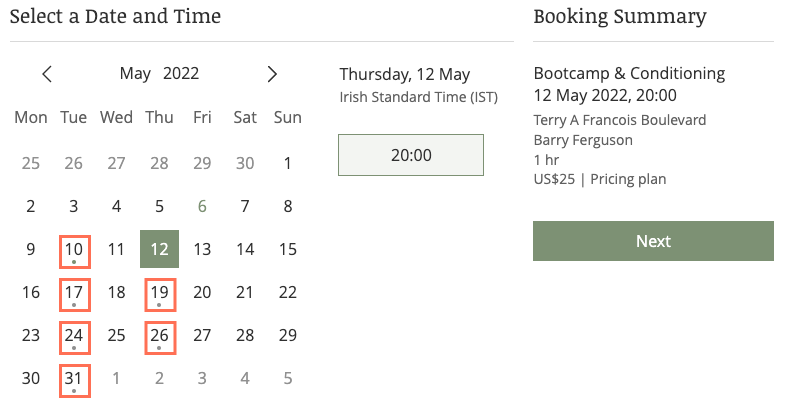
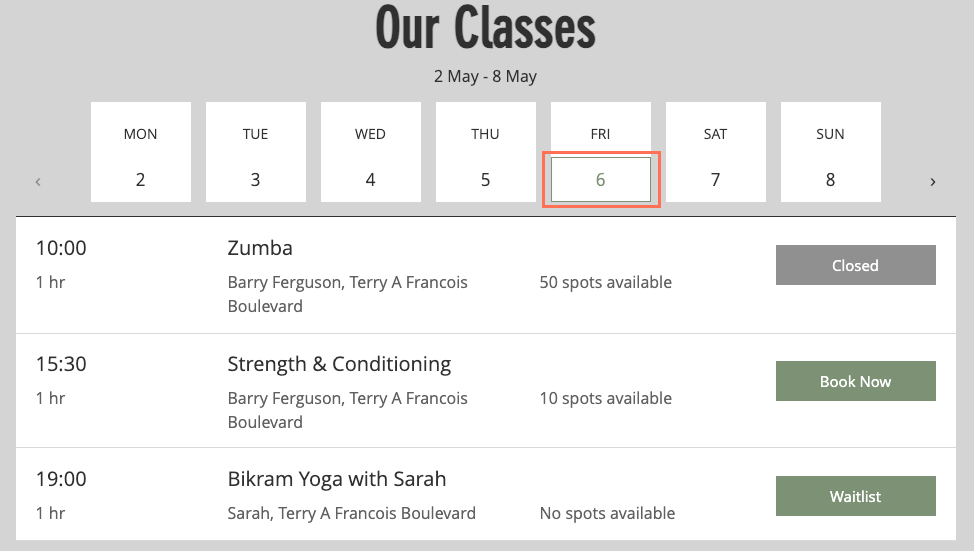
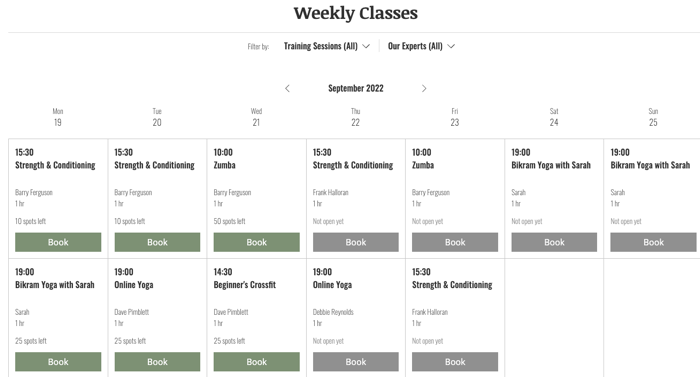
Clients can see the days of the week a class is available in a number of places on your site. These include: the Service List, the Service Page, the Booking Calendar, your Daily Agenda and your Weekly Timetable.
In this article, learn more about:
Where clients view class times on your site
Below is a list of the places on your site where clients see your weekly class times.
The Service List

The Service Page
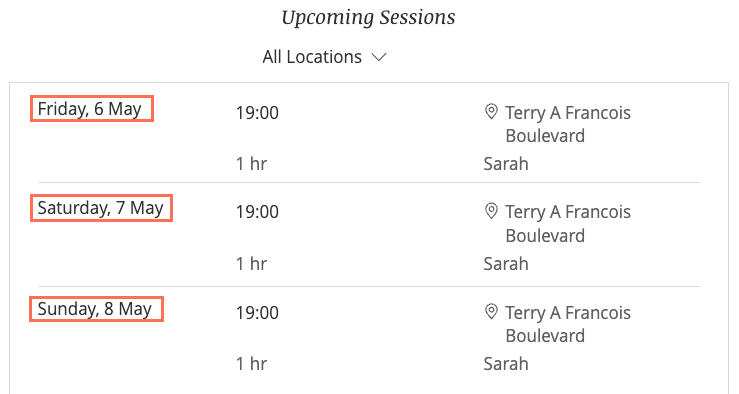
The Service Page displays recurring class sessions. In certain situations, you may want to add or remove days, such as scheduling a one-time session on a Friday.
Note:
Certain scheduling changes may not appear in the Service Page. You can update your calendar to make sure the Service Page reflects these changes (see below).
The Calendar
The Daily Agenda
Tip:
Learn how to add a Daily Agenda to your site.
The Weekly Timetable
Tip:
Learn how to add a Weekly Timetable to your site.
Adding one-time sessions to the days displayed
By default, if you create a one-time session that does not repeat, for example on a Friday, "Friday" does not appear in the list of days on the Service Page. If you do want the day of the one-time session to appear, follow the instructions below.
Tip:
The one-time session appears on the Daily Agenda and the Weekly Timetable, but doesn't appear when clients view your Service Page or Service List. Avoid missed bookings by following the steps below.
To display a one-time class session:
Go to Booking Calendar in your site's dashboard.
Click the date and time the class will meet and select Class Session.
Select the service, staff member, and duration.
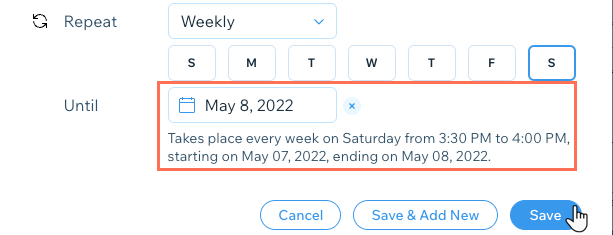
Adjust the class's Repeat settings (even though it does not repeat):Select Weekly from the Repeat drop-down.
Select the day of the week you are offering the class.
Select the date you stop offering this class to make it a one-time session:Click Set an end date.
Click the calendar and select a relevant date (e.g. for a one-time session that takes place May 7, set an end date of May 8).
Click Save.
Removing days on which you no longer offer classes
When browsing the Service List and individual Service Pages, clients can see on which days you offer each service. If the days they see don't reflect your current schedule, there could be scheduled sessions in the calendar you're unaware of.

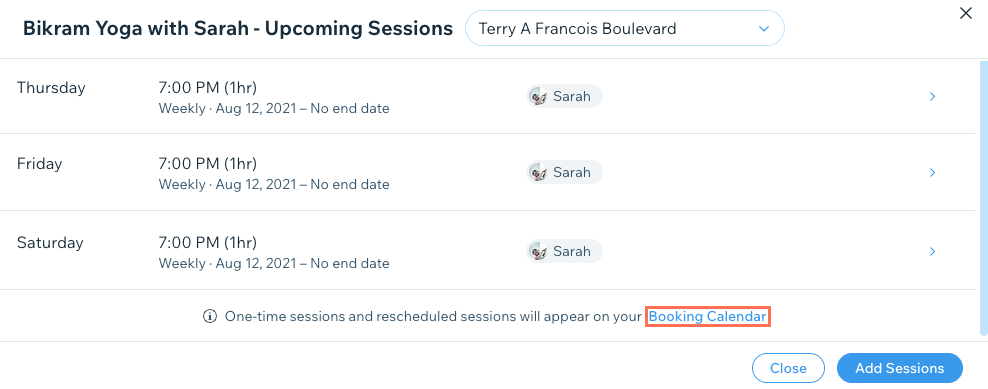
In the Booking Services tab in your dashboard, you can see and delete any upcoming sessions that are no longer relevant.
To remove days on which you no longer offer classes:
Go to Booking Services in your site's dashboard.
Click Show Schedule on the relevant service.
Click the Booking Calendar to remove any relevant sessions.
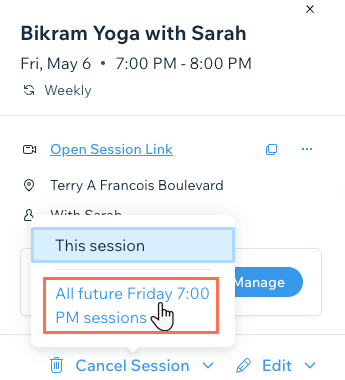
Click the relevant session.
Click the Cancel Session drop-down.
Click All Future [...] Sessions.
Click Yes, Cancel All Sessions.
Note: Select the checkbox to notify all participants by email about the change in class schedule