


Emails, SMS, and promotions
Wix Bookings: Creating Discount Coupons with Automations
Use Wix Automations to send coupons to your visitors after they perform an action on your site. For example, you can automatically send coupons to someone after they register as a member.
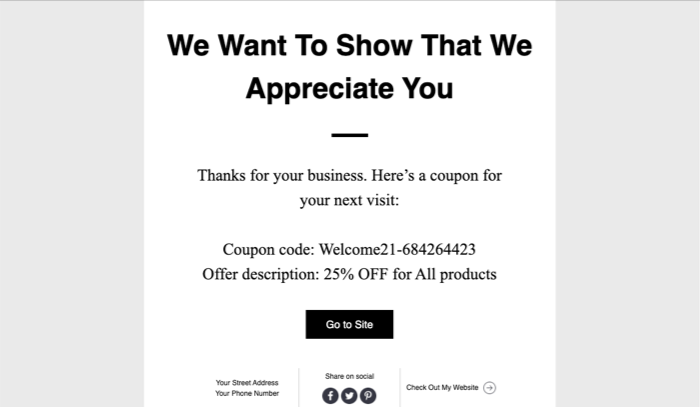
To create an automation for sending coupons:
Go to Automations in your site's dashboard.
Click + New Automation at the top right.
Choose how you want to start creating your automation:From Scratch: Click Start from Scratch to begin from a blank automation template.
Suggested automation: Use the categories or search bar to find the suggested automation you want to edit. Then click Set Up next to the automation.
From scratch
Go to Automations in your site's dashboard.
Click + New Automation or click an existing automation to edit it.
Click the title to give your automation a name.
Select Bookings as the trigger.
Choose an option under Select a trigger for this app:Session is booked: This option is great for welcoming new clients.
Booking is canceled by you or a client: This option is useful for retaining clients after a cancellation.
Client is checked-in for the 1st time: Encourage your clients to book another session.
Client is checked-in to first X sessions: Reward clients for repeat business.
Client is checked-in to a session: Great for engaging with clients who try your newest services.
Client was last checked-in a while ago: Encourage clients to return to your business by offering a discount.
A session starts: Encourage clients to return as they are enjoying your services.
A session ends: Make it easy for clients to book their next session right away.
Choose which services the coupon automation applies to from the Select which services trigger this automation drop-down.
Select Send coupon via email as the action.
Select an option under Set Coupon:Yes, send unique single-use coupons: Send unique single-use coupons to everyone that triggers the automation. The coupon you select in the next step will be duplicated with random characters added to its code.
No, always send the same coupon: Send the same coupon to everyone that triggers the automation.
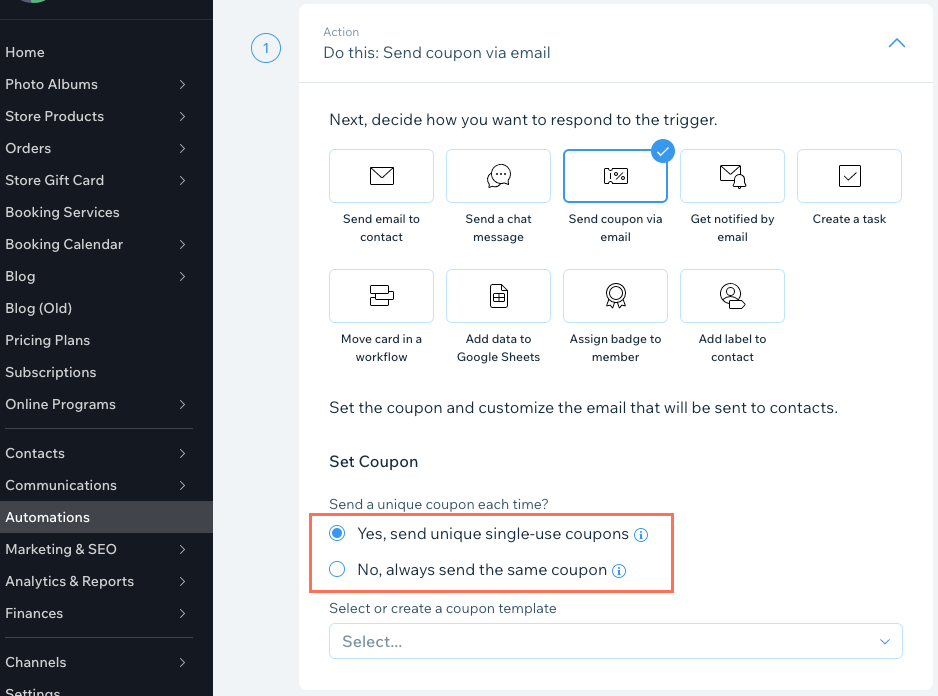
Click the drop-down under Set Coupon and select an existing coupon template or create a new one.
(Optional) Edit the coupon details, sender details, and email template.
Click the Timing drop-down then set the timing and frequency for sending the coupons:Choose a time to send this action: Click the drop-down and choose when to send the coupons (immediately or set a custom time).
Limit frequency to: Click the drop-down and choose how many times the same contact can trigger the automation.
(Optional) Click + Add Follow-up Action to add more automations to the trigger.
Note: You may need upgrade your premium plan to activate multistep automations.Click Activate.
Note:
The automation stops working when the coupon's end date or use limit is reached.