


Emails, SMS, and promotions
Wix Bookings: Adding and Setting Up a Google 'Book' Button
Make it easier for new clients to find and book services at your business by adding a Google 'book' button. The latest integration between Wix Bookings and Google allows your clients to book services with price options, pay online for services, and access your video conferencing services.
Direct links to services are available to clients using their mobile devices. They can access the direct links to your services through Google's apps and on a mobile web browser on iOS and Android.
Before you begin:
You must connect a domain to your site to connect a Google 'book' button to your Wix Bookings site.
Upgrade your site so you can accept online bookings.
Create the relevant Wix Bookings services you want to connect to the Google 'book' button.
You must create a Google Business Profile.
In this article, learn more about:
Connecting a Google 'book' button
Make it easier for new clients to find you and book your services by integrating your Wix Bookings services with Google. By adding this button, you streamline the process for new and existing clients to find and book the services they need quickly and easily.
Note:
Make sure to create your Google Business Profile before following the steps below. It can take several days for the verification to complete.
To connect a Google 'book' button:
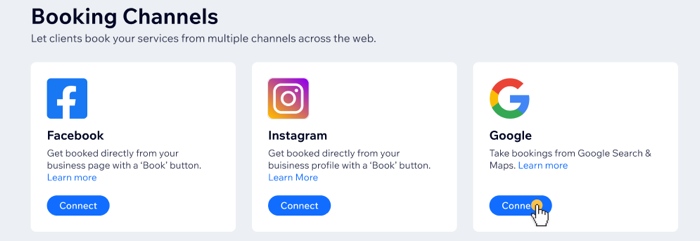
Go to Booking Channels in your site's dashboard.
Click Connect under Google.
Click Get Started to agree to Google's terms of use and Privacy policy.
Click the Choose profiles drop-down and click the checkbox next to the relevant Google Business profile(s) you want to connect.
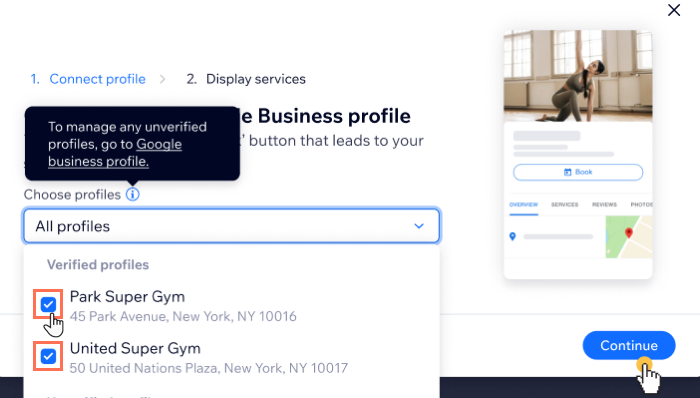
Click Continue.
Click the Select services drop-down and click the checkbox next to the relevant services you want to display on Google.
Click Connect.
Managing your Google 'book' button
You can update the locations and the services you want to display on Google at any time from the Booking Channels tab in your site's dashboard.
To manage your Google 'book' button:
Go to Booking Channels in your site's dashboard.
Click Manage under Google.
Click the Choose which Google Business Profiles can accept bookings drop-down.
Click to select or deselect the checkboxes next to the relevant profiles you want to add or remove.
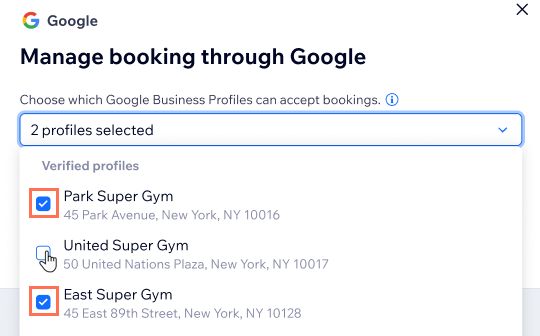
Click the Choose services to display on all profiles drop-down.
Click to select or deselect the checkboxes next to the relevant services you want to add or remove.
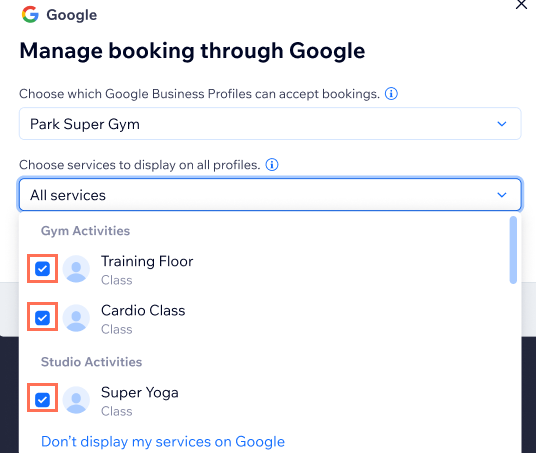
Click Update.
Note:
Direct links to services are only available to clients using their mobile devices. They can access the direct links to your services through Google's apps and on a mobile web browser on iOS and Android.
Troubleshooting setting up your Google 'book' button
Choose from the list of common scenarios below, where it is not possible to connect your services to a Google 'book' button.
Note:
You should wait up to 72 hours so that Google will approve your business. Don't see your business after 72 hours? Please check whether one of the issues below is relevant or call Google support.
My service link was removed from Google
To enable this inventory, update your feeds to reinclude this entry.
Business listing does not allow this link type
If you believe this location is categorized incorrectly, you may be able to update your Business listing, please reach out to your support contact for more details.
Disabled service link
This link has been disabled due to either data quality reasons or other policy violations.
No matched business listing for merchant's link
Make sure that the address of your Google Business Profile is an exact address. For example, you cannot list an area (for example, 'North Amsterdam') as your business address to get booked from Google.
Are there any types of business that can't be listed on Google?
Retail (online stores). For these types of merchants and sometimes even specific services, Google will not list them.