Customizing Wix Bookings pages
Wix Bookings: Adding and Setting Up a Daily Agenda on Your Site
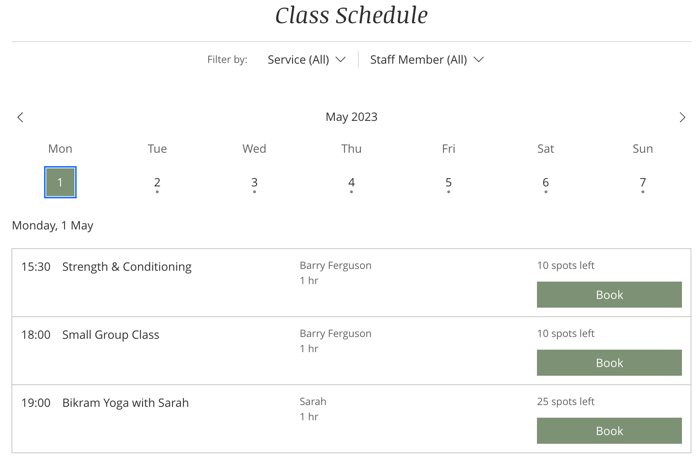
Display your classes in a daily agenda so your clients can see what's available on any particular day. The daily agenda automatically displays your classes on the days they are available. After you add a daily agenda to your site, you can customize it to suit your business and branding.
Note:
Courses and appointments do not appear in the daily agenda.
Step 1 | Add a daily agenda to your site
A daily agenda makes it easier for clients to book your classes, as they can see what sessions are available each day. For your convenience, you can add this timetable to any page of your site.
Wix Editor
Studio Editor
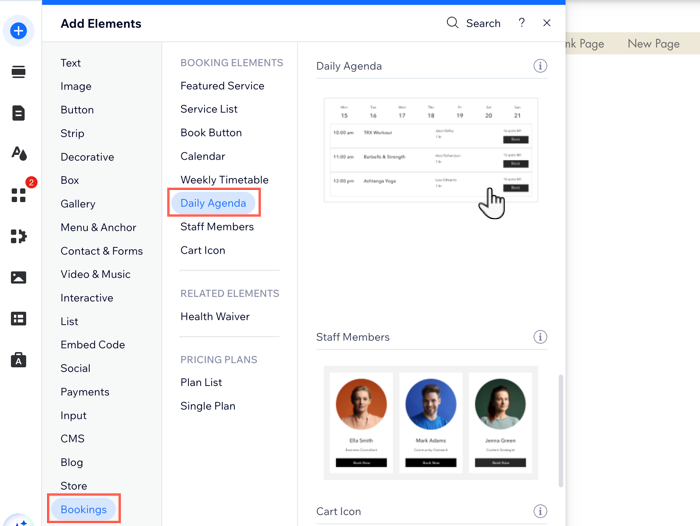
Click Add Elements
 on the left side of the editor.
Click Bookings.
Click Daily Agenda.
Drag the daily agenda onto your page.
Step 2 | Choose which elements to show
Choose which elements to include in the daily agenda, such as the number of slots remaining. You can also choose to display or hide the Book Now button. This can be useful for promoting an upcoming term of classes that are not available to book yet.
To choose which elements to show on the daily agenda:
Click the daily agenda element in your editor.
Click Settings.
Click the Display tab.
Enable the toggle to display a header at the top of the daily agenda.
Select the relevant checkboxes under What would you like to show?:Title: Select to display a title at the top of your daily agenda.
Service filter: Select to allow clients to filter by service.
Staff filter: Select to allow clients to filter by staff member.
Timezone: Select to allow clients to filter by timezone, if you offer classes in different regions of the world.
Click Categories to choose the relevant categories of classes you want to display on the daily agenda:Select the checkbox next to each relevant category.
Click Back at the top.
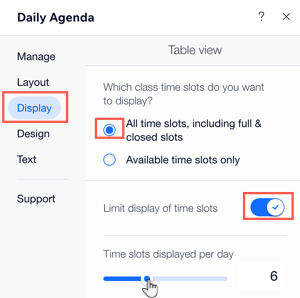
Under Table view, choose how you want to display your table of classes:All time slots, including full & closed slots
Available time slots only
Want to set the total time slots displayed per day on the mobile version of your site?
Click the Switch to mobile icon
 at the top of the editor.
Click the Daily Agenda element and click Settings.
Click the Display tab and enable the Limit display of time slots toggle.
Drag the Time slots displayed per day slider to set the total displayed.
Click the Limit display of time slots toggle to limit how many time slots display per day:Enabled: Use the slider to adjust the maximum number of time slots displayed per day.
Disabled: There is no limit to how many time slots display per day.
Under Session details, select the checkboxes to choose what info displays for each session.
Enable the Button toggle to show a button on each session time slot. If your session is available, this button will say “Book". If your waitlist is enabled, it could say “Join Waitlist".
Step 3 | Edit the daily agenda text
Edit the text content you want to show on your daily agenda. This includes messages you display when classes are full or closed for bookings.
To edit the daily agenda text:
Click the daily agenda element in your editor.
Click Settings.
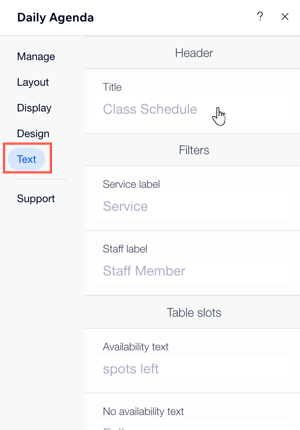
Click the Text tab.
Click to edit the text that appears on your daily agenda, including your Title, Empty Schedule Text, the Book Online Button and the More Info Button text.