Using the Wix app to manage your bookings
Wix Bookings: Accessing the Details of a Class Session in the Wix App
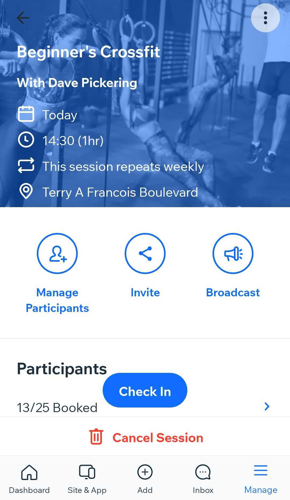
If you offer classes, each session of the class has its own page in your Wix app. There, you can view the participants and waitlists.
You can also leave notes for you and your staff members about the session. This is a great way to set reminders to follow-up with clients from previous sessions.
In this article, learn more about:
Accessing the details of a class session
On the class page in the Booking Calendar, you can view the complete list of participants booked in for a class, as well as on the waitlist.
To access the details of a class session:
Go to your site in the Wix app.
Tap Manage
 at the bottom.
Tap Booking Calendar.
Navigate to the relevant day and time in the Schedule, then tap the relevant session.
(Optional) Change the calendar view, depending on your preferences:
Schedule view
This is a convenient way to book clients in for their next session. All upcoming sessions appear one after the other, regardless of the time between them. For example, if your business closes on weekends, sessions on Fridays and Mondays will appear next to each other.
Tap the Change View icon
 at the top right.
Tap Schedule to see a list of upcoming sessions.
(Optional) If you offer services in different locations, you can filter the Schedule view by location.
Tap any class service to view the details including the participant list and waitlist.
Day view
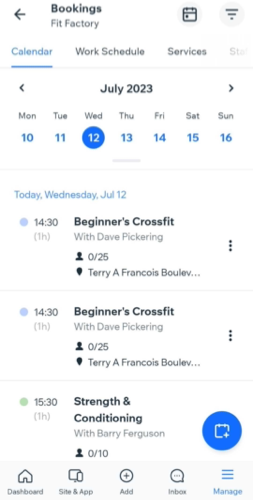
Use this view to see all upcoming sessions for a given day. In this view, all time slots appear, including empty ones. This view is useful when booking clients in for appointments or when creating new services.
Tap the Change View icon
at the top right.Tap Day view to see a list of upcoming sessions.
(Optional) If you offer services in different locations, you can filter the Day view by each location.
Tap any class service to view the details including the participant list and waitlist.
3 day
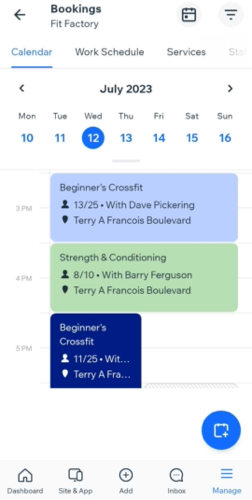
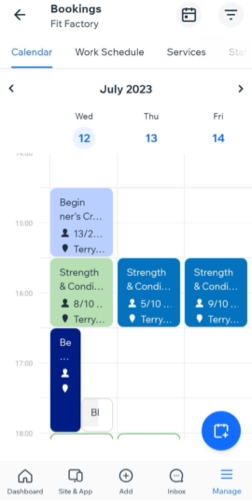
Use this view to see all upcoming sessions for the following three days. In this view, all time slots appear, including empty ones. This view is useful when rescheduling sessions for clients and you need to check alternative times in the near future.
Tap the Change View icon
in the top right corner.Tap 3 day.
(Optional) If you offer services in different locations, you can filter the 3 day view by location.
Tap any class service to view the details including the participant list and waitlist.
Adding notes to a class session
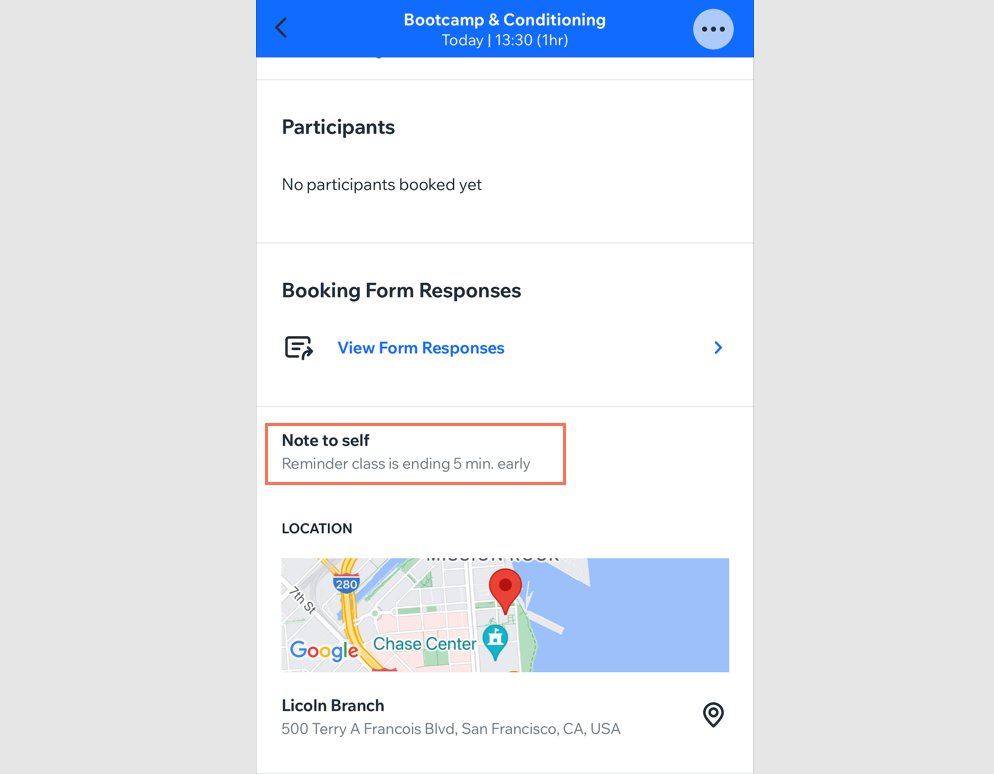
You can add notes for yourself to your class sessions. This is useful when you or your staff need to follow-up with clients. The notes to self that you create appear in the main section of the relevant class session.
To add a note to a class session:
Go to the relevant class session in the Booking Calendar on the Wix app.
Tap the More Actions icon
 at the top.
Tap Edit this session.
Tap Note to Self under Additional Information at the bottom and enter the relevant information.
Tap Save.
Tap No when asked if you want to send a notification email.