Memberships, packages & payments
Wix Bookings: About Getting Paid Online
Wix Bookings offers a variety of ways to get paid online for your services. This article gives an overview of everything to consider so you can set up the right payment options for your business.
Choose your preferred payment methods
Go to Accept Payments in your dashboard to set up one or more payment methods. Some payment methods (e.g. PayPal) are available in almost every country around the world, while others are popular in a specific country or region.
To make it easier for you, when you go to select payment methods, Wix suggests the ones that are available in your area.
Once you set up online payment methods, you can enable or disable any of these methods for each of the services you offer. In other words, you can allow clients to pay for certain services online when they book, and pay for others in person.
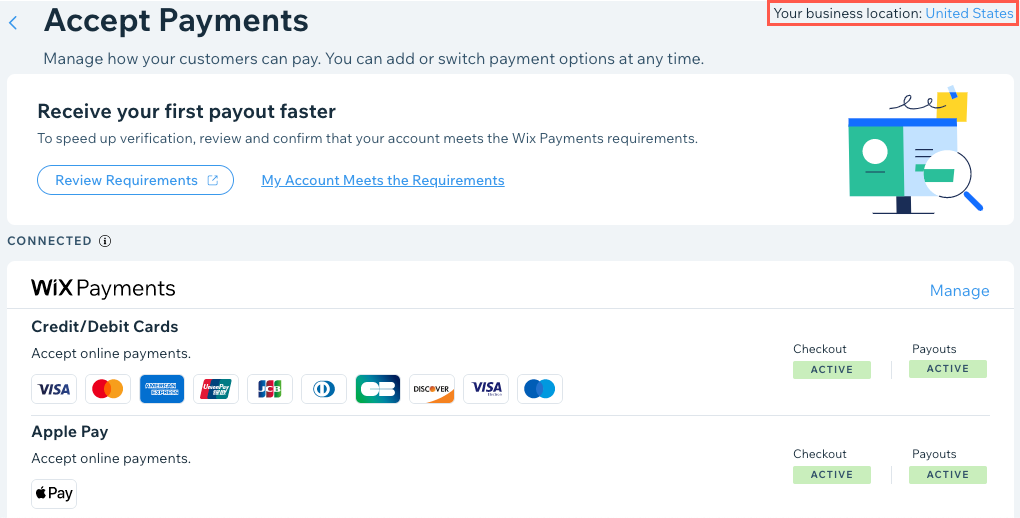
To get started:
Make sure to upgrade your site, so you can start accepting bookings.
What clients see when they book
When booking a service, your client can choose from any of the options you set up. For example, if you set up the following payment methods in the Accept Payments tab:
A credit / debit card provider
PayPal
The manual method
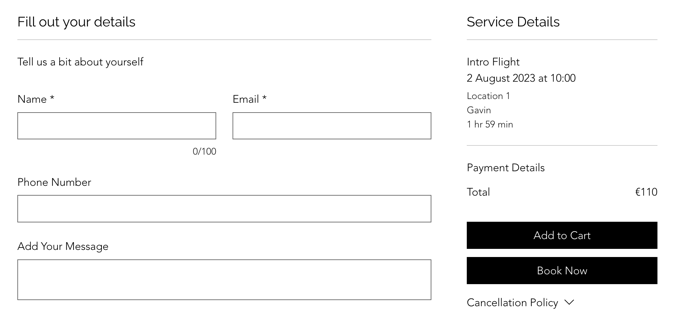
This is what your clients see during checkout:
Asking clients to pay a deposit when booking online
You can ask clients for a deposit (in the amount you choose) as they book a service with you. They pay the deposit on your site, then settle the balance in person when they arrive. You set this option for individual services, so you don't have to ask for a deposit for every service you offer.
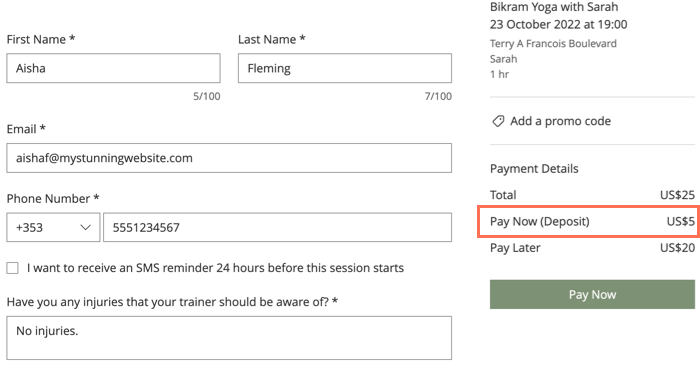
As clients pay the deposit online, make sure to set up a payment method in the Accept Payments tab.
Offering varied price options
When creating your services, you can choose from several pricing and payment options. You can create price options based on the staff member responsible for an appointment. You can also create price options depending on the client or service type.
Get started:
Visit the links below to create varied price options for your different services:
Membership plans and packages
Membership plans (e.g. a monthly gym membership) and packages (e.g. 6 classes / month at a reduced rate) are popular with clients and encourage them to keep doing business with you.
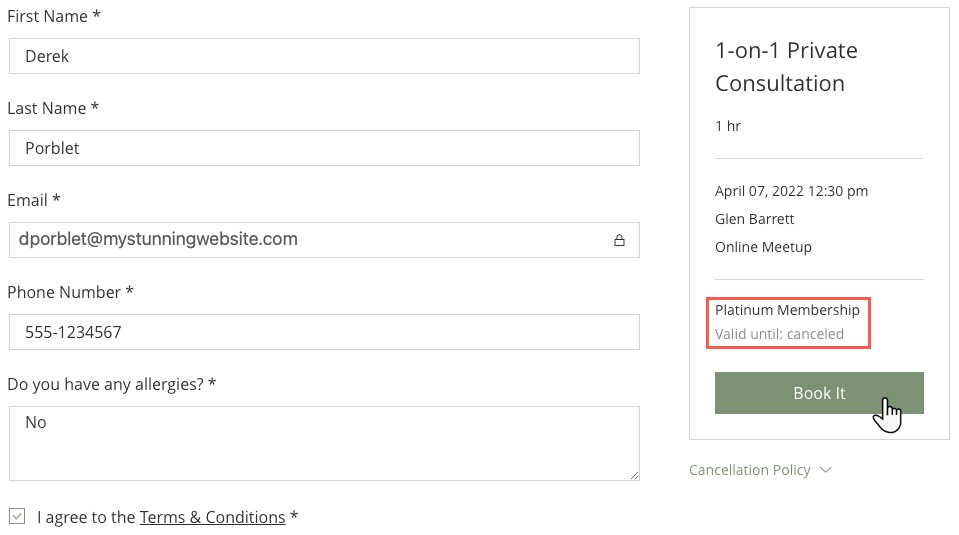
Set up one or more plans and packages using the Pricing Plans app. You can then offer a service only as a single service, as part of a membership plan or package, or give your clients both options to choose from.