top of page

Managing your staff

Wix Bookings: About Bookings Staff Members

Add your staff to your site so they can provide services to clients and help manage your business. You can control each staff member's level of access to your site and business information.

The staff tab in the dashboard, showing staff members' details

Managing staff hours

Staff hours determine when a staff member is available to provide appointments. To manage your business hours, Wix Bookings offers a two-level system.

First, set your default work hours which apply to all staff. Then you can set individual staff members' hours to offer a more flexible service to clients.

A screenshot showing the various working hours for a single staff member during one week.

Inviting staff members to sync their Google calendars

To help staff members keep track of their schedule, you can invite them to sync their personal calendars with their Wix Bookings calendar. This helps prevent double bookings and allows staff to see their complete upcoming schedule in one place.

Make sure you assign the relevant permission level, so your staff member can sync their personal calendar (see section below).

A screenshot showing how to give a staff member the necessary permissions before they can sync their personal calendar.

Assigning permission levels

Wix Bookings allows you to assign different levels of permissions to your staff and others who help build and manage your site.

For example, adding someone as a Bookings staff member gives them permission to book their own clients, access their personal calendar and manage their sessions.

You may also want to invite non-staff members to contribute on your site. For example, if you hire a graphic designer or a copywriter to make changes to your site.

Note:

Only Bookings Admins have permission to send payment requests and charge credit cards.
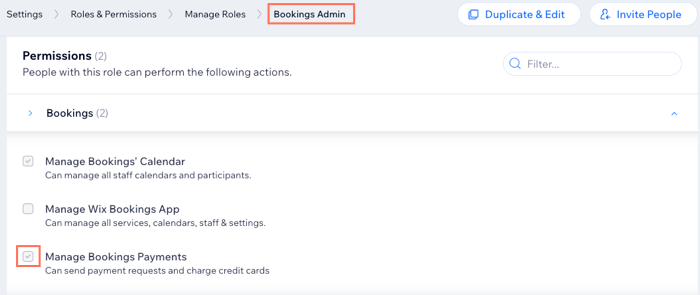
A screenshot showing the permissions a Bookings Admin has on your site.

Need A Professional Website?
Contact Us 
Today!

Wix Automations: Adding and Sending a Coupon

Wix Automations: Sending Automated Emails to Contacts After Form Submissions

Wix Automations: Customizing Automated Emails

Wix Automations: Creating a New Automation

Wix Automations: An Overview

The New Automation Builder: Understanding Email Types

The New Automation Builder: Creating a Multi-Action Automation

The New Automation Builder: Sending Data via Webhook

The New Automation Builder: Adding and Sending a Coupon

The New Automation Builder: Troubleshooting Wix Automations

The New Automation Builder: Understanding Conditions Operators

The New Automation Builder: Setting Up a 'Scheduled Time' Trigger

The New Automation Builder: Sending Data to Google Sheets

The New Automation Builder: Using the Property Picker

The New Automation Builder: Viewing and Managing Automations Installed for You

The New Automation Builder: Customizing Automated Emails

The New Automation Builder: Managing Your Automations

The New Automation Builder: Creating an Automation

The New Automation Builder: Overview

Microsoft Office 365 Mailbox Limits

Resetting the Password for Additional Office 365 Mailboxes

Resetting Your Admin Password for Your Office 365 Mailbox

Accessing Your Microsoft Office 365 Mailbox Through Your Wix Account

Accessing Your Microsoft Office 365 Mailbox Through Your Wix Account

Accessing the Microsoft Office 365 Admin Center

Activating Your Microsoft Office 365 Mailbox Purchased from Wix

Google Workspace: Troubleshooting Login Issues

Google Workspace: FAQs

Google Workspace: Contacting Google Support

Google Workspace Error Message: "You do not have access to Email"

wix experts
Graphic2Traffic web design
©
bottom of page