top of page

File Share

Wix Apps: Using the Member's Area with the File Share App

Create a community around your file sharing system! The Member's Area is the ideal place for people in your community to get to know each other and see which files other members uploaded.

When you add the File Share app to your site, it comes with the Member's Area already added.
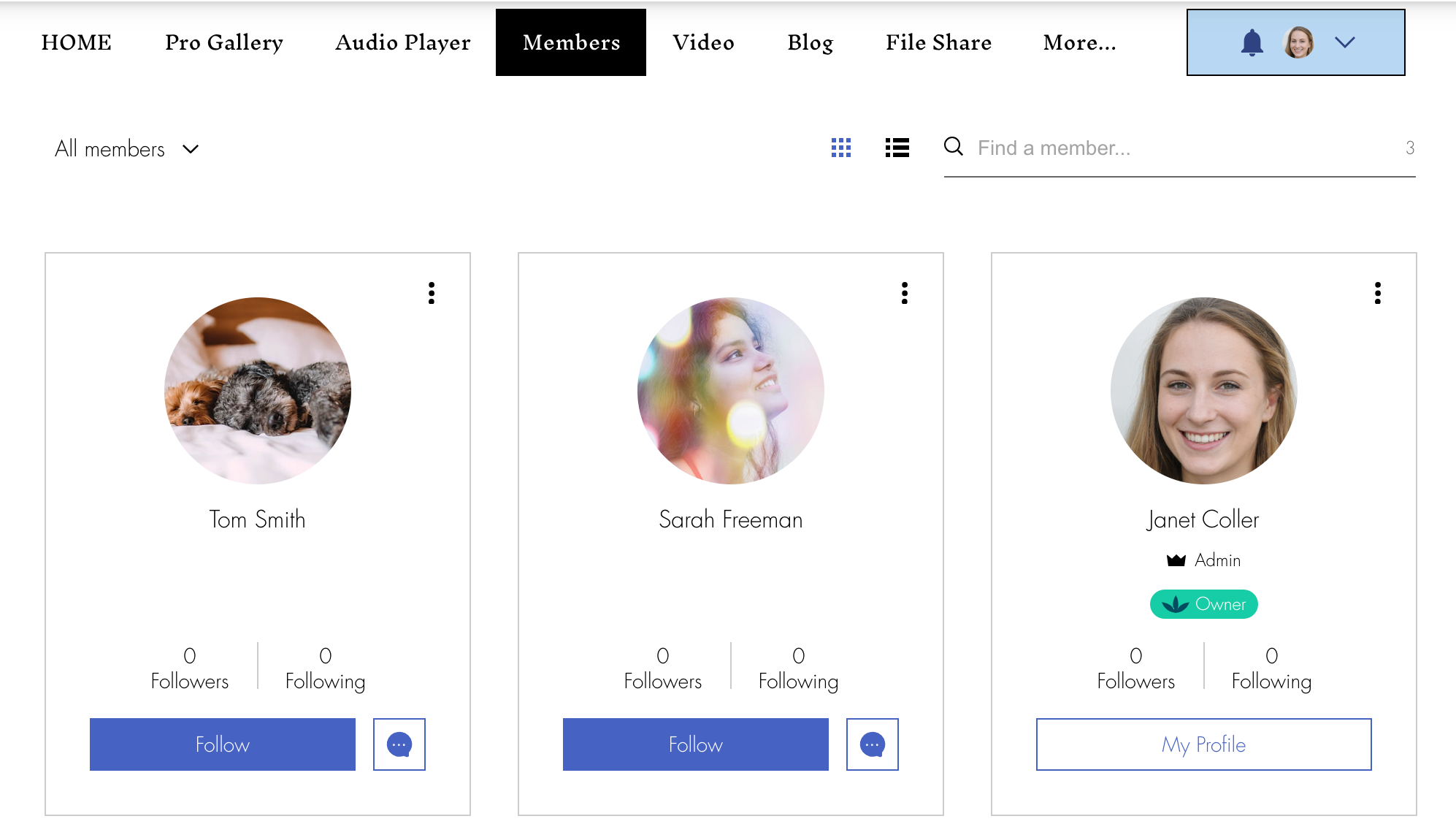
A screenshot showing the member cards on the member page.

What do site visitors see in the Member's Area?

With the Member's Area installed on your site, site visitors can view each member's profile page or click Files to see what files a member uploaded.
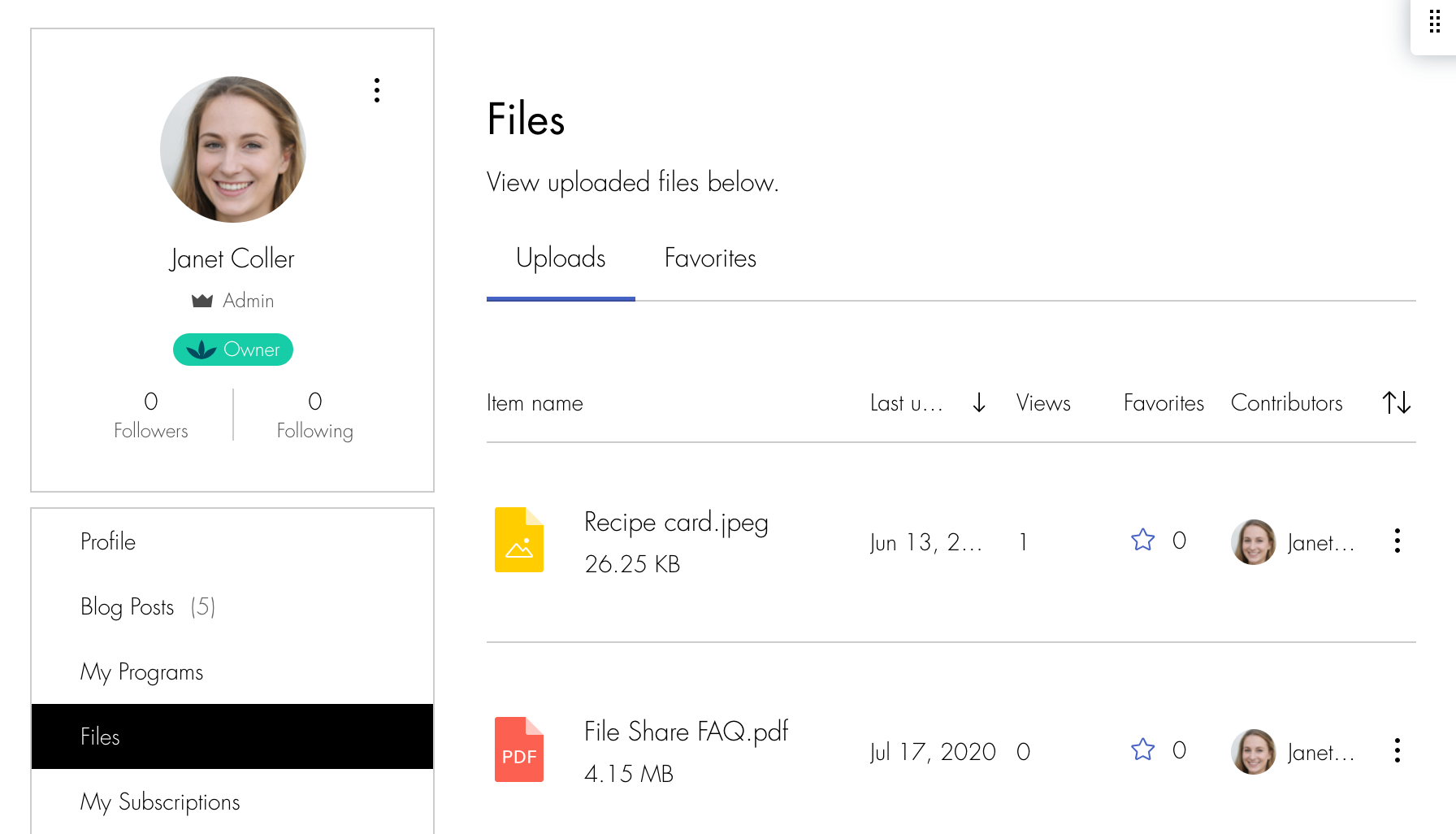
A screenshot showing the file share tab in the members area.

Notes:

  • Only members who are part of the community are able to see which files a member uploaded.

  • If you have a Custom Sign Up form, you need to enable the Join the Community tab and add Join the Community as a field. If you have a Default Members Sign Up form, you need to set it to mandatory.

What happens when a member marks a folder or file as a favorite?

Marking favorite files and folders is a great way for members to keep track of important files. You can view your own favorites by clicking Files and going to the My Favorites tab. Your favorites are private. Each member can only view their own favorite folders and files.
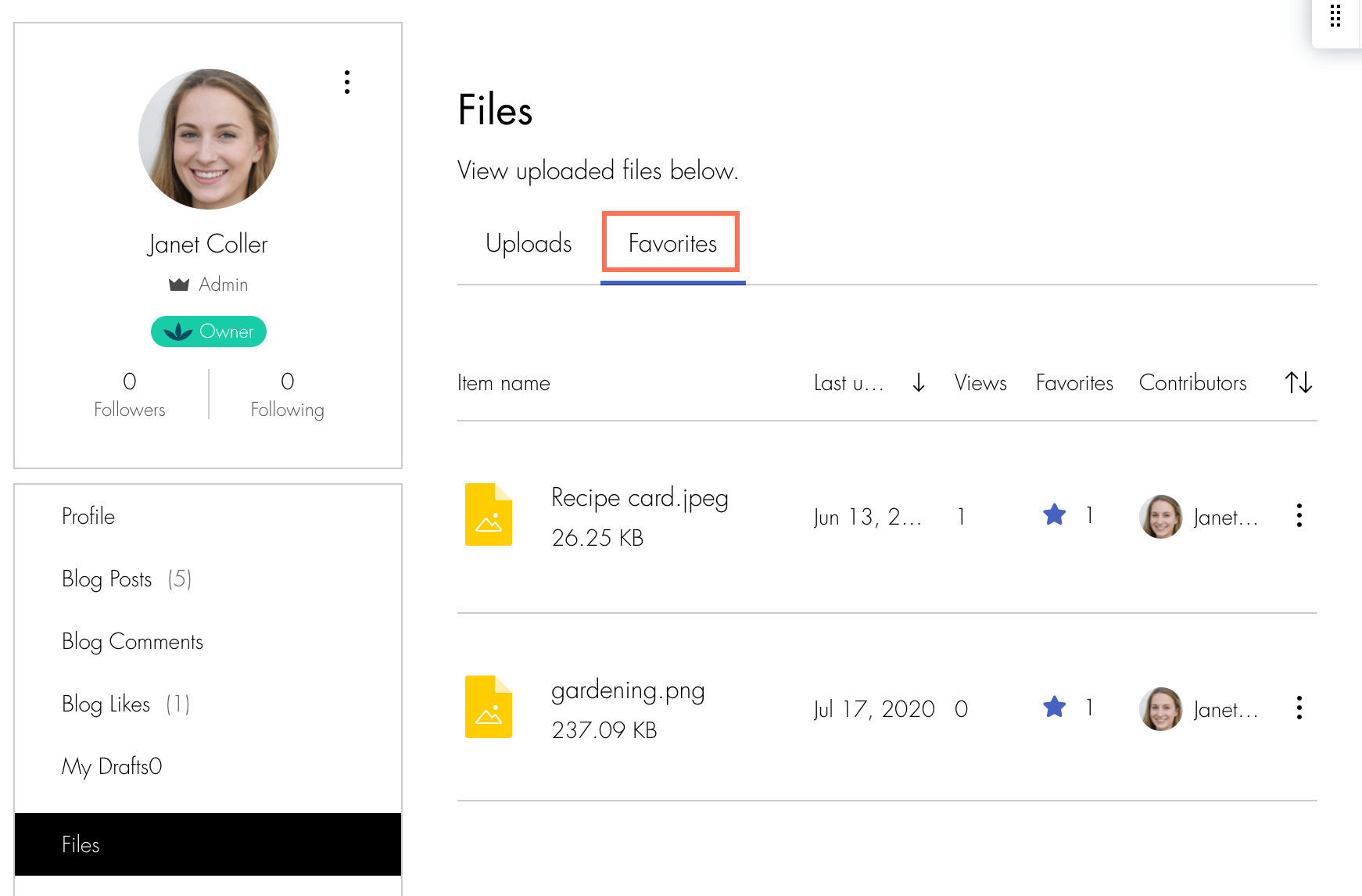
A screenshot showing the files marked as favorite in the file share tab.

How does adding a Member's Area influence other parts of my site?

When a site visitor logs in, they are logged in to all parts of your site. Some parts of your site have their own special member sections. For example, if you have Wix Stores on your site, customers can log in and access their "My Orders" page, where they can view store orders. To learn more about the Wix Member's Area and how it integrates with different parts of you site, click here.

Need A Professional Website?
Contact Us 
Today!

Wix Automations: Adding and Sending a Coupon

Wix Automations: Sending Automated Emails to Contacts After Form Submissions

Wix Automations: Customizing Automated Emails

Wix Automations: Creating a New Automation

Wix Automations: An Overview

The New Automation Builder: Understanding Email Types

The New Automation Builder: Creating a Multi-Action Automation

The New Automation Builder: Sending Data via Webhook

The New Automation Builder: Adding and Sending a Coupon

The New Automation Builder: Troubleshooting Wix Automations

The New Automation Builder: Understanding Conditions Operators

The New Automation Builder: Setting Up a 'Scheduled Time' Trigger

The New Automation Builder: Sending Data to Google Sheets

The New Automation Builder: Using the Property Picker

The New Automation Builder: Viewing and Managing Automations Installed for You

The New Automation Builder: Customizing Automated Emails

The New Automation Builder: Managing Your Automations

The New Automation Builder: Creating an Automation

The New Automation Builder: Overview

Microsoft Office 365 Mailbox Limits

Resetting the Password for Additional Office 365 Mailboxes

Resetting Your Admin Password for Your Office 365 Mailbox

Accessing Your Microsoft Office 365 Mailbox Through Your Wix Account

Accessing Your Microsoft Office 365 Mailbox Through Your Wix Account

Accessing the Microsoft Office 365 Admin Center

Activating Your Microsoft Office 365 Mailbox Purchased from Wix

Google Workspace: Troubleshooting Login Issues

Google Workspace: FAQs

Google Workspace: Contacting Google Support

Google Workspace Error Message: "You do not have access to Email"

wix experts
Graphic2Traffic web design
©
bottom of page