


File Share
Wix Apps: Uploading Files to the File Share App
With the File Share app, you can create a file sharing library where people can exchange ideas and collaborate on projects.
You can upload files from your site's dashboard or your live site. Site visitors with upload permission can also upload files on your live site.
Learn more about:
Uploading a file from your site's dashboard
Your dashboard is a great place to upload new files to your site. Files are stored in a private folder in your media manager and take up storage space like any other file in your media manager.
To upload a file from your dashboard:
Go to File Share in your site's dashboard.
Navigate to the folder you want to place the file in.
Click +Add File.
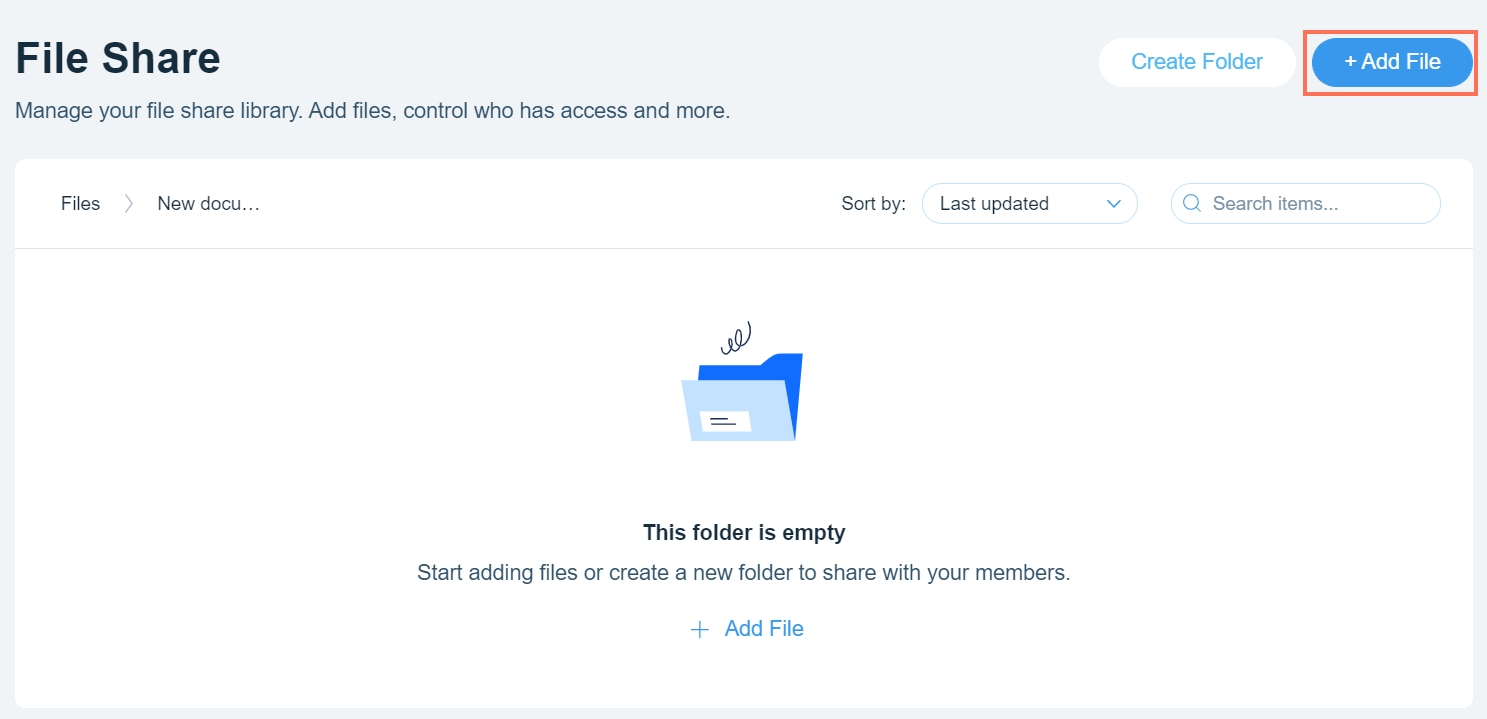
Select the files you want to upload from your computer.
Click Open.
Uploading a file from your live site
You can upload files directly from your live site. This is a good option if you are already working on your live site, as it saves you having to return to your dashboard. Files are stored in a private folder in your media manager and take up storage space like any other file in your media manager.
To upload a file on your live site:
Go to the File Share app on your live site.
Log in using the email address associated with your Wix account.
Navigate to the folder you want to place the file in.
Click +File.
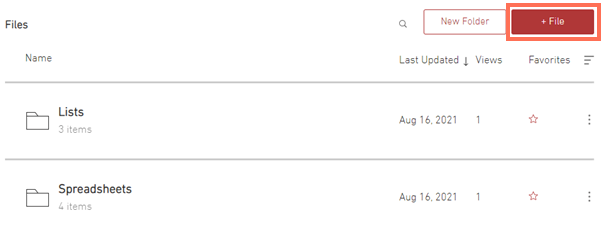
Select the files you want to upload from your computer.
Click Open.
Adding an Upload button to your site
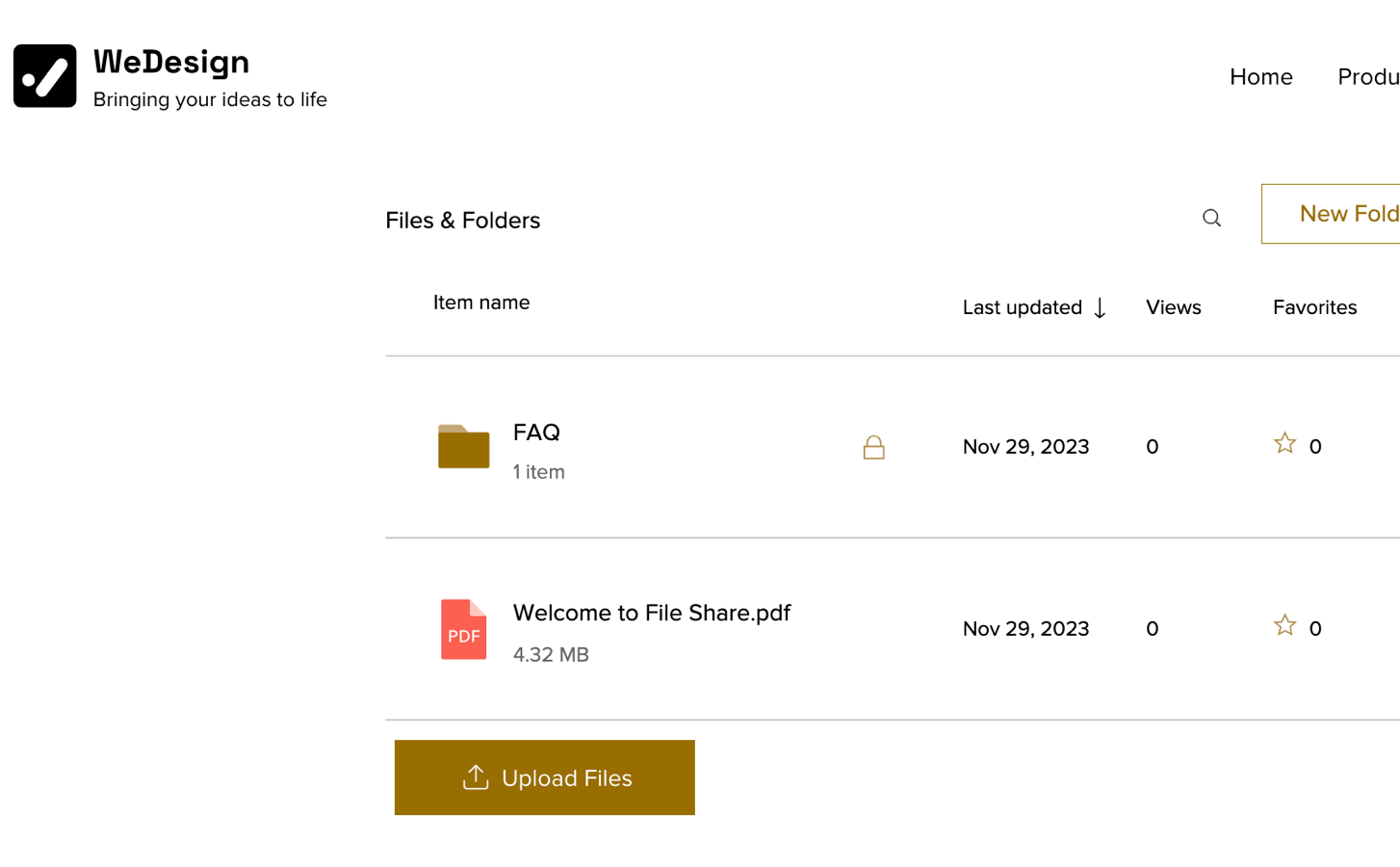
Add a File Share Upload button to a page on your site and let your site visitors upload their own files to the File Share library. You can choose to place the button on any of your site pages, which makes the process of uploading that much easier.
To add an Upload button:
Go to the File Share page in your editor.
Click Settings.
Click the Add Ons tab.
Click Choose Add-On.
Click the Add to Page drop-down next to Upload Button.
Select the page you want to add the button to.
FAQs
Click a question below to learn more.
What files are supported?
The File Share app supports a wide range of file types and sizes.
How are my files stored?
Files and media are stored in a private folder in the media manager. This means those files are not visible in the media manager, but still take up space in your site storage if they are in your file share app.
Can members view uploads?
Yes, members can view other members' uploads by clicking on their profile in the Member page. Learn more about using File Share with the Member's Area.