


File Share
Wix Apps: Managing Files and Folders in the File Share App
With the File Share app, you can create a file sharing library where people can exchange ideas and collaborate on projects.
Save time by making changes to multiple files and folders at once on your live site or your site's dashboard. Select the files and folders you want to change and then download, move, or delete them.
In this article, learn more about managing files and folders:
Managing files and folders from your site's dashboard
You can download, move, delete, rename and share multiple files or folders as well as manage permissions directly from your site's dashboard.
To manage files and folders from your site's dashboard:
Go to File Share in your site's dashboard.
Go to the relevant file or folder.
Select the checkboxes next to the files or folders you want to select.
Click the More actions icon
 next to the relevant file or folder.
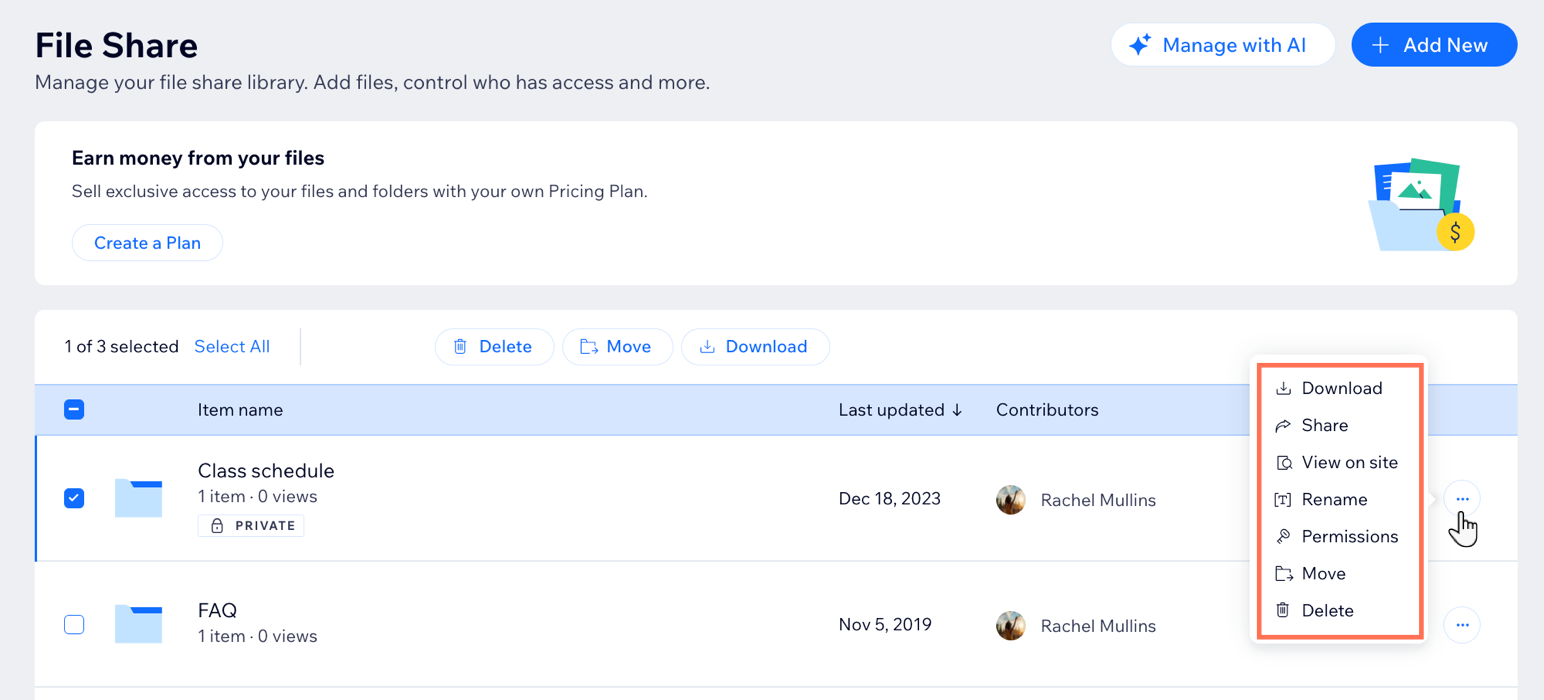
Choose from the following options:Download: Download the file or folder to your computer.
Share: Share your file or folder on Facebook or X (Twitter) or copy the URL provided.
View on site: View how your files and folders look on your live site.
Rename: Enter a different name for your file or folder and click Save.
Permissions: Add members, roles or pricing plans to your file or folder and click Done.
Move: Select the folder you want to move your item to and click Move Here.
Tip: Click + New Folder if you need a new folder to add your item to.
Delete: Delete the item from the app. Click Delete to confirm.
Managing files and folders on your live site
You also have the option to download, move, share, delete, and rename multiple files or folders as well as manage permissions from the File Share app on your live site.
To manage files and folders on your live site:
Go to the File Share app on your live site.
Log in using the email address associated with your Wix account.
Go to the relevant file or folder.
Click the More Actions icon
 next to the relevant file or folder.
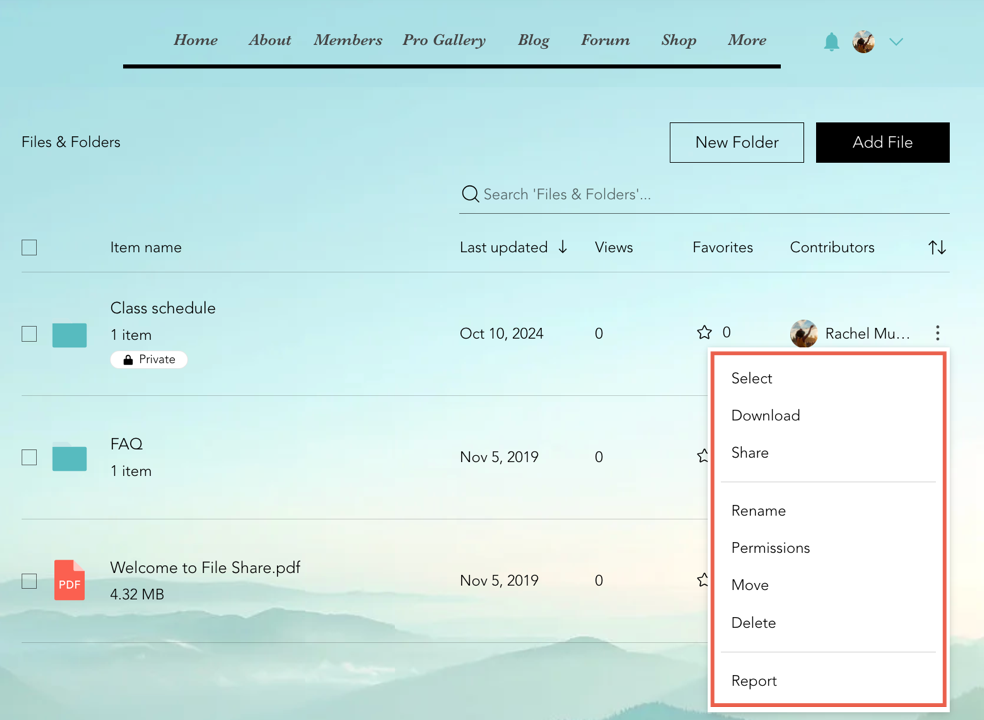
Choose from the following options:Select: This selects the file or folder beside the More actions icon
 .
.
Download: Download the files to your computer.
Share: Share your file or folder on Facebook or X (Twitter) or click the link icon to copy the URL.
Rename: Enter a different name for your file or folder and click your site.
Permissions: Add members, roles or pricing plans to your file or folder and click Done.
Move: Select the folder you want to move the item to and click Move Here.
Tip: Click + New Folder if you need a new folder to add your files to.
Delete: Delete the item from the app. Click Delete to confirm.
Report: Select the reason you want to report the file or folder and click Report.
FAQs
Click a question below to learn more about managing files and folders in the File Share app.
Can site members upload files from a mobile device?
Yes. Members can interact with your file sharing library using a mobile device. Site members can perform any actions (view, upload, share, move files, etc.) they have permission to do.
How do I select multiple files and folders in the File Share app?
To select multiple files and folders, select the checkbox next to each item you want to manage. You can then perform actions like downloading, moving, or deleting them all at once.
Is there a limit to the number of files and folders I can manage at once?
There is no specific limit to the number of files and folders you can select and manage at once. However, handling a very large number of items may take some time and could impact performance.
Can I create subfolders within a folder?
Yes. You can create subfolders within any existing folder. While in a folder, click + Add New, name your folder, and then drag and drop files into the new folder.
Can I download multiple files and folders at the same time?
Yes, you can download multiple files and folders simultaneously. Select the items you want to download and click the "Download" button. The files will be compressed into a single ZIP file for ease of download.
What happens when I delete files and folders?
When you delete files and folders, they are permanently removed and cannot be recovered. Make sure to double-check your selections before confirming the deletion.
How do I manage access permissions for my files and folders?
To manage access permissions, right-click on the file or folder and select "Permissions." You can then set the appropriate access levels for different members or groups.
How can I ensure my files and folders are secure?
You can regularly update your access permissions, use strong passwords, and back up important files to ensure the security of your data. Additionally, consider enabling two-factor authentication for an added layer of security.