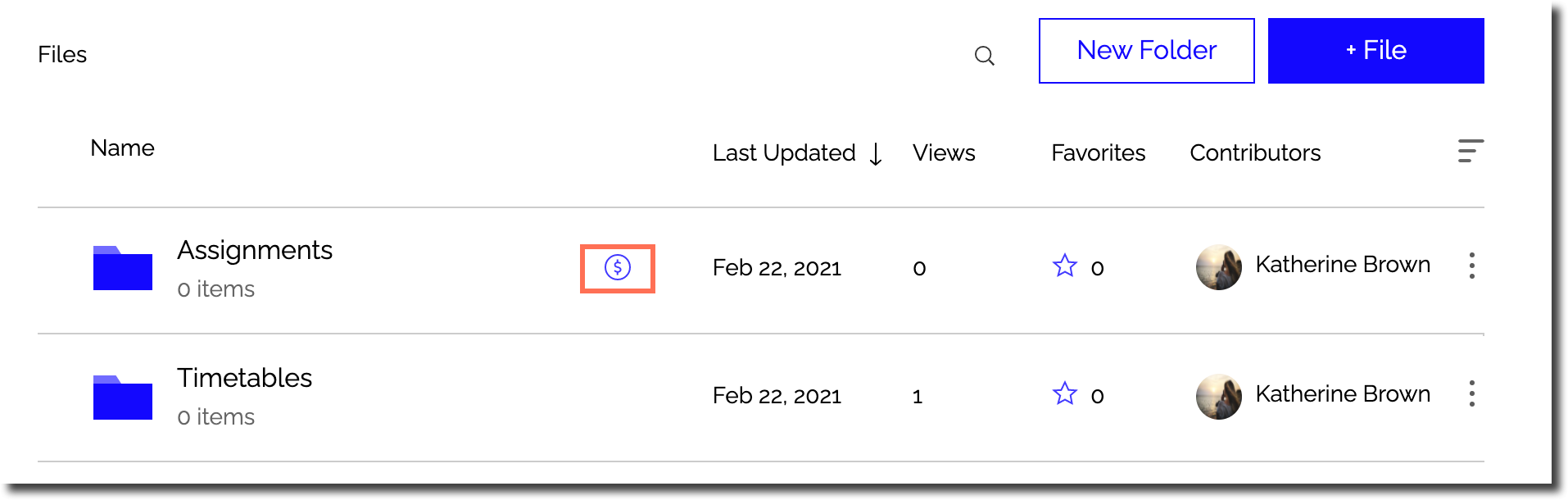
File Share
Wix Apps: About the File Share App
With the File Share app, you can create a file sharing library where people can exchange ideas and collaborate on projects. It's perfect for schools, businesses, and communities to securely upload and share documents.
Here are some ways to make the most of it:
Share files with clients to download and share
Create a Members Area for your community file sharing
Receive files from site members
Keep track of important files by marking them as favorites
Create a space where different groups can share files they are collaborating on
Customize access permissions for site members to view, upload, download, and manage files.

Create folders and upload files
With the File Share app, you can easily organize your files by creating folders and uploading various file formats such as images, videos, audio, and documents. Wix supports a wide range of file formats across different products.
When using the File Share app, you can upload larger file sizes and there's no limit to the number of files you can upload to your site. Check out the supported file types for more information.
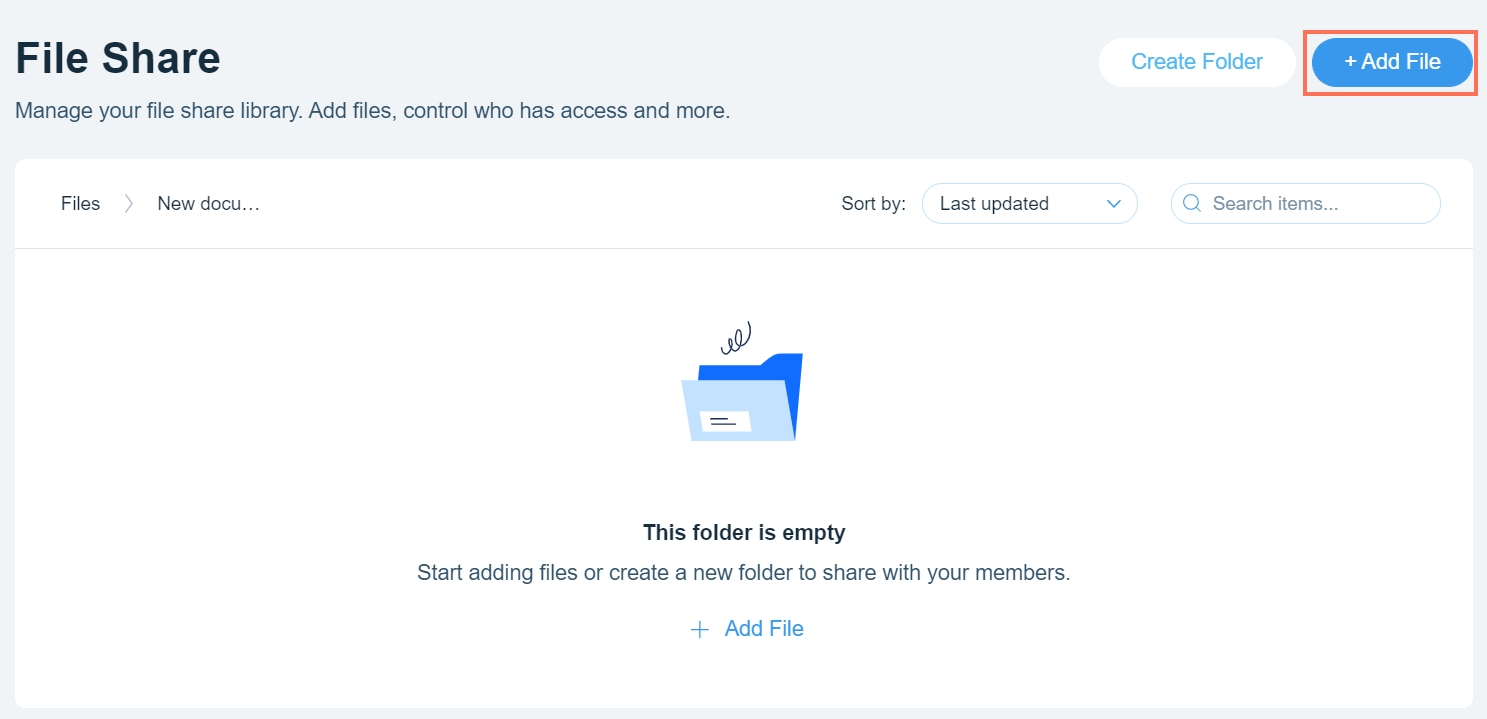
Make a library of files
Create a file library where you and your community can easily share files with one another. Site members can search for specific files and organize them in folders for easy access.
This is great for collaborating with clients, teams, students, and community members. Learn more about setting library permissions.
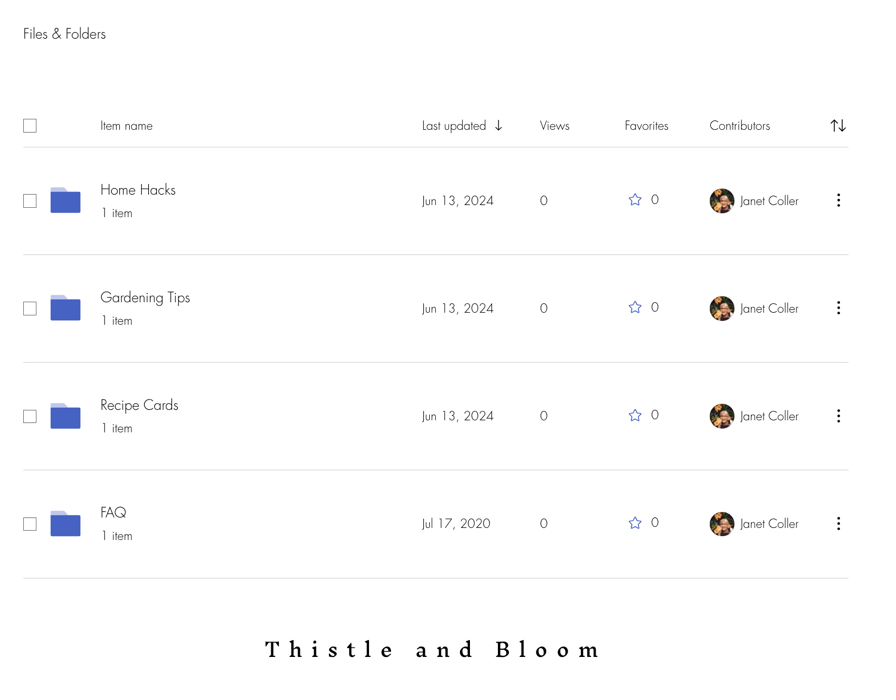
Add some customization:
Choose what information to display about files, select how your files are sorted, and customize the colors and fonts used.
Limit access to folders for certain members
Need to restrict certain files? You can create private folders by setting the permissions to allow that folder to be accessed by selected members of your site. For example, patient files that can only be accessed by doctors. You can also hide these folders so that they are not visible to site visitors.
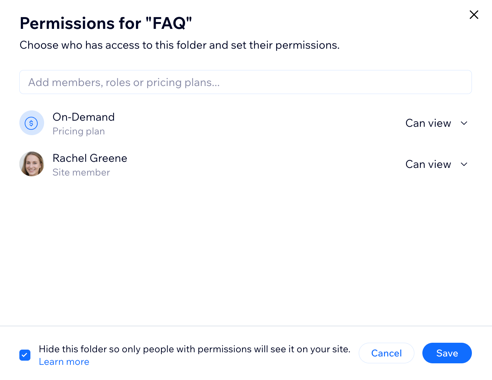
Offer subscription plans and earn money from your folders
Do you have files that people are willing to pay for? You can add a Pricing plan to certain folders and provide access to the files for a fee. This means anyone that wants to download these files needs to pay for access, for example, recipe cards or digital templates.